
Legacy ZIXEL documentation. Screens and plan limits may differ from the current zCAD Beta. View current 3D CAD help.
Choose the sign-in method that works for you. The workspace uses your account to identify your organization and access permissions.
Do not stay signed in on a shared or public device.
Sign in with your account
Use an existing workspace account, or create an account as part of signing in.
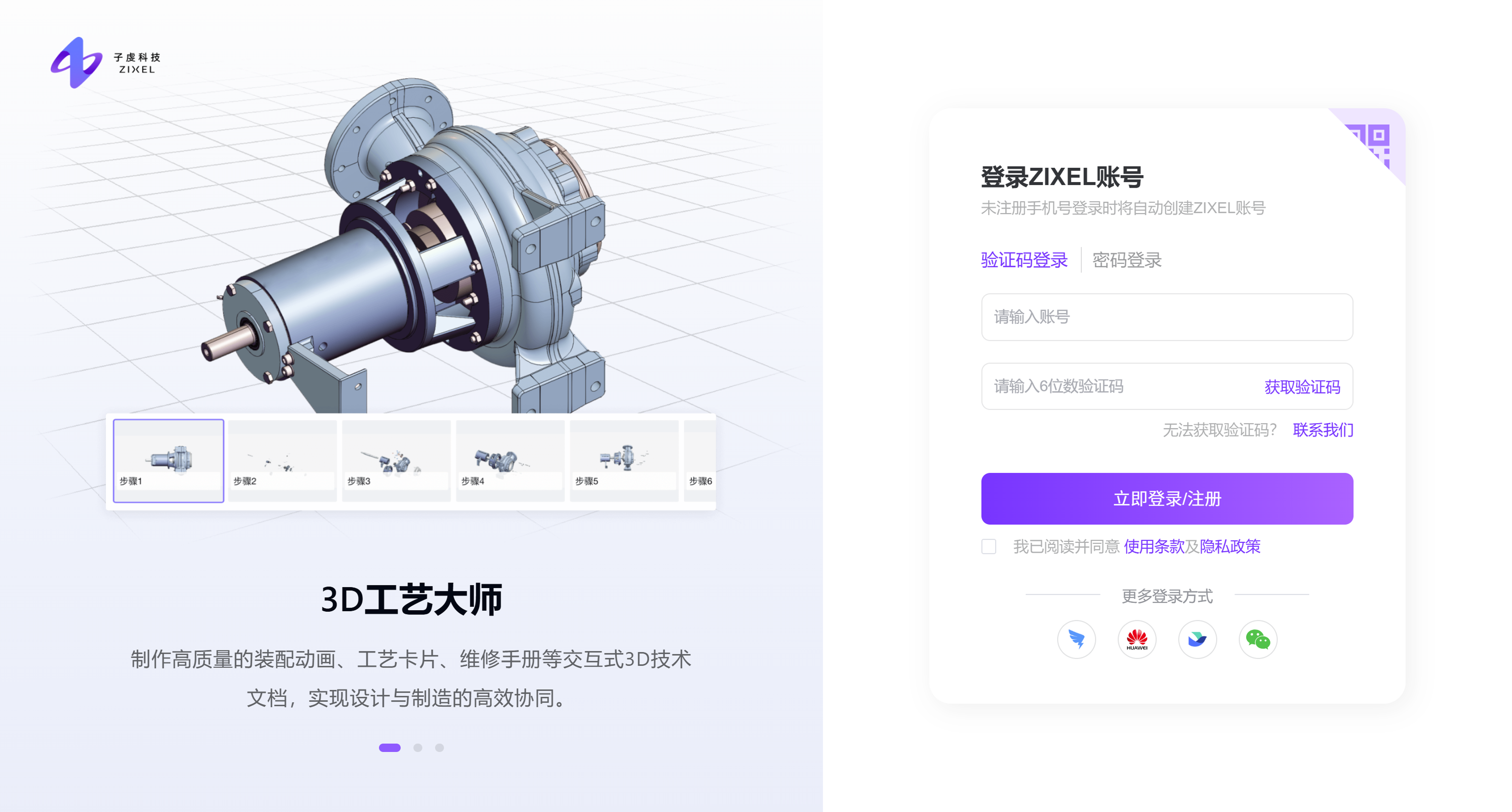
Sign in with a verification code Enter the phone number linked to your account, request an SMS code, and enter the code to sign in. If the number is not registered, a ZIXEL account is created for you.
Sign in with a password Enter your account credentials and password.
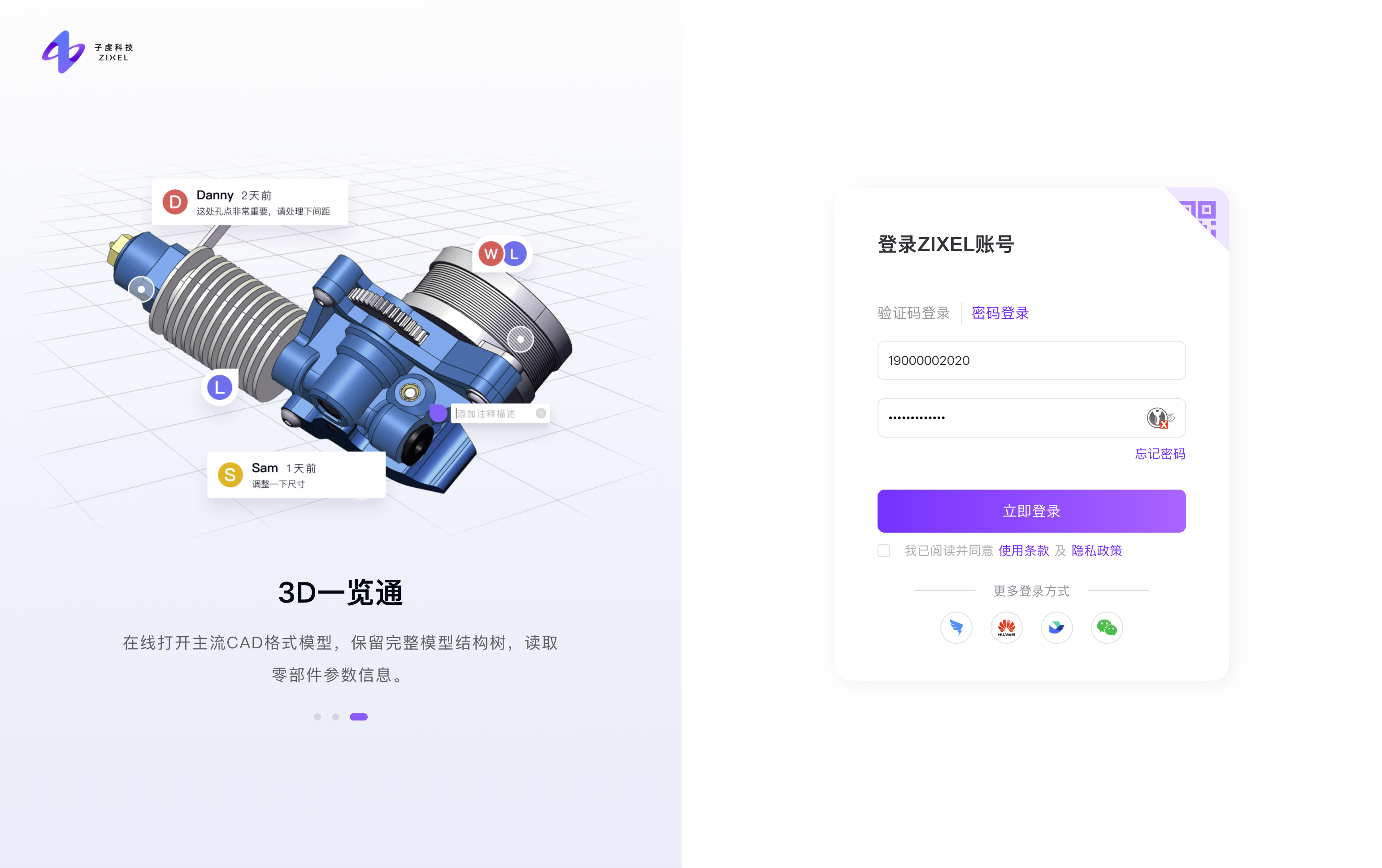
Sign in through another platform
For organizations using a connected identity provider, signing in also links your organization information.
The first time you sign in through another platform, you may need to authorize the app, link an account, or provide additional information.
If you cannot sign in, check your network connection and confirm that your organization has granted your account access.
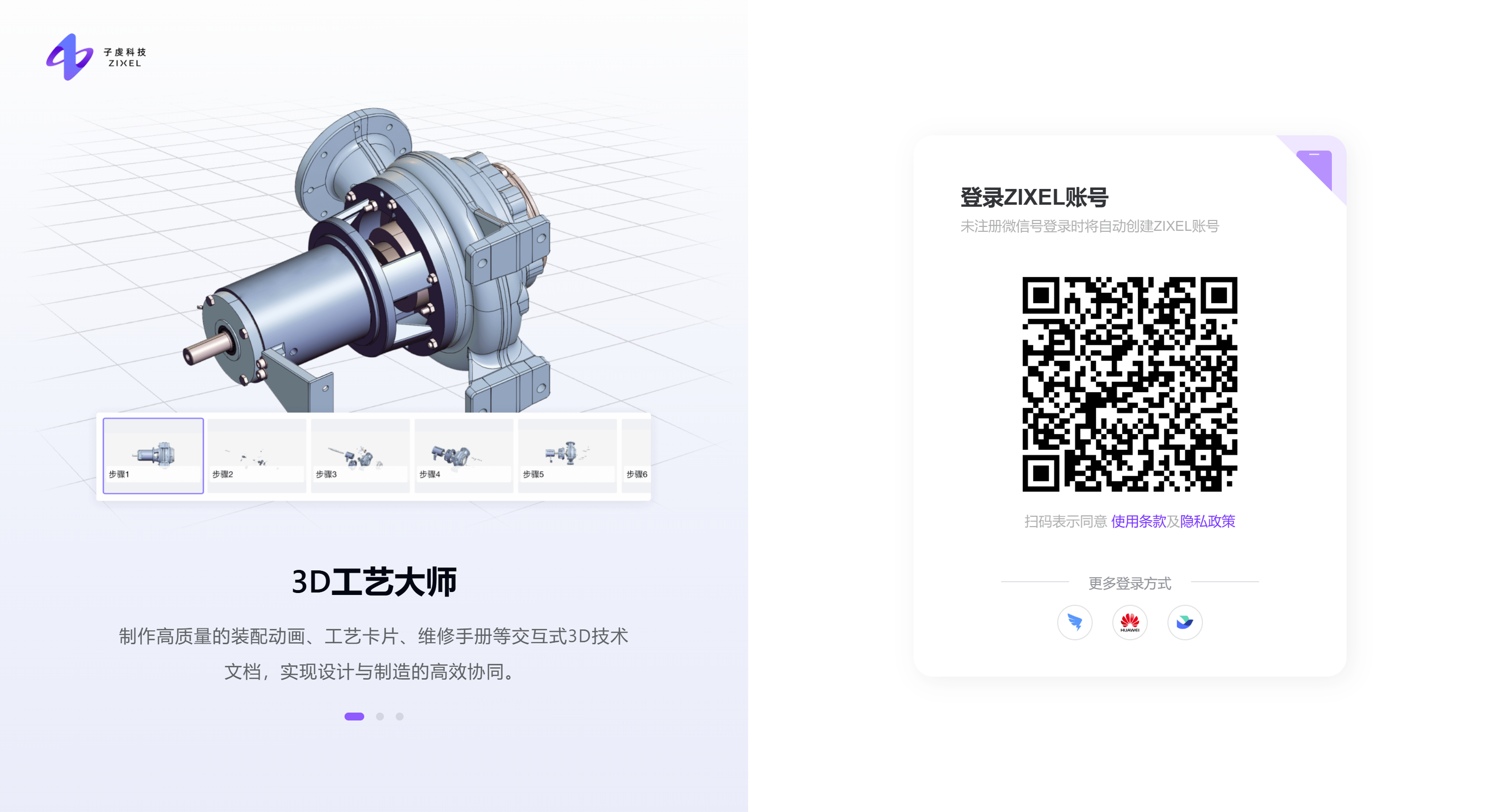
Sign in with WeChat Scan the QR code on the sign-in page with WeChat, then approve the request on your phone.
Sign in with WeChat
Step 1: Choose a sign-in method
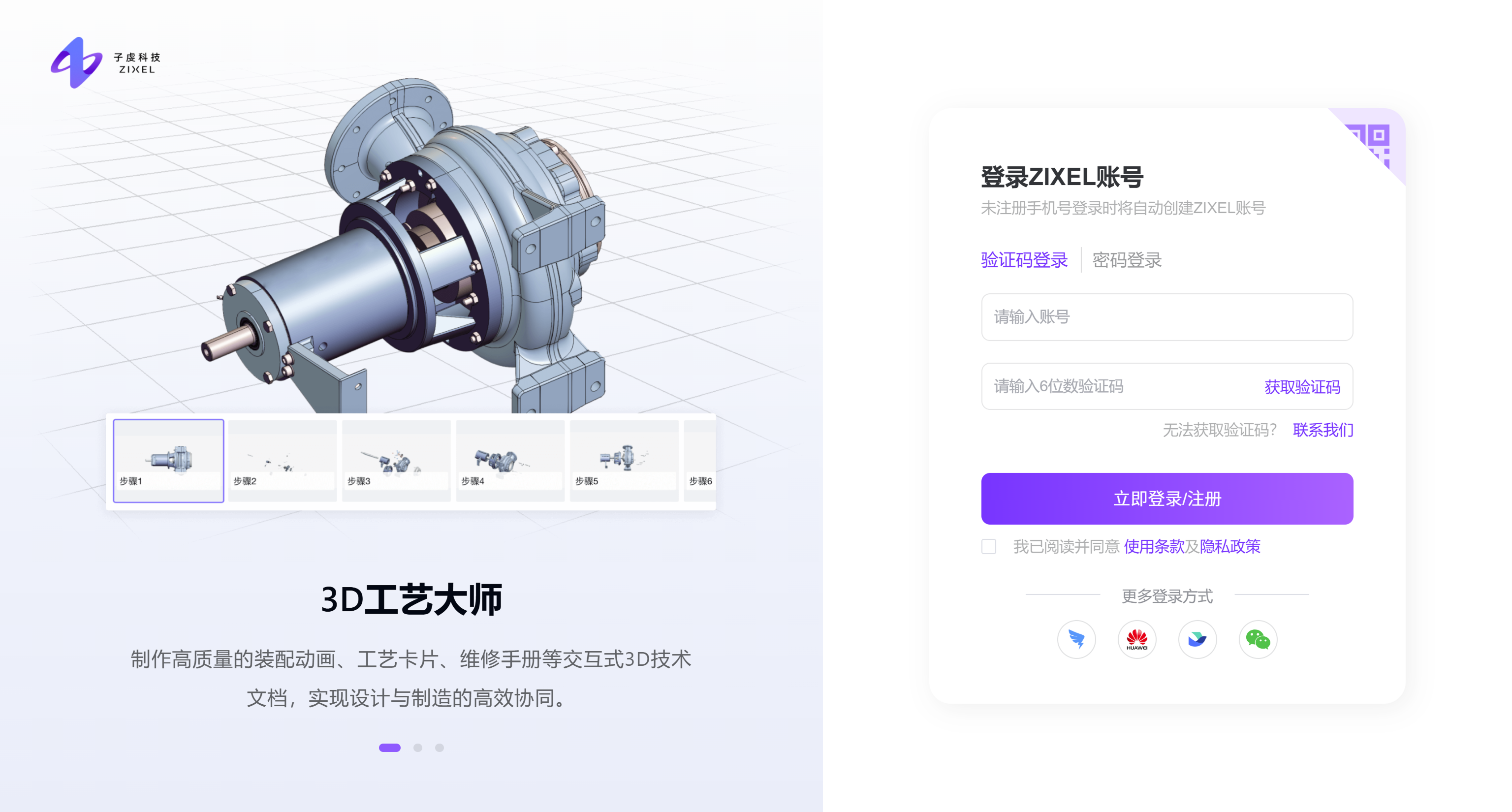
On the ZIXEL sign-in page, find More sign-in options and click the WeChat icon.
Step 2: Scan the QR code
Open Scan in WeChat on your phone and scan the QR code shown on the page.
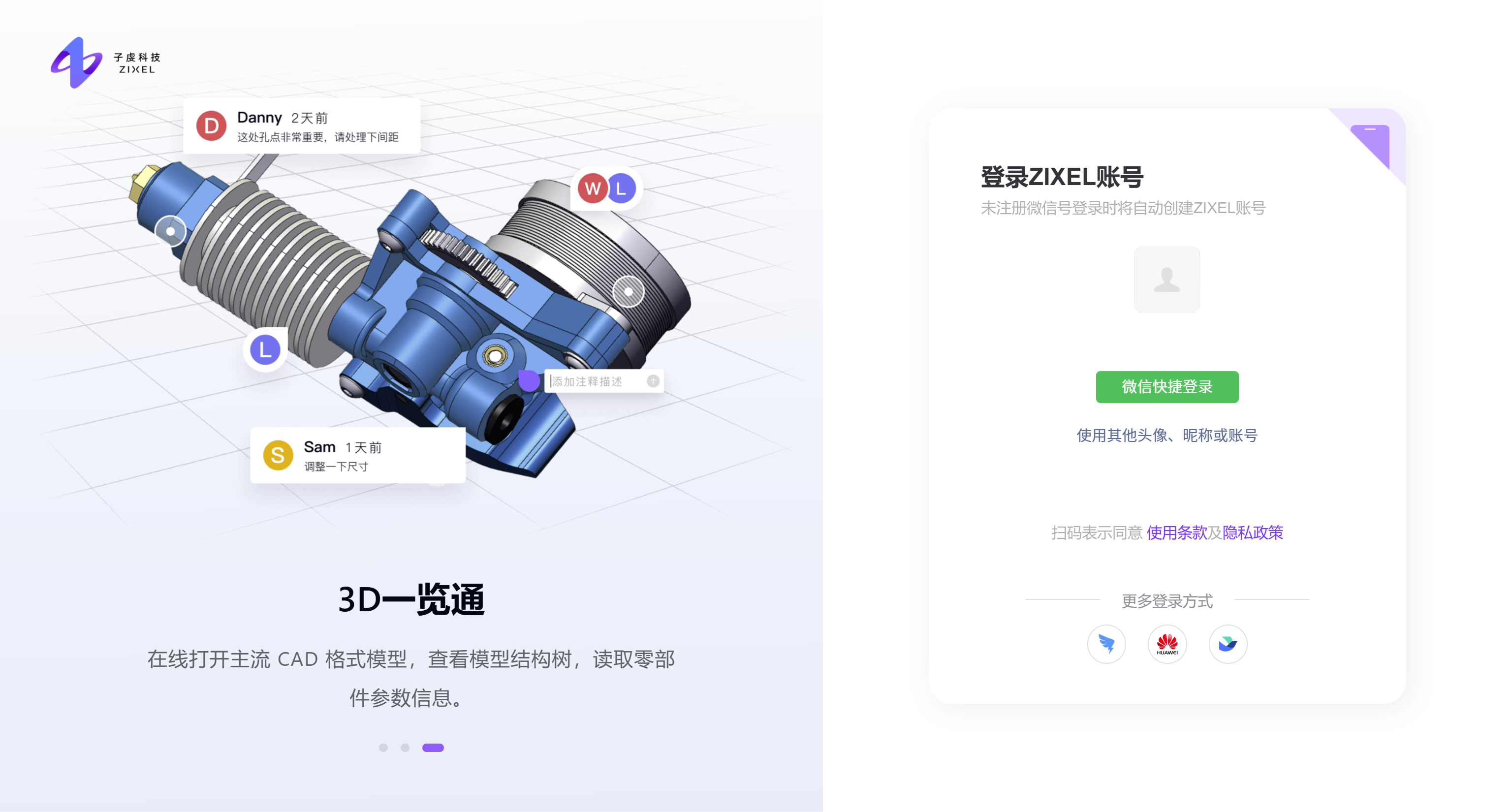
If you are signed in to WeChat on your computer, you can use quick sign-in.
Step 3: Check your account
If you have used this WeChat account before ZIXEL , the system recognizes it and continues to the next step.
If this is your first time using this WeChat account ZIXEL , the system creates a new ZIXEL account for you.
Step 4: Authorize access
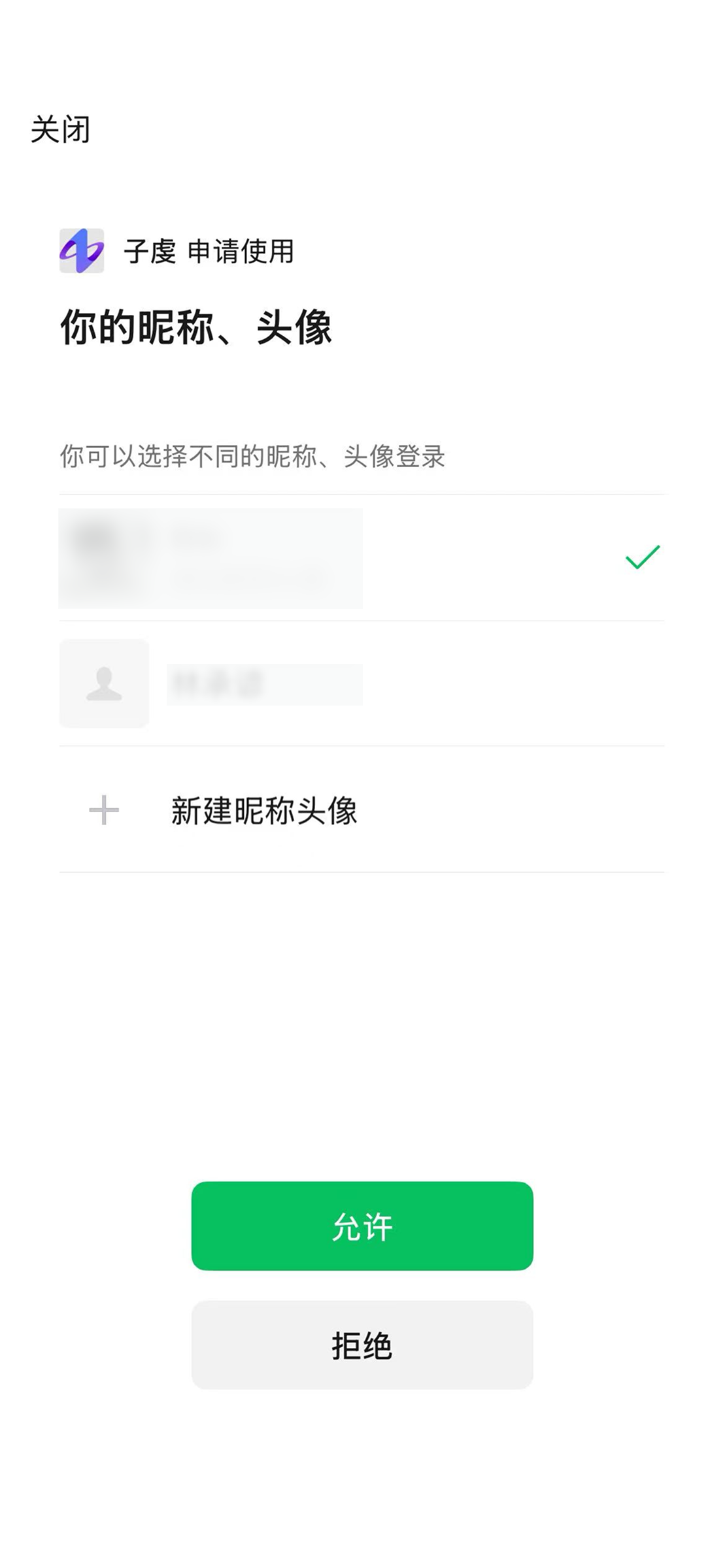
WeChat displays the requested profile information, including your display name, profile picture, region, and gender. Tap Allow to authorize access.
Authorization is required to complete this sign-in method.
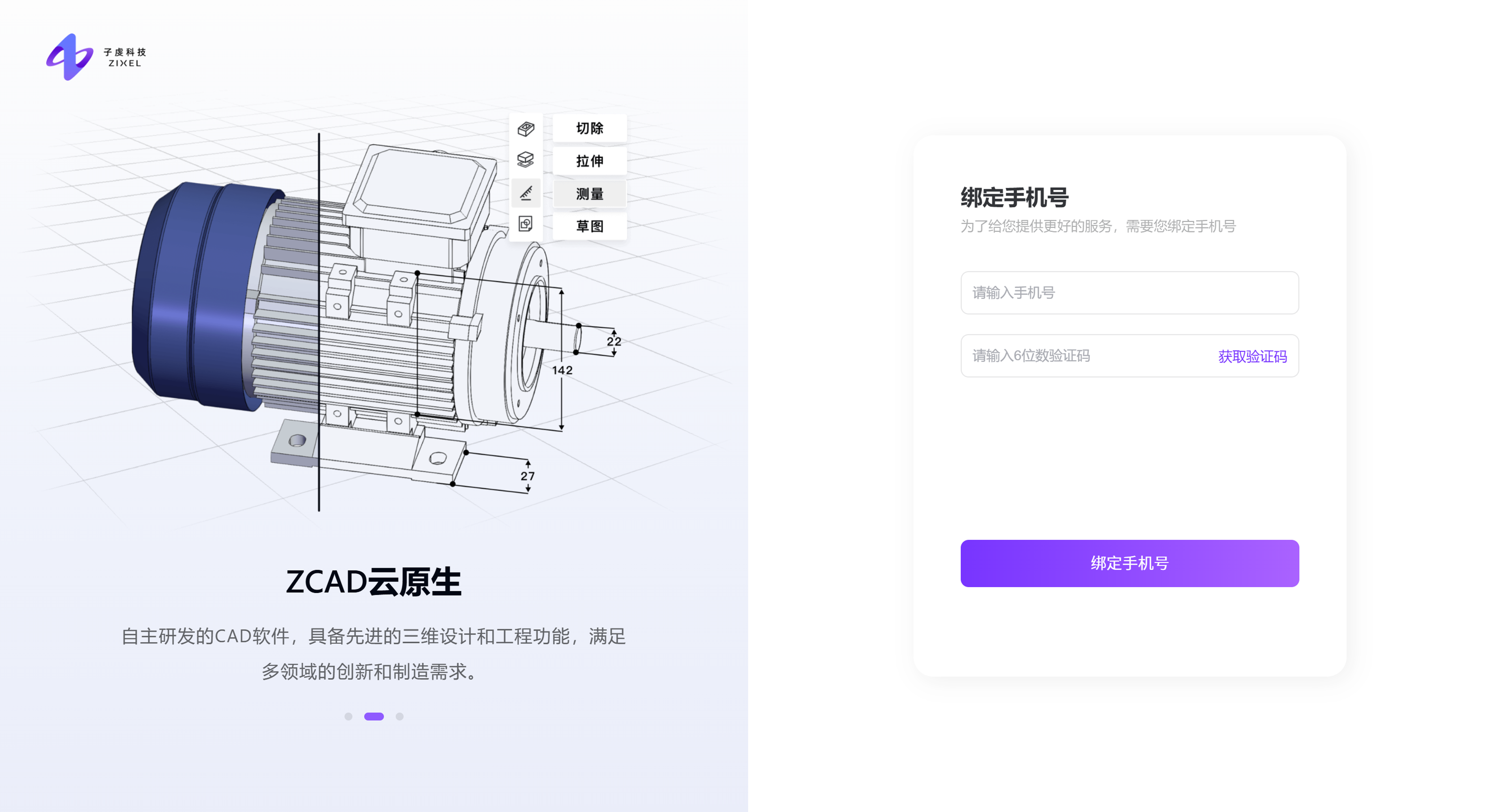
Step 5: Link your phone number
After authorizing access, return to the website:
Enter your phone number.
Click Get verification code.
Enter the SMS verification code.
Click Confirm to link the number.
You are then taken to the ZIXEL workspace home page.
Sign in with DingTalk Choose DingTalk and authorize access with your DingTalk account. The workspace links your DingTalk organization and synchronizes its structure.
Sign in with Huawei Cloud Choose Huawei Cloud and authorize access with your Huawei Cloud account. The workspace links your organization and synchronizes its information.
Sign in with Feishu Choose Feishu and authorize access with your Feishu account. The workspace links your Feishu organization and synchronizes its structure and members.
Feishu sign-in
Standard sign-in steps
Step 1: On the ZIXEL sign-in page, click the Feishu icon under More sign-in options.
Step 2: On the Feishu authorization page, review the app details and click Authorize sign-in. You are then taken to the ZIXEL workspace.
Troubleshoot sign-in
If you still cannot open the workspace after authorization, try these steps in order:
Option 1: Use a different account
Use this option if the current Feishu account has an access issue or you need to switch to an authorized account.
Steps:
Click Sign in with another account.
A new Feishu QR code appears.
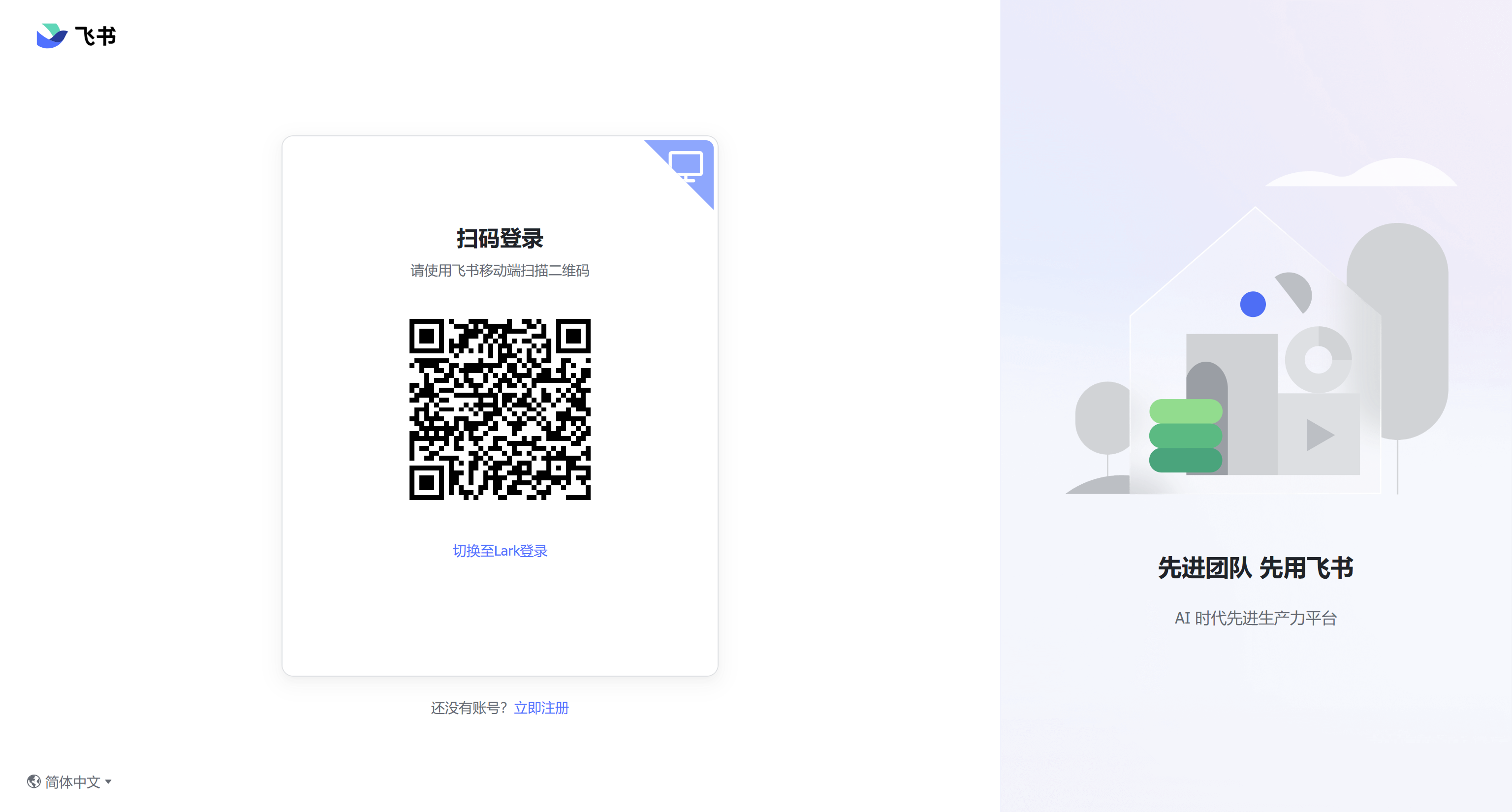
Scan it with the Feishu app on your phone.
Choose an authorization option on your phone:
Authorize all accounts: allow this Feishu identity to sign in to all associated services.
Authorize this account only: allow access only for the currently selected account.
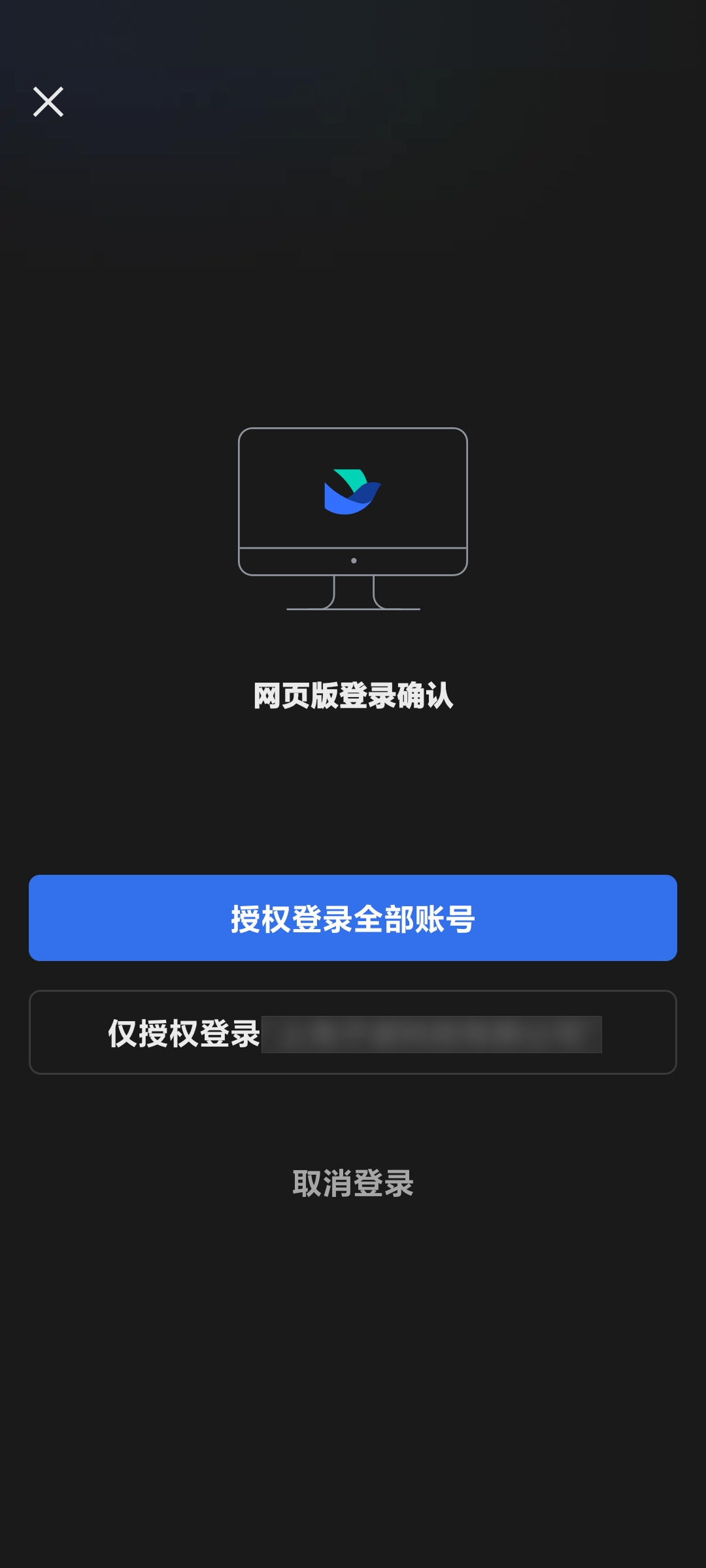
Choose the option you need and complete authorization.
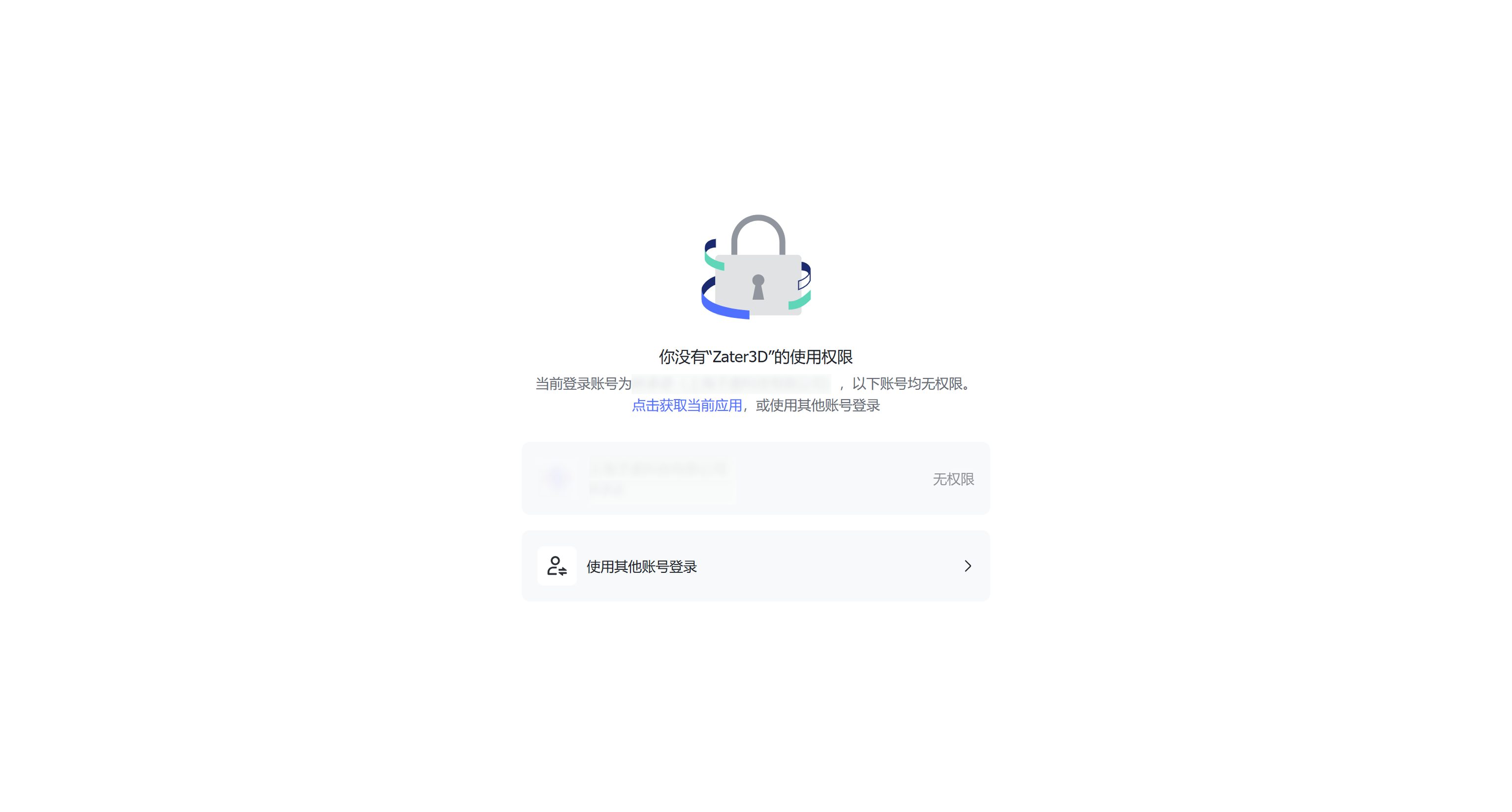
Option 2: Request access to the app
Use this option if the page says that the current account has no access and displays a Get this app button.
Steps:
Check that the Feishu account shown is the correct one.
If it is not, click Use another account and sign in with an authorized account.
If the account is correct, continue to the next step.
Click Get this app to send an access request to your Feishu administrator.
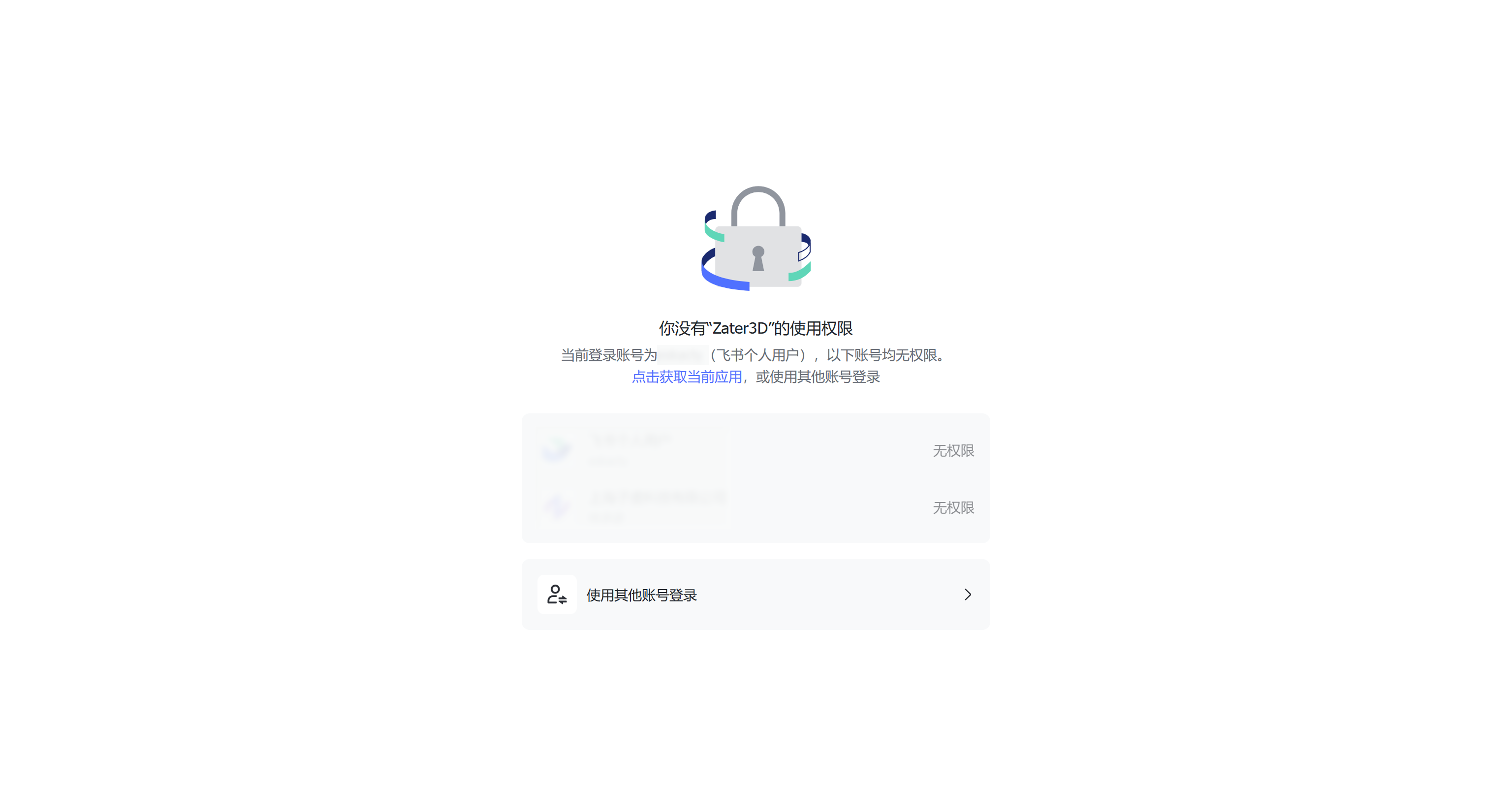
After submitting the request, ask your organization's Feishu administrator to approve it.
Once approved, scan the Feishu QR code again to sign in ZIXEL and open the workspace.
Some organizations do not allow members to request access themselves. If Get this app tells you to contact an administrator, ask your organization's IT administrator to grant access.
Feishu setup for administrators
For more details, see the Feishu Help Center: App management