Legacy ZIXEL documentation. Screens and plan limits may differ from the current zCAD Beta. View current 3D CAD help.
Invite members
Open Member management and click Invite members to add people to your organization.
Member type:
Organization member: someone in your organization.
External contact: someone outside your organization.
When inviting someone, assign a seat immediately or choose Join team only. You can assign or change seats later in Seat management.
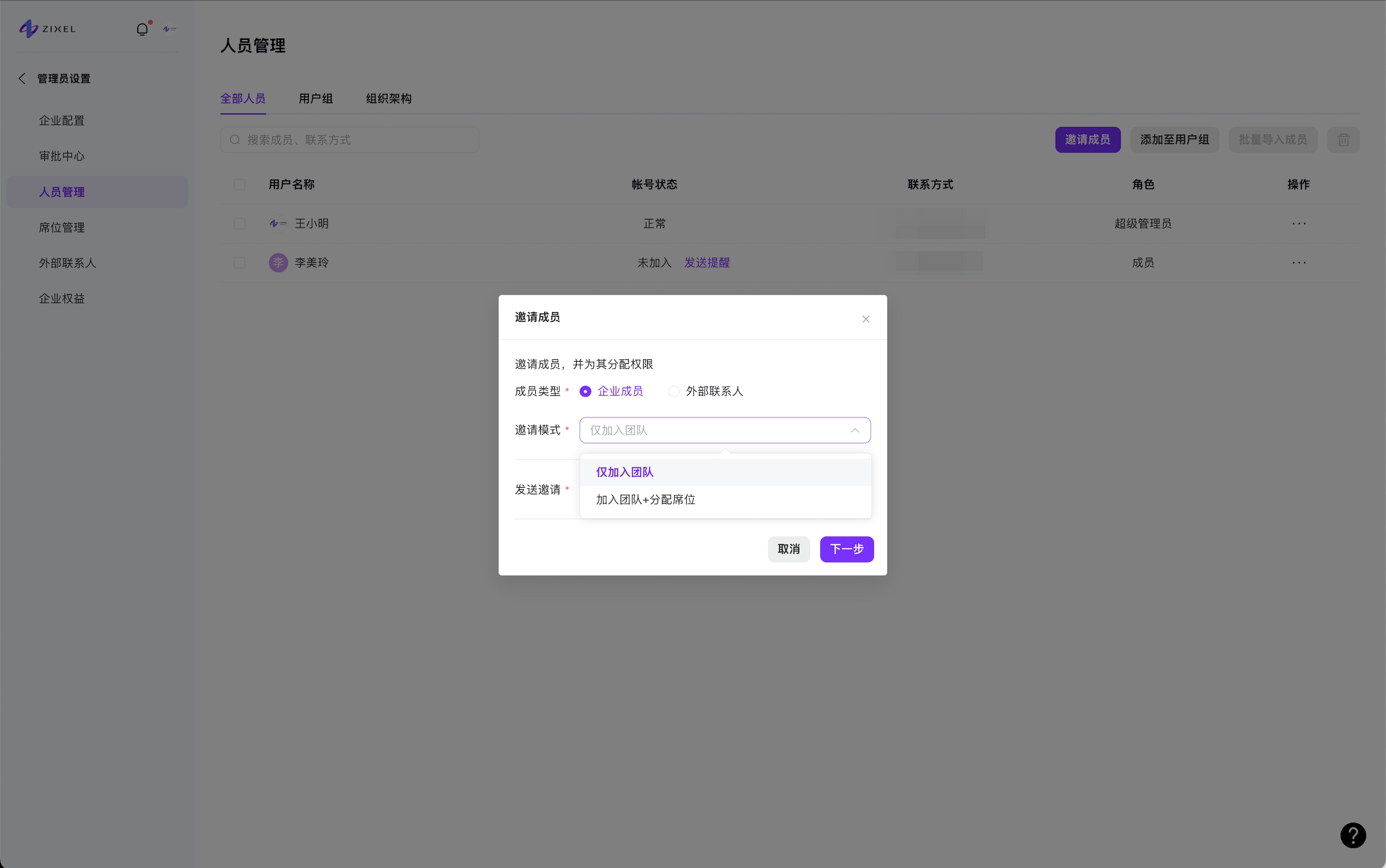
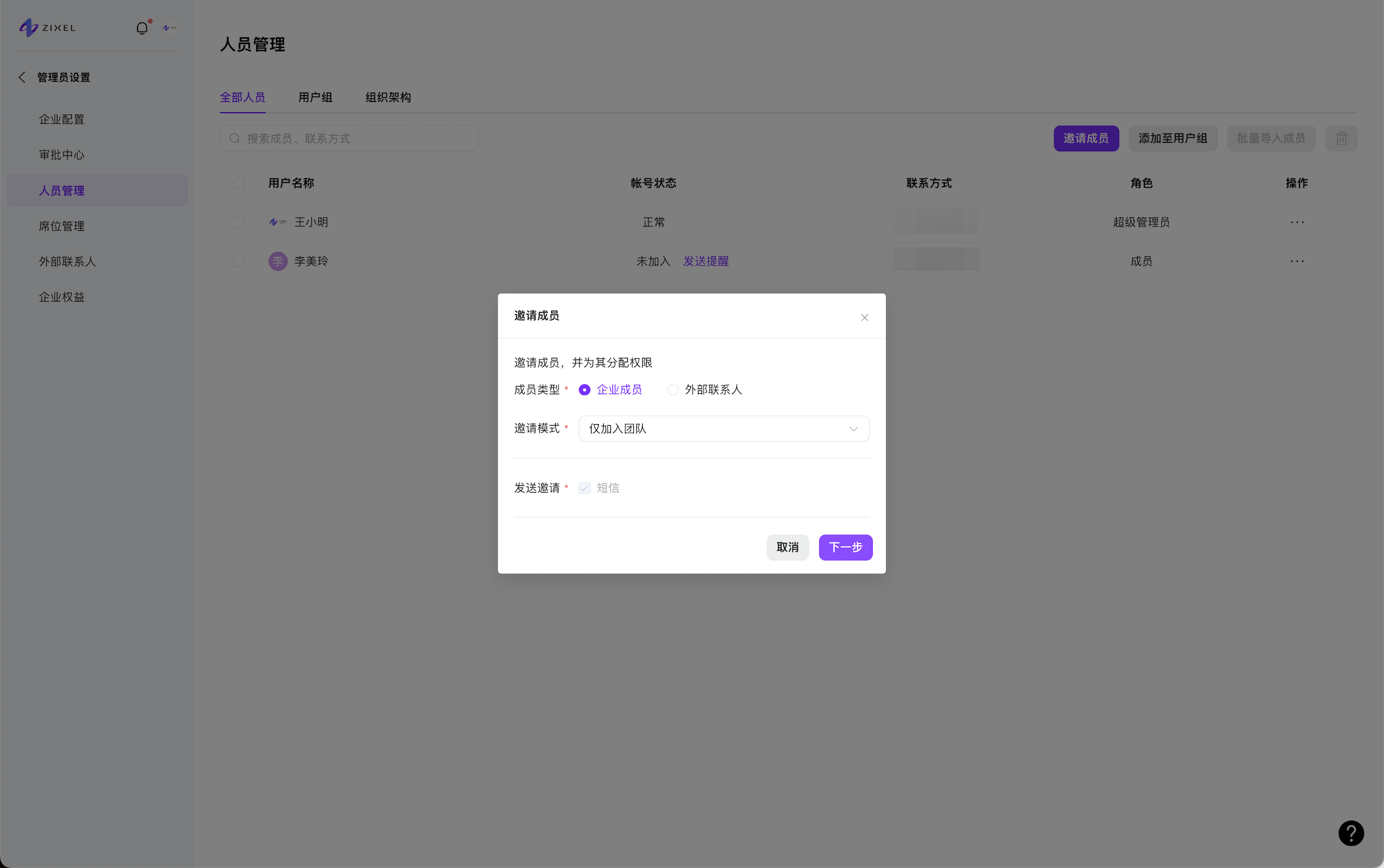
4. Make your selections and click Next. Enter the person's name and phone number, then choose Member or Administrator. You can change the name and role later.
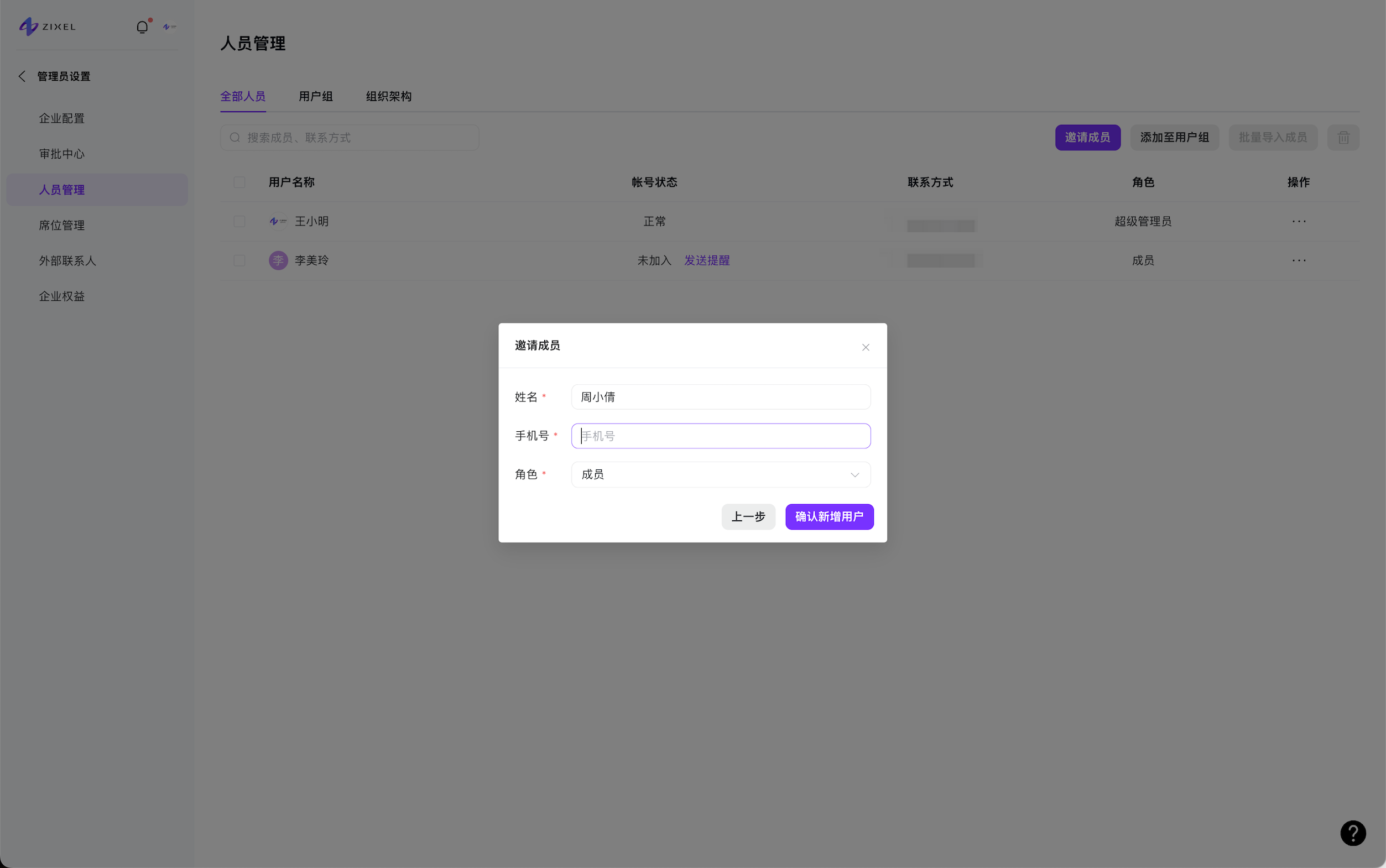
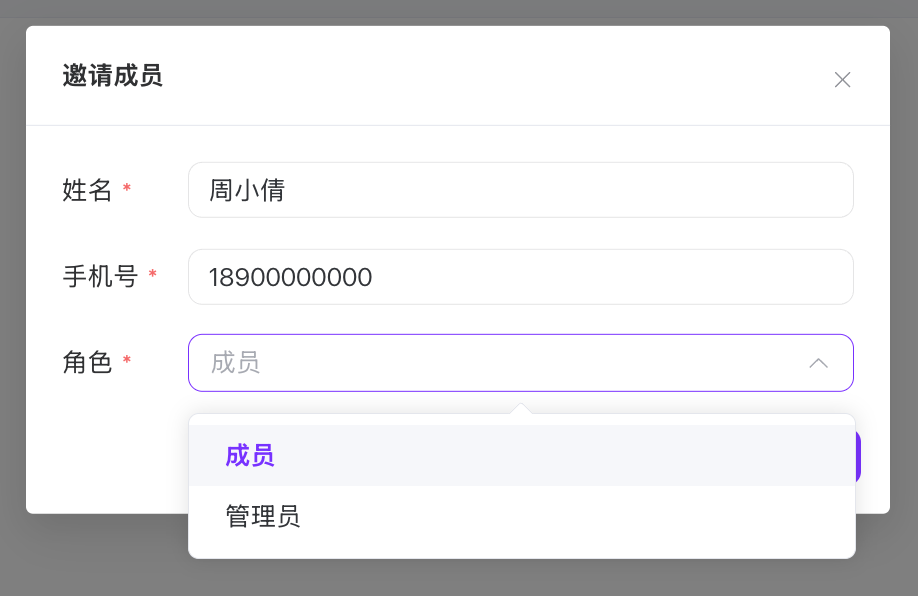
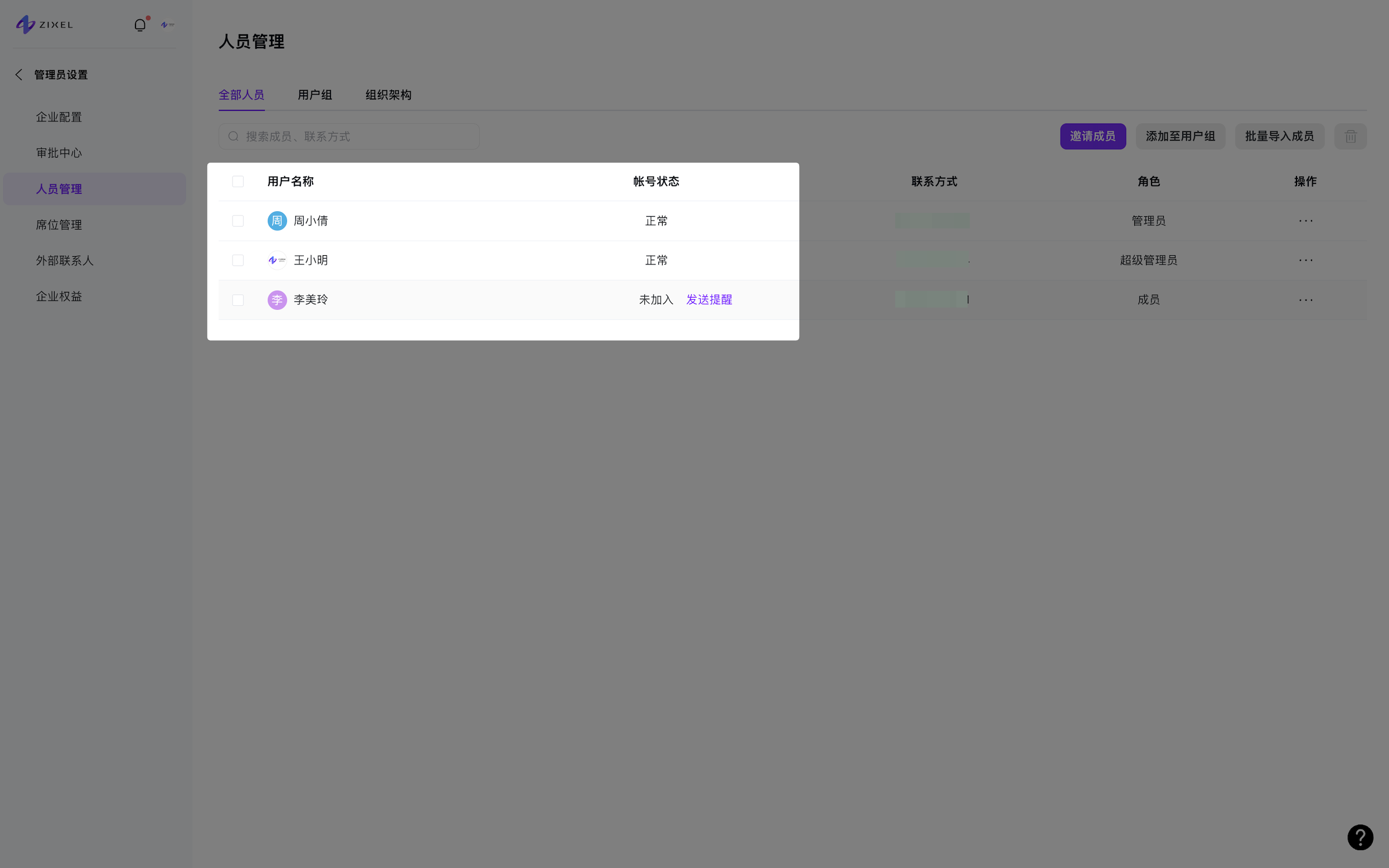
5. Click Confirm and add users. Invited members can have one of two account statuses.
People who already have a workspace account can join immediately and appear as Active.
People shown as Not joined must register a workspace account before they can join.
Import members in bulk
Bulk member import is an Enterprise feature.
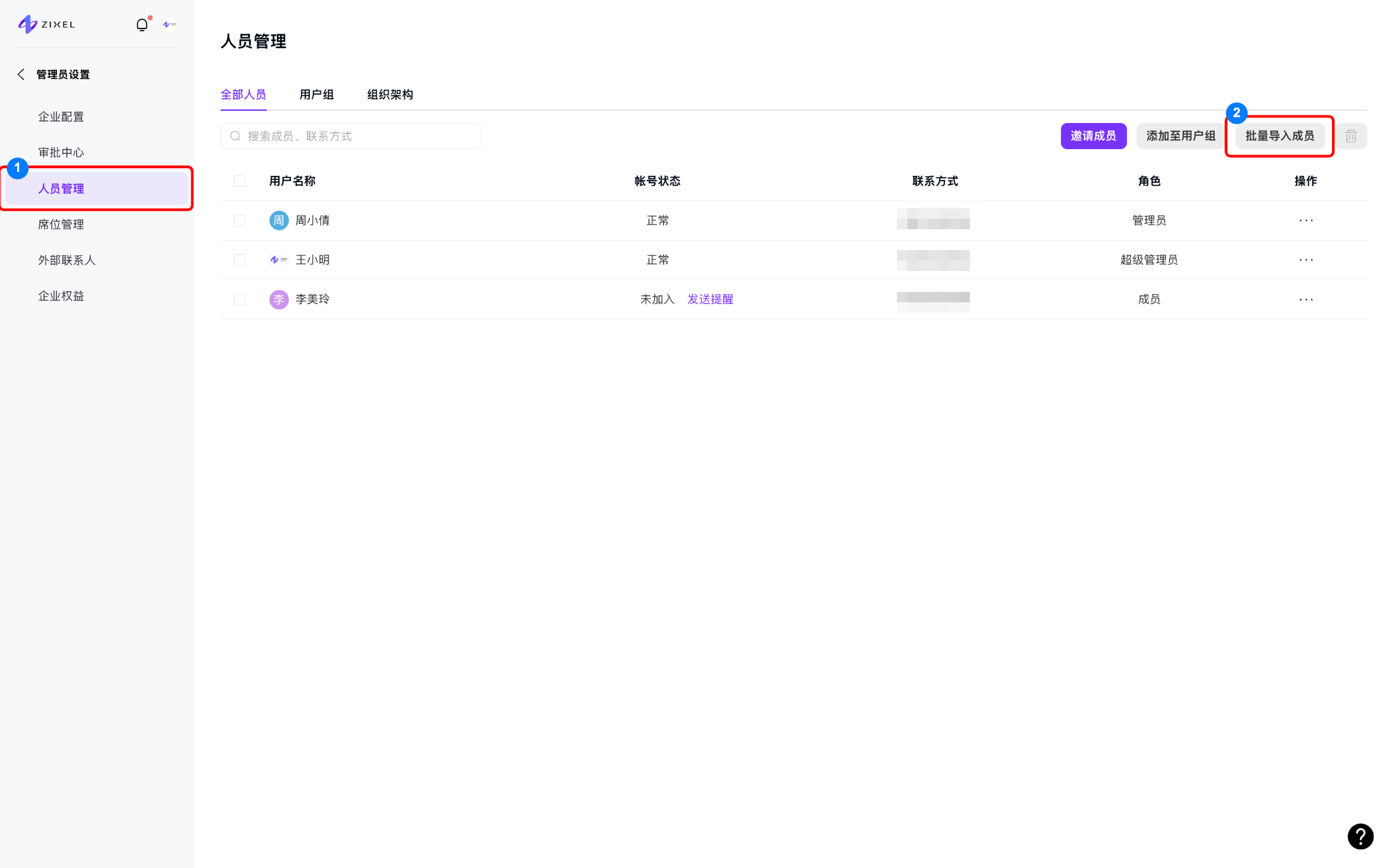
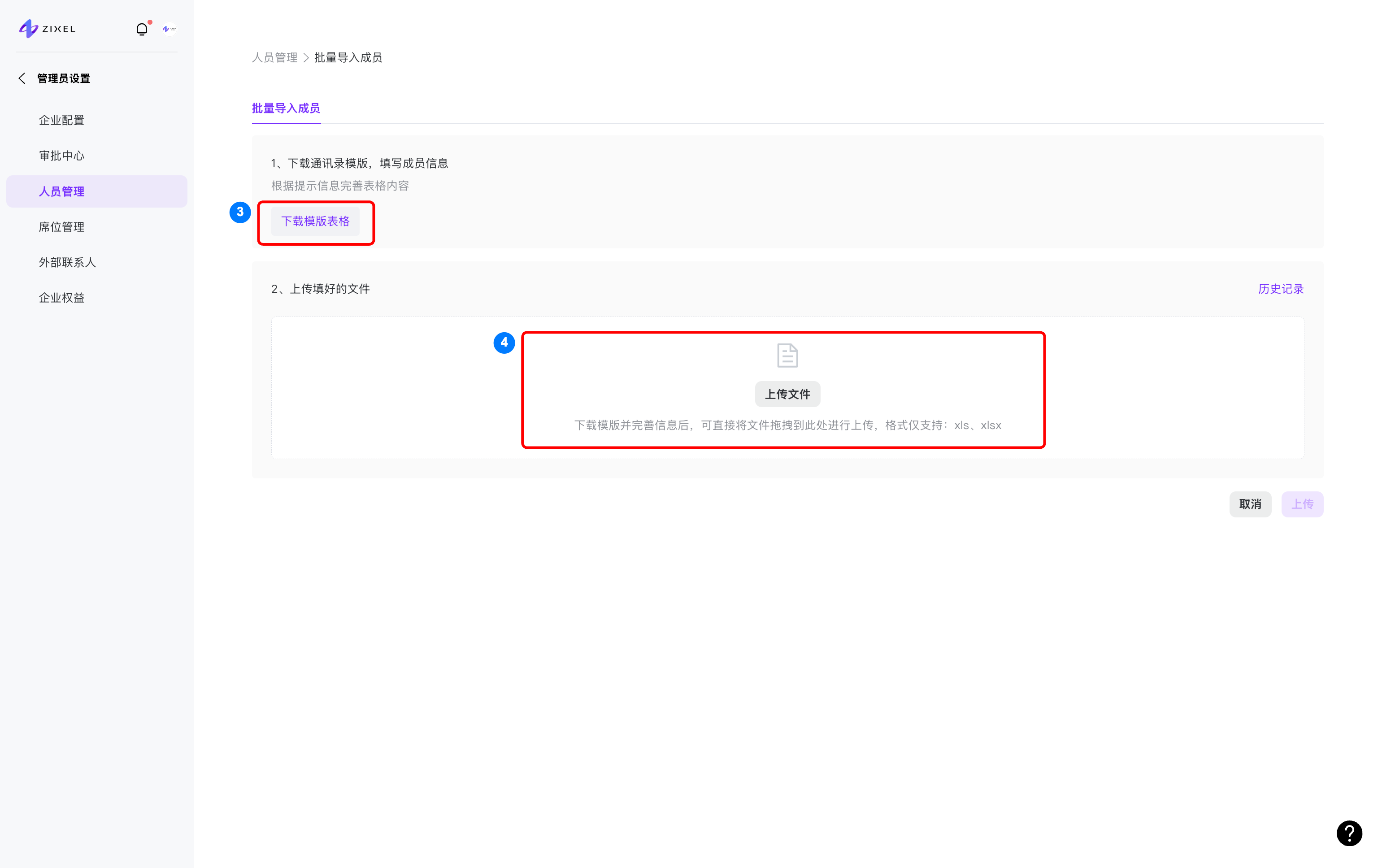
Go to Member management > Bulk import > Download template, then upload the completed file.
Fill in the member details in the downloaded template, then upload it to import the members.
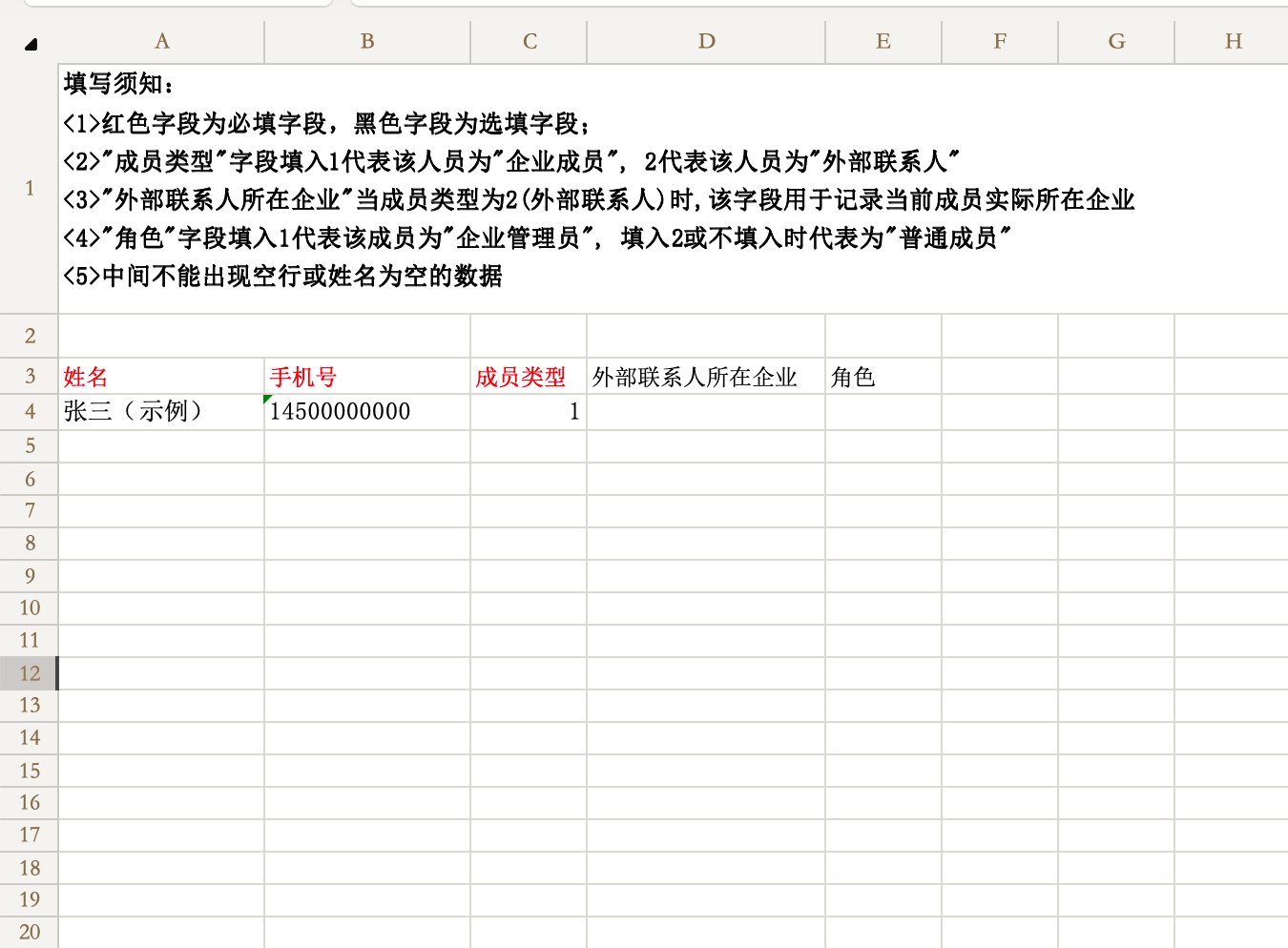
Template instructions:
1. Red fields are required; black fields are optional.
2. For Member type, enter 1 for an organization member or 2 for an external contact.
3. For external contacts, use External contact organization to record the person's organization.
4. For Role, enter 1 for an administrator. Enter 2 or leave it blank for a regular member.
5. Do not leave blank rows or rows with missing names between entries.
Edit member details
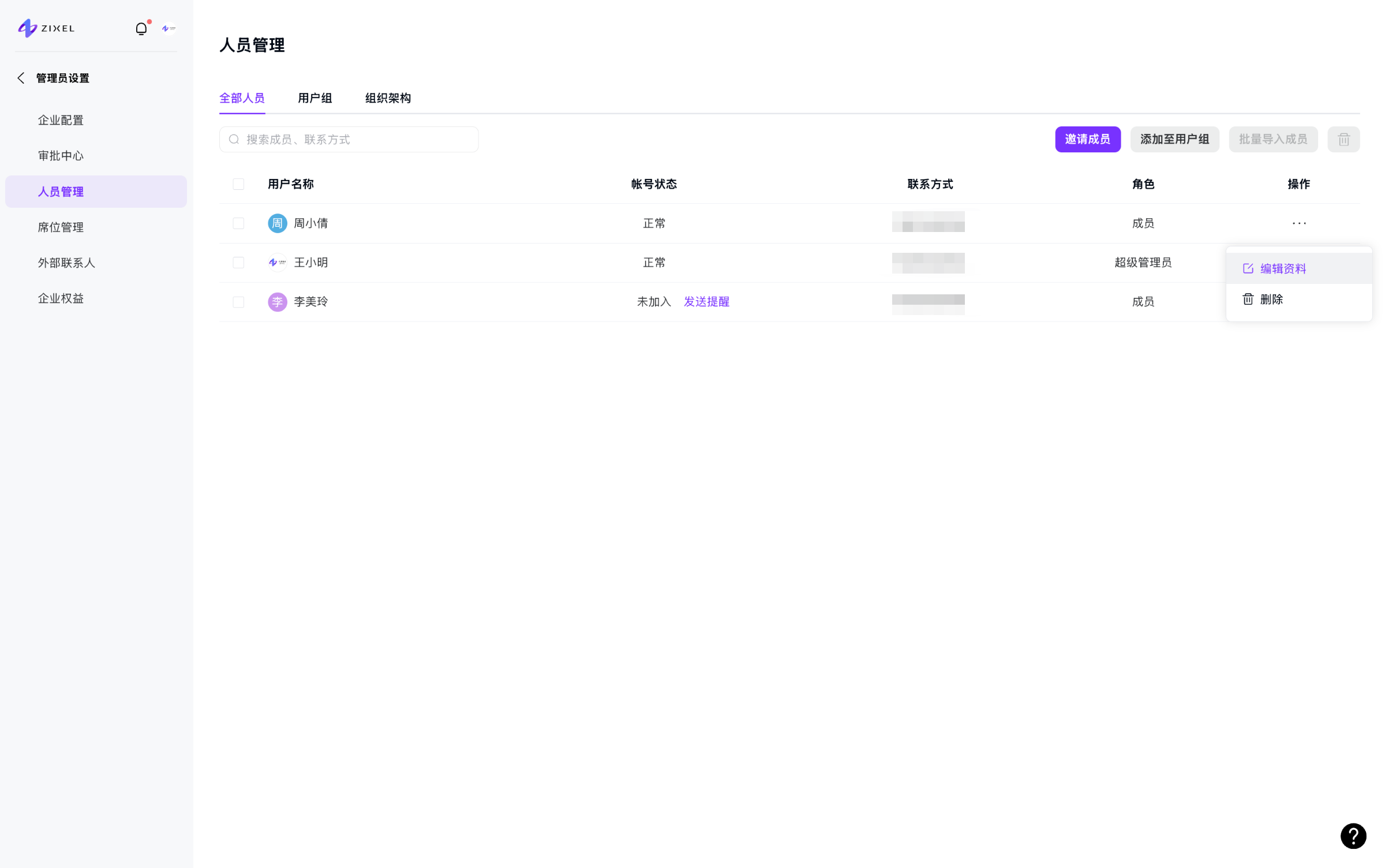
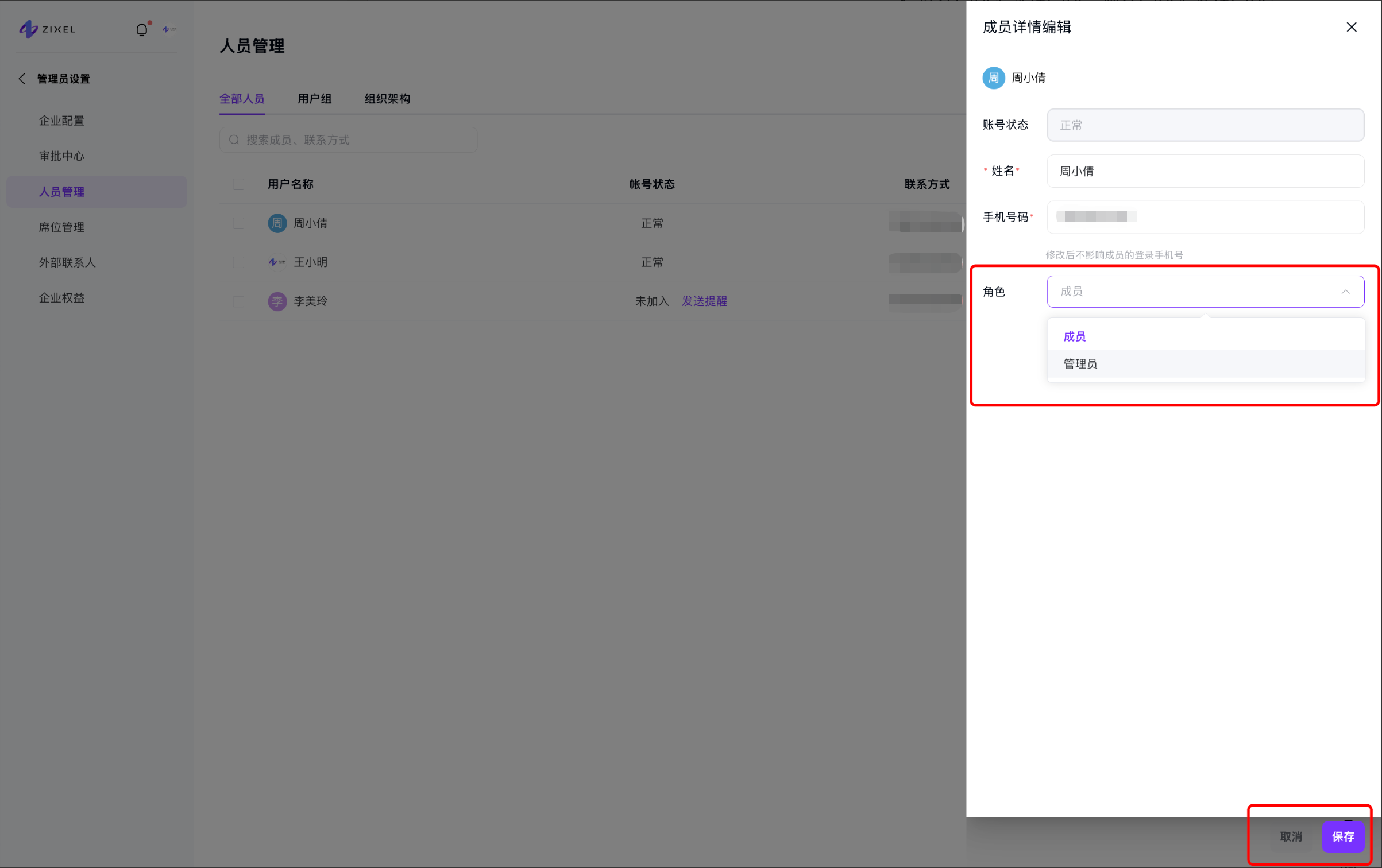
You can update a member's name, phone number, and role.
Remove members
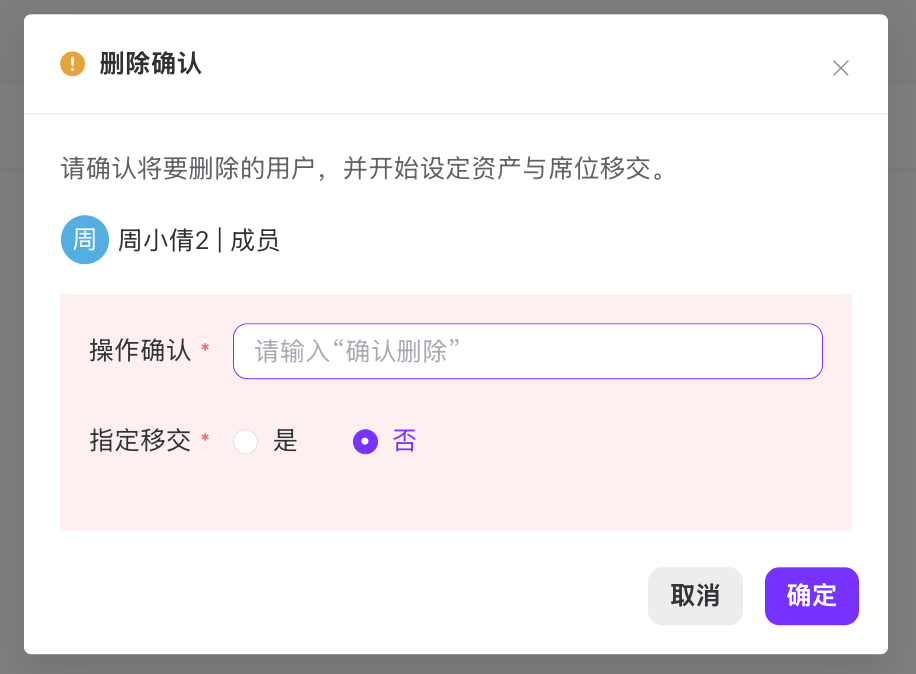
You can remove members from the organization.
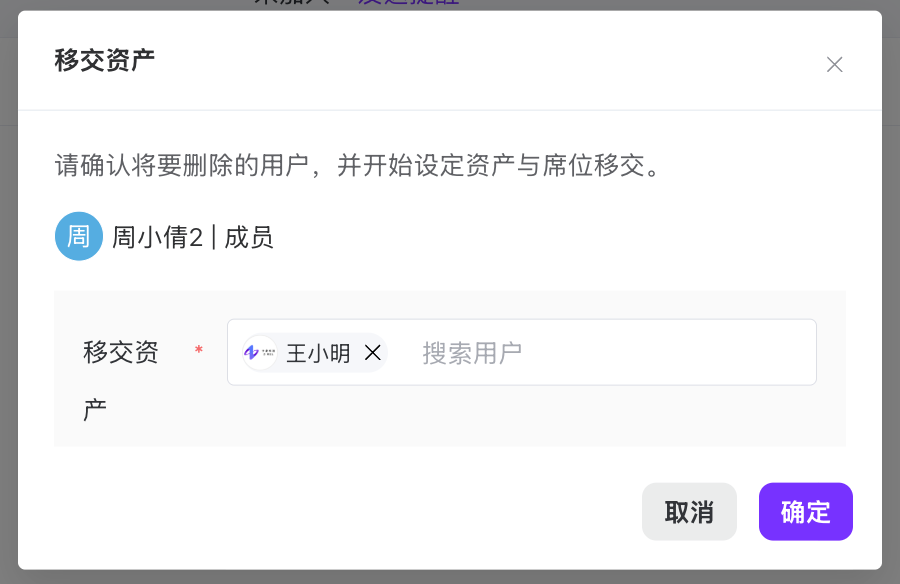
Confirm the removal, then choose whether to transfer the member's assets and select a recipient if needed.
Transfer the super administrator role
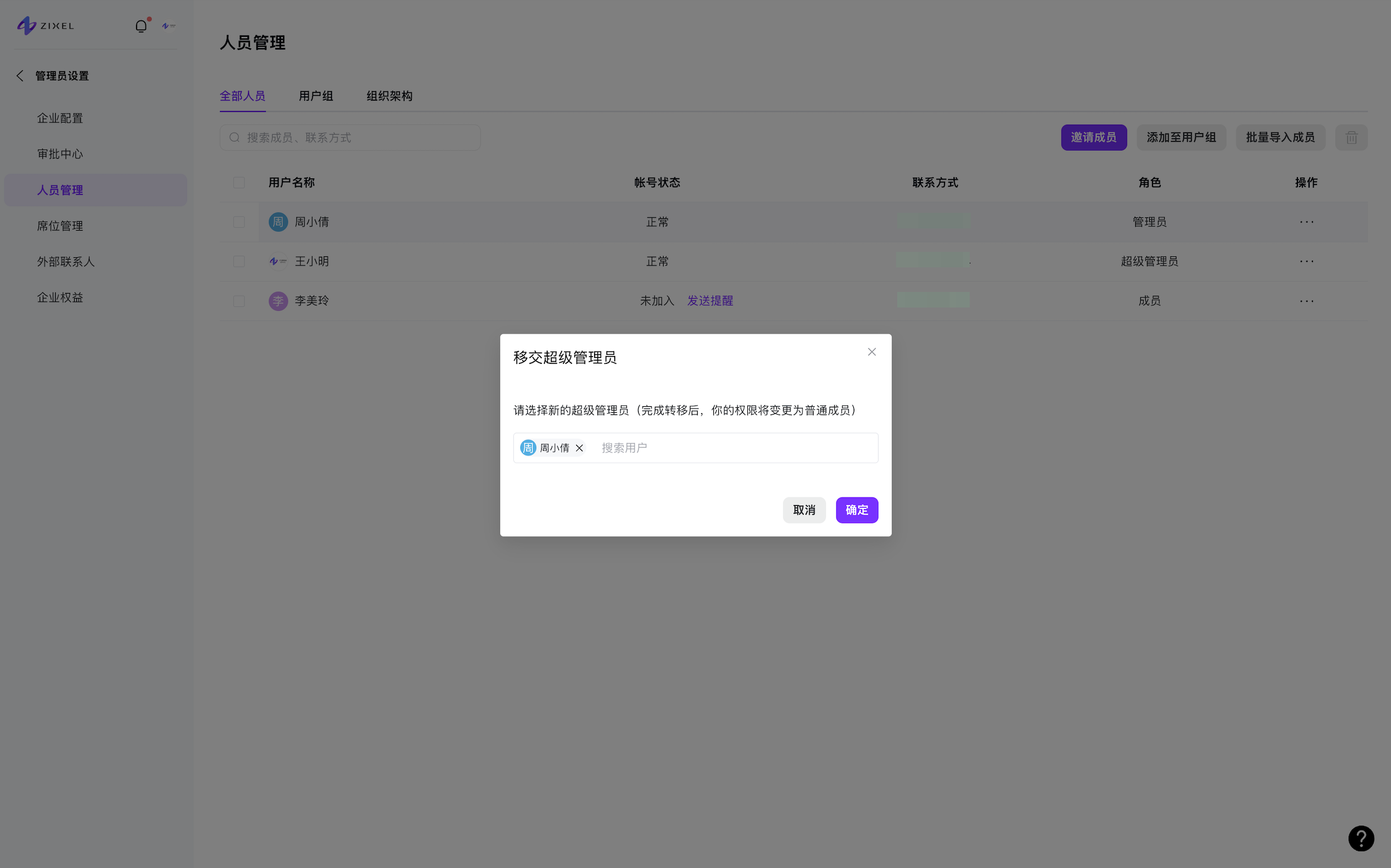
Only the current super administrator can transfer this role.
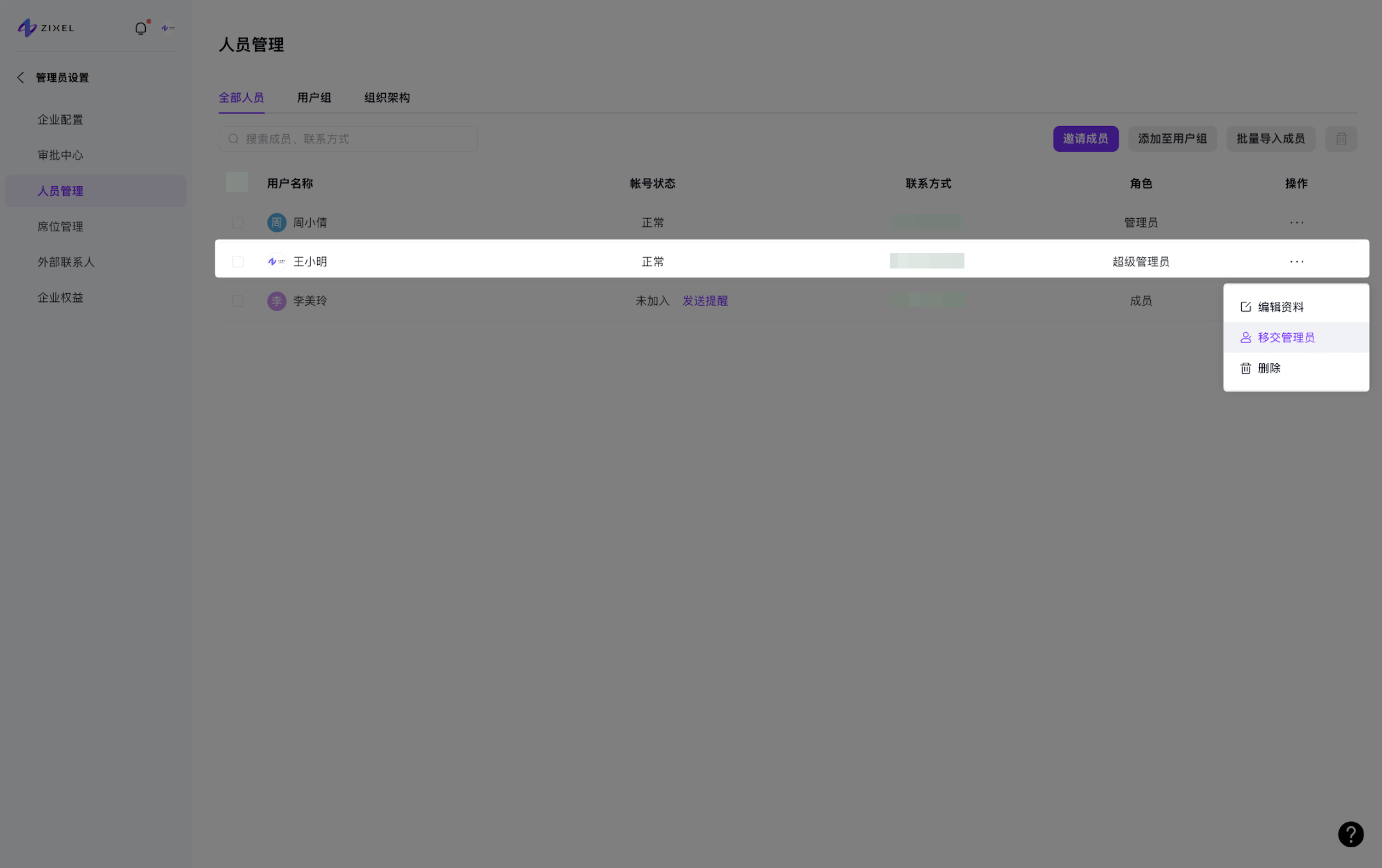
As the super administrator, open Actions > Transfer administrator. Select the new super administrator and confirm the transfer. Your role then changes to regular member.
User groups
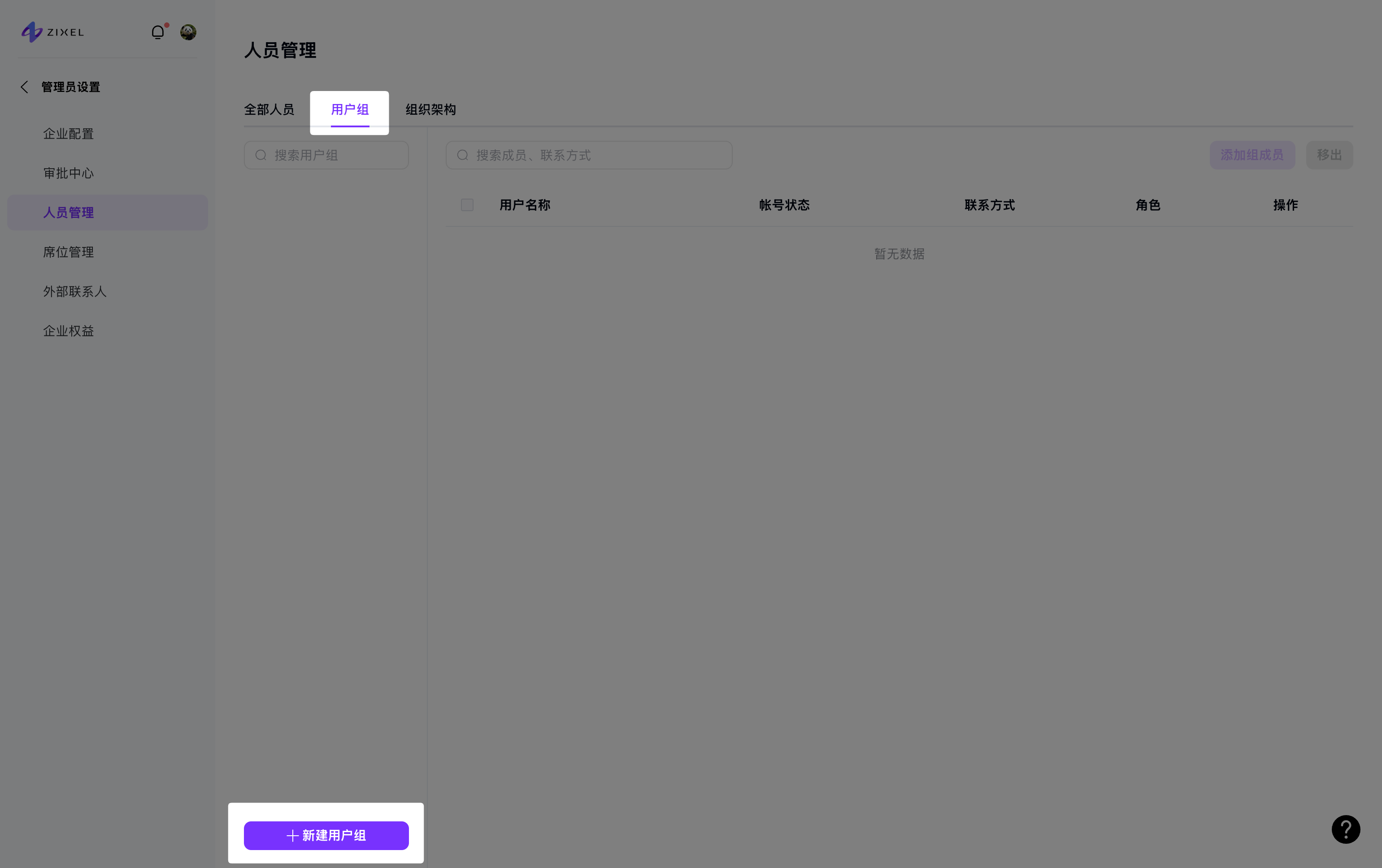
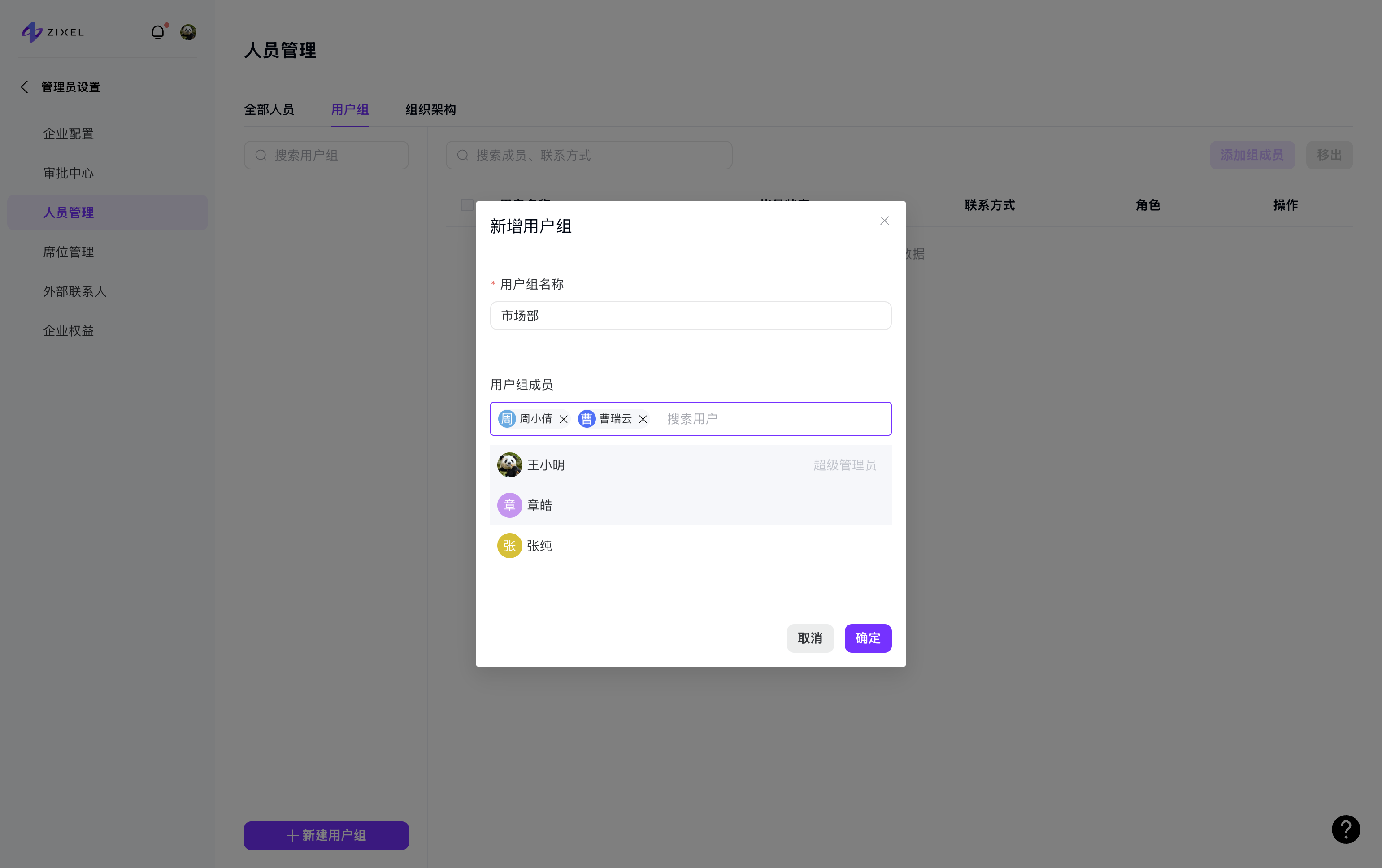
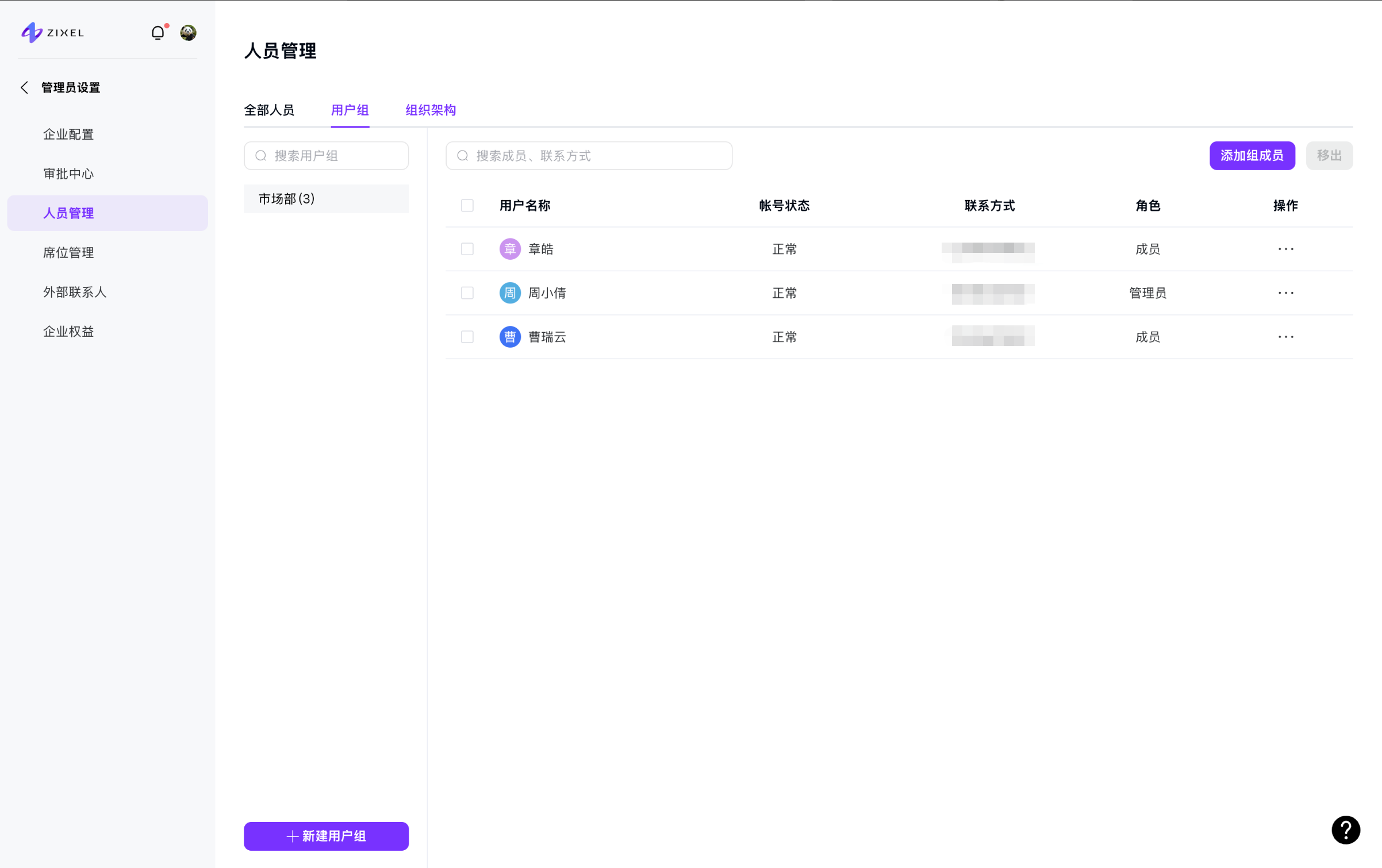
Go to Member management > User groups to group members and manage file permissions by group.
Organization structure
When users sign in through a connected platform such as Feishu, their organization's structure is synchronized.