
Legacy ZIXEL documentation. Screens and plan limits may differ from the current zCAD Beta. View current 3D CAD help.
Create a part
In the product space, select a product to view its engineering bill of materials (EBOM).
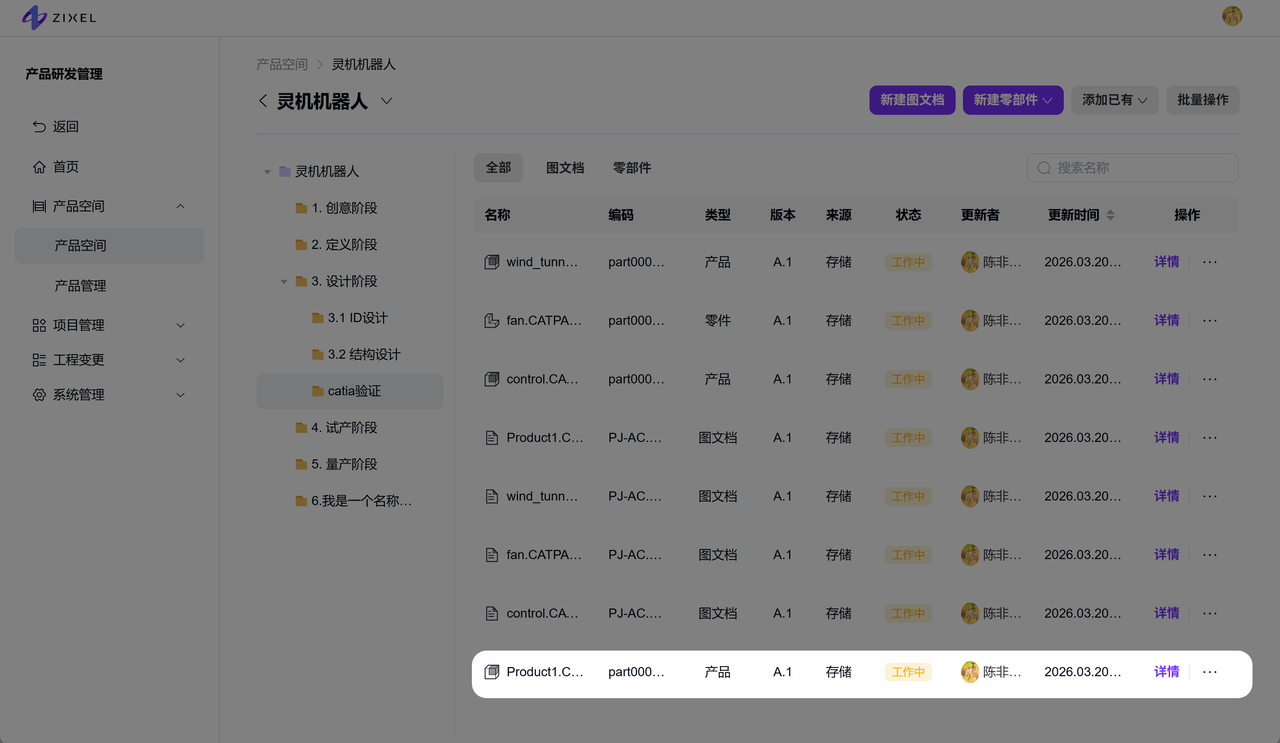
Click a part in the product EBOM to view its details.
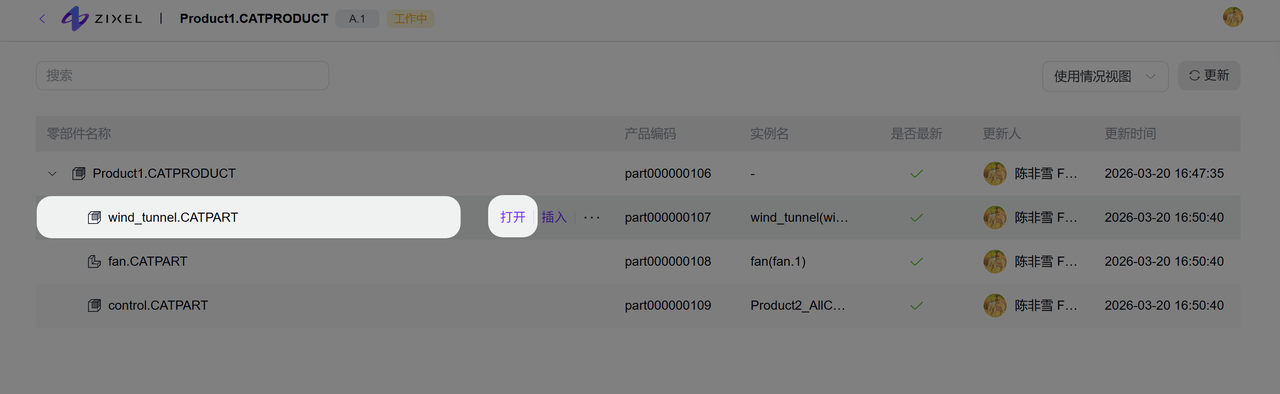
Hover over a part in the EBOM and click Open to view it as the root of a new EBOM view.
Edit an EBOM
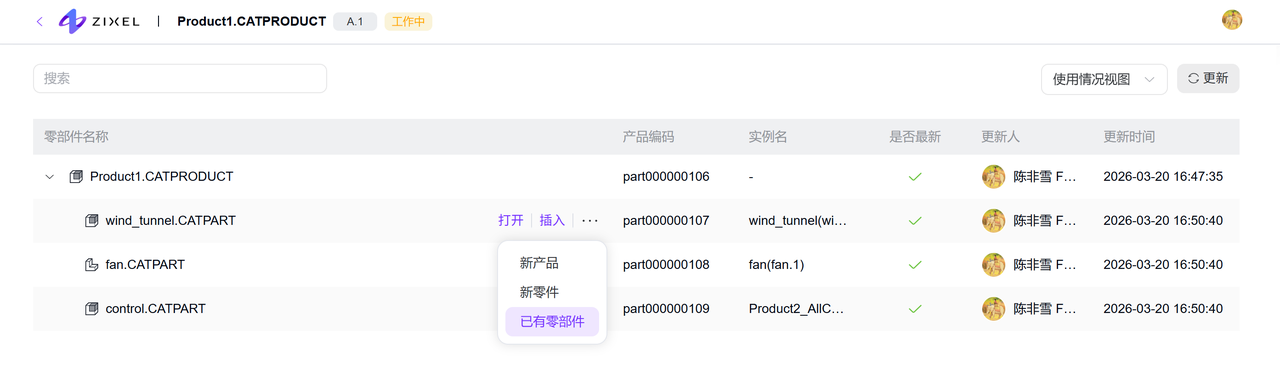
Hover over a part and click Insert to add a new product, a new part, or an existing component as a child node.
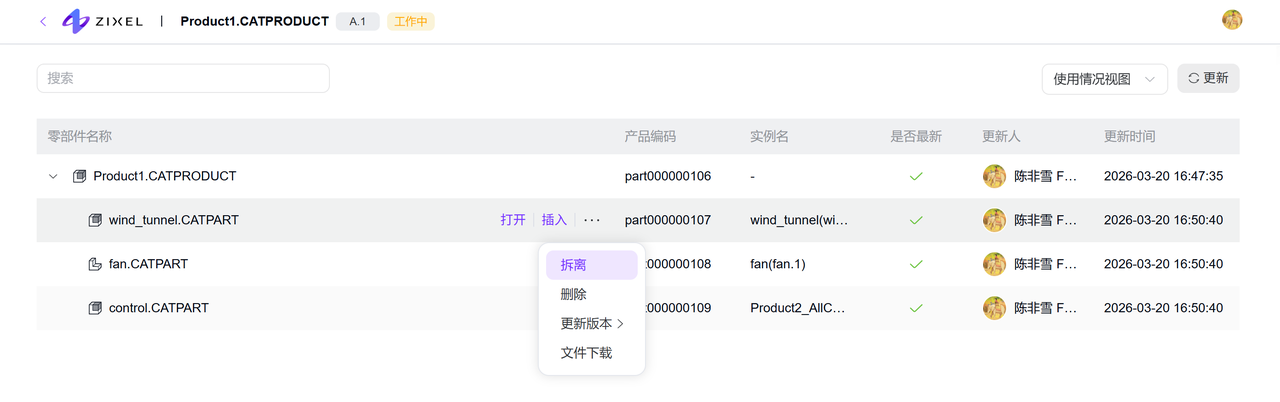
Hover over a part and click More (...) to detach or delete it, update its version, or download its files.
Import an EBOM from Excel
On the product EBOM page, choose Create > Import from Excel.

In the Excel import dialog:
Click Download import template to get the EBOM spreadsheet template.
Click View template parsing rules to download the import instructions.
Drag the completed Excel file into the upload area, or select it from your computer. The system reads the file and creates the EBOM.

Generate an EBOM from CAD files
On the product EBOM page, choose Create > Generate from CAD to open the assembly upload dialog.

In the CAD assembly upload dialog:
Upload the assembly folder, including the assembly and all externally referenced part files.
Select the main assembly file from the uploaded folder.
The system reads the uploaded CAD assembly and generates the EBOM.