
Hinges, joints and snap-fits
Design connected parts around a hinge or pivot
Design parts that open, rotate, or snap together from a clear set of requirements. Use zCAD. AI to generate an initial CAD model, then inspect and refine the geometry in zCAD. Online.
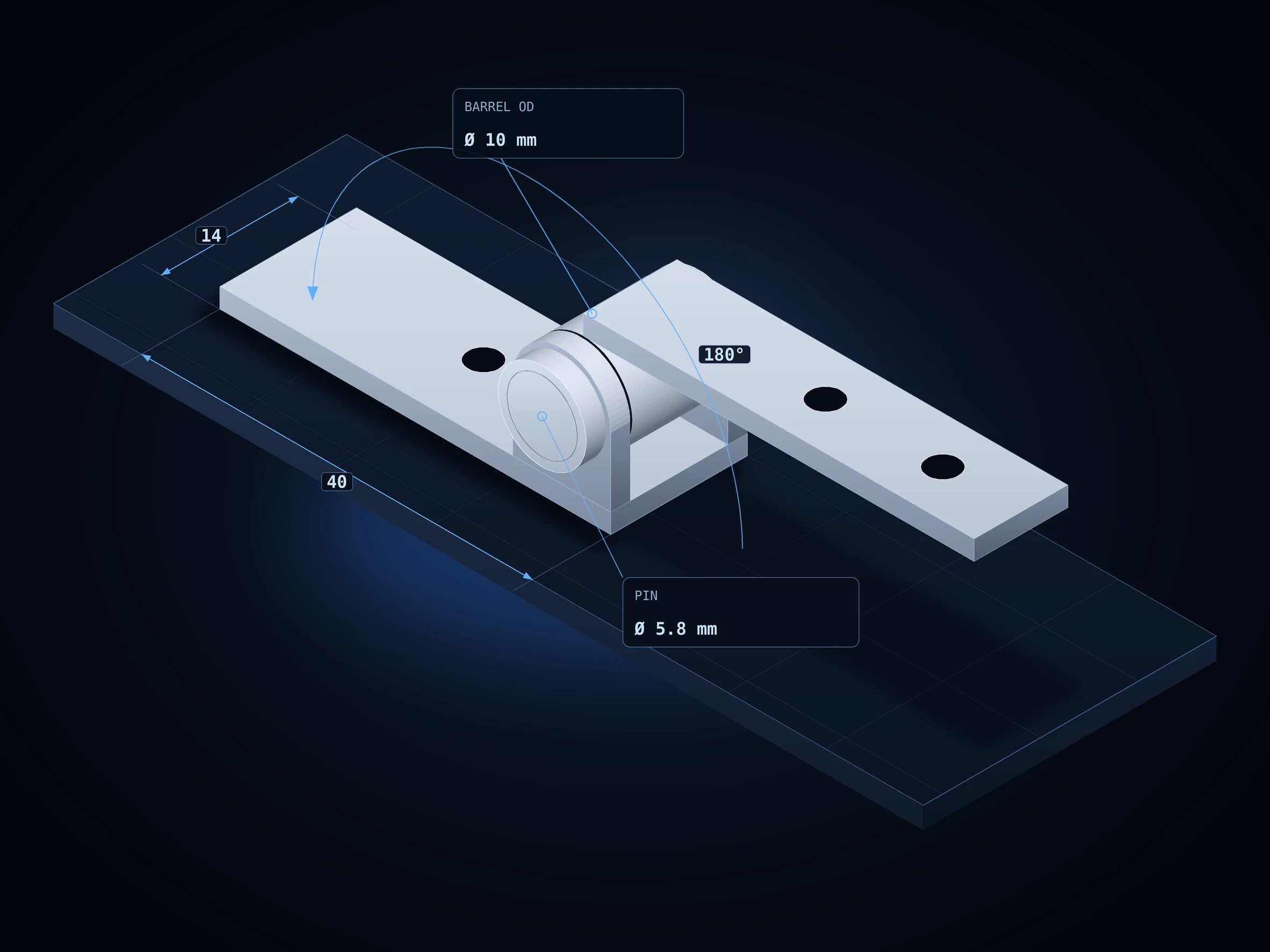
01 / The engineering challenge
Why hinges and snap fits take trial and error
A hinge, pivot, or snap-fit depends on the relationship between multiple features. Small changes to clearances, contact surfaces, or connection geometry can affect how the parts fit together. A mesh model represents a part as a surface made of triangles, which makes it difficult to edit the dimensions and connection features that hinges and snap-fits depend on. When the design need to change, you may have to rebuild parts of geometry instead of adjusting the original features.
Mesh model limits
Difficult to adjust dimensions
Changing the thickness of a bracket or the diameter of a hinge hole may require editing the mesh rather than changing a defined CAD feature.
Connection details are hard to modify
When there is only representation of mesh geometry, it is harder to adjust precisely the aligned holes and snap-fit hooks.
Limited control over fit and clearance
Adjusting the gap between a hinge barrel and its supporting parts or refining a snap-fit interface is more difficult without editable dimensions and features.
02 / Connected capabilities
Hinges and joints checked for interference
Describe the components, dimensions, and connection details you need. zCAD. AI can help generate an initial model from the prompt; inspect the resulting geometry to check whether the separate parts and their interfaces match your requirements.
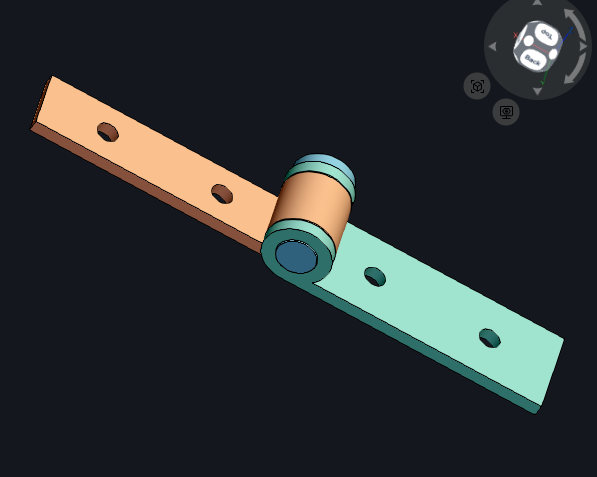
Generate separate components
Describe the bracket, lid bracket and hinge pin with their dimensions and shapes individually.
Specify connection features
Include hinge barrels, aligned holes, and other interface geometry in the design requirements.
Inspect component relationships
Review the generated model to see whether the barrel, ears and pin are positioned as intended.
4. Refine the CAD geometry
Open the model in zCAD. Online to inspect and modify supported geometry where adjustments are needed.
03 / From requirement to delivery
From joint brief to a CAD model
Move from a description of the connection to a model you can inspect and refine. Check the actual generated geometry before relying on it for fit or movement.
Define the connection
Write down the component dimensions, the hinge arrangement, and how the parts should connect.
Model Generation
Generate the model in zCAD. AI. After entering prompt, the resultant assembly will be shown including its aligned connection features.
Review the design
Review the model generated, if there is need to refine, give prompts accordingly.
Refine the CAD model
Now open the model in zCAD. Online, check the final geometry against your requirements and if needed, model can be refined.
Project at a Glance
Project Input
- Component dimensions and overall layout
- Joint type and connection geometry
- Required movement or closure arrangement
Expected Outputs
- An initial editable CAD model based on the prompt
- Separate components where supported by the generated result
- Geometry to inspect and refine in CAD
Typical Uses
- Consumer products : Design a hinge for a product lid or battery cover, with separate components that align and rotate around a hinge pin.
- Robotics: Model a joint connecting two robot arms, defining the pivot position and the geometry of connected parts.
- Packaging: Design a hinge for a small reusable lid, connecting the lid and base through a flexible section that allows repeated opening and closing.
Before you get started
Frequently Asked Questions
Can I create a universal joint CAD model with multiple connected parts?
Describe the joint components and their connection geometry, then inspect the generated model to verify the parts and interfaces match your requirements.
How can I check whether connected parts interfere?
Inspect the assembly for overlapping geometry and insufficient clearance, especially around hinge barrels, pins, hooks, and slots.
How do I ensure the hinge pin aligns with the holes?
Specify the hole diameters and center positions, then inspect whether the holes align through the hinge ears and barrel.
How do I design a hinge with separate brackets and a pin?
Define the brackets, hinge barrel, aligned holes, and pin as separate components. Check their positions and clearances in the assembly.
Should I use zCAD. AI or zCAD. Online for hinge and joint design?
Use zCAD. AI to generate an initial model from a written description, then use zCAD. Online to inspect and refine supported geometry.
zCAD / Hinges, Joints & Snap-fits
Design the connection, then check the fit
Describe the parts and how they should connect. Start with an initial model, then inspect the geometry and refine it to meet your design requirements.