
Replacement parts
Design a replacement part for 3D printing
When a small part breaks or goes missing, finding an exact replacement can be difficult. Describe the part you need, generate an editable CAD model with zCAD. AI, and refine its dimensions before using it.
01 / The engineering challenge
Why the mesh copy may not match the real part
A broken knob, a damaged mounting clip, hose adapter, or a missing spacer can stop a larger product from being used. If the original part is no longer available, you may need to create a replacement from its shape and measurements. A replacement part must match the parts its fits to, not just look similar.
Mesh model limits
Approximate size
A mesh may only approximates the size, so a hole meant for a 6mm shaft can come out loose or too tight.
Dimensions can be difficult to adjust
A model may look right but still have the wrong hole size or overall dimensions.
Small changes can take extra work
Adjusting or changing a part's height is easier when the geometry and dimensions are editable, however in a mesh model, a small change may require the model to be regenerated.
02 / Connected capabilities
Rebuild the part from what you measured
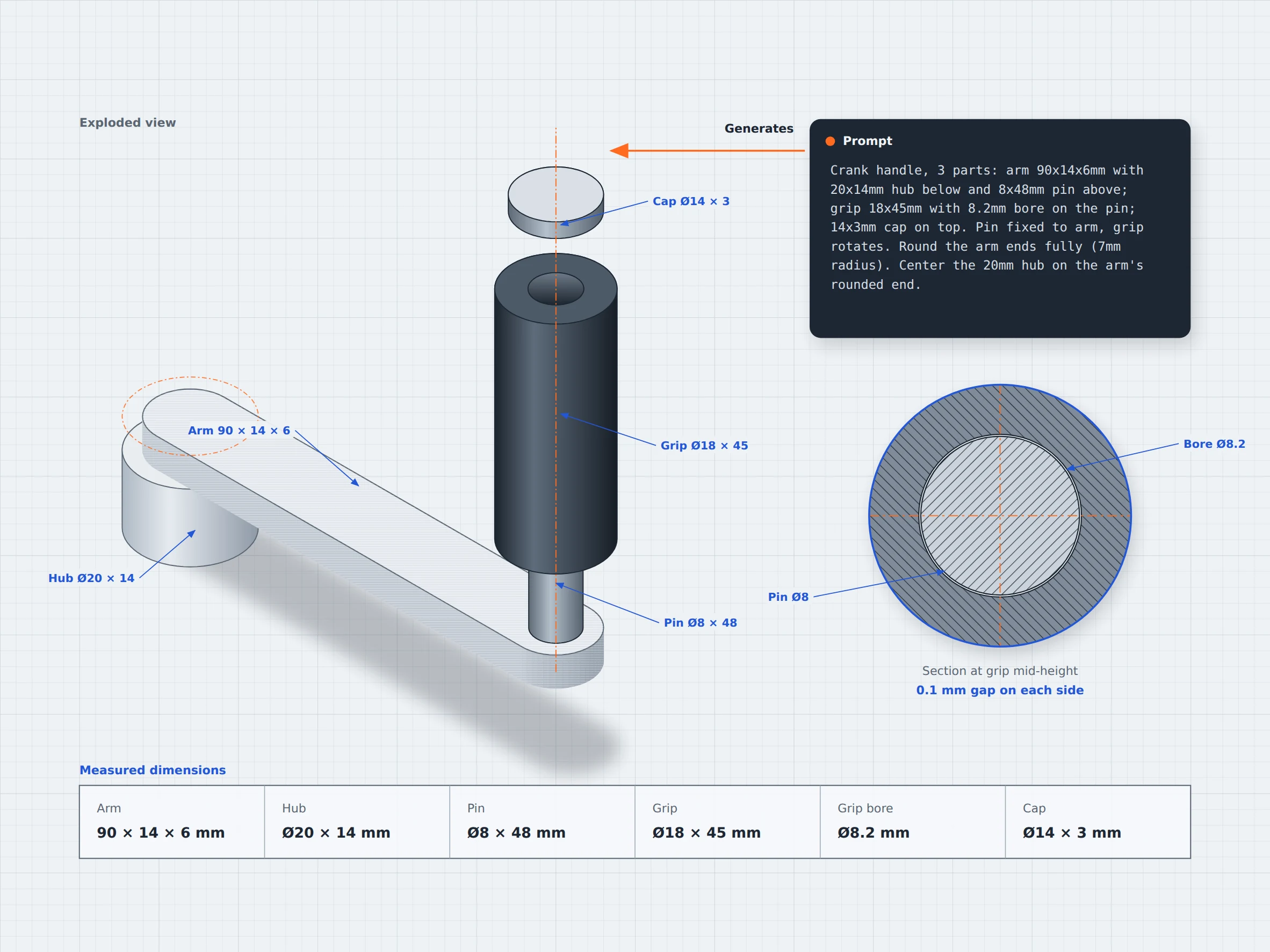
Describe the part you need, including its key dimensions and connection features. Generate an initial CAD model with zCAD. AI, then inspect and refine the design in zCAD. Online.
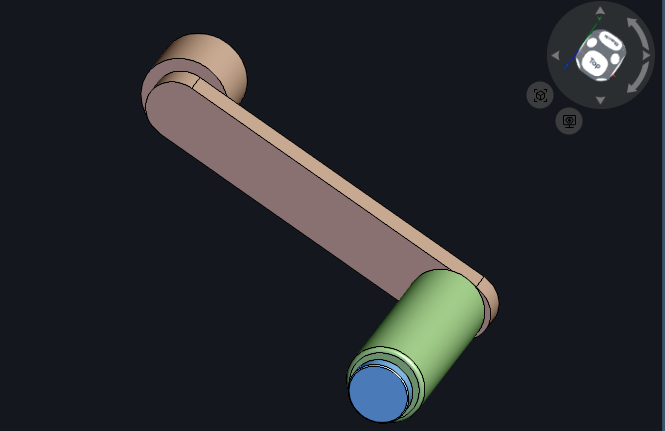
Generate a replacement from a description
Describe the part's shape, overall dimensions, and purpose to generate an initial CAD model.
Define connection features
Specify hole sizes, inner and outer diameters, mounting points and other interfaces, then inspect the generated geometry against your requirements.
Refine dimensions and features
Request changes in zCAD. AI or edit available CAD features and dimensions directly in zCAD. Online.
Review the replacement design
Inspect the part's dimensions, wall thickness, and connection surfaces to identify details that need checking before manufacturing or use.
03 / From requirement to delivery
From a replacement brief to a CAD model
Describe the original part's shape, key dimensions, and connection features. Generate an initial model with zCAD. AI, then review and refine its geometry in zCAD. Online.
Describe the part
You need to describe the replacement part, specify its shape, dimensions, holes, and other important details.
Generate an initial model
Enter the description in zCAD. AI to generate an initial CAD model. Use the result as a starting point.
Review and refine the design
If there is any dimension that need to be changed, you can give more prompts in zCAD. AI to apply the changes.
Continue in zCAD. Online
You can open the model in zCAD. Online to continue working with available CAD features.
Project at a Glance
Project Inputs
- Original part shapes and purpose
- Overall dimensions and important measurements
- Wall thickness and mounting features
Expected Outputs
- An initial CAD model of the replacement part that can be reviewed and refined
- Geometry and dimensions to inspect
- Connection features to compare with the original
Typical Uses
- Home appliances: Recreate a small caster, broken knob, or clip using the original part's shape and measurements.
- Car interiors: Model a replacement trim clip or small bracket based on its dimensions and attachment features.
- Bikes and outdoor gear: Design a replacement fitting for a rack or accessory, matching its key dimensions and connection points.
Before you get started
Frequently Asked Questions
Can I create a replacement part when I don't have its original CAD file?
Start by describing the part's shape, its key dimensions, holes, mounting points and other important features. You can also provide a reference image. Use the generated model as a starting point, then check it against the original part or your measurements and refine it as needed.
What information should I include to get more accurate replacement model?
Include the overall dimensions, connection sizes, hole positions, wall thicknesses, and any feature that affect how part fits with other components. For parts with several connected features, describe each feature and its position clearly. Important dimensions should be measured rather than estimated.
Can I modify a generated model if the replacement needs a different size or design?
Yes. You can request design changes through prompts in zCAD. AI or open the model in zCAD. Online to continue editing with its available CAD tools. After making changes, check the revised dimensions and related features still meet your requirements.
How do I know whether a generated replacement part is suitable for actual use?
A model that looks correct is not necessarily a functional replacement. Check its dimensions, interfaces, clearances, material requirements, and manufacturing constraints. These requirements need to be checked before its use.
zCAD / Replacement Parts
Make the missing part yourself
Start with the dimensions and shape you know. Generate a CAD model, check the details, and refine design for your application.