
Assembly and part drawings
Create Assembly Drawings from 3D CAD Models
Create engineering drawings from existing 3D parts and assemblies in zCAD. Online. Import a CAD model or open a model created by zCAD. AI in zCAD. Online, then generate drawings to communicate design details.
01 / The engineering challenge
Why assembly drawings take time to create and update
Creating engineering drawings from CAD models involves more than showing the overall shape. A drawing view provides a way to document a part or assembly, teams may need additional views and component details to communicate everything required for manufacturing. When the model changes, the drawing may also need to be reviewed.
Common drawing challenges
Creating drawings takes extra work
Turning a 3D model into an engineering drawing requires creating a drawing representation of a part or assembly. zCAD. Online provides a drawing function for generating a drawing from an existing model.
Showing design details
A single view of model may not communicate every detail needed to understand a part or assembly, Check whether the available drawing views provide enough information for the intended purpose.
Keeping drawings consistent with the model
When a part or assembly changes, its drawing needs to be checked against the revised model. Reviewing the drawing helps identify the details that may need updating before the design is shared.
02 / Connected capabilities
Keep assembly drawings linked to the CAD model
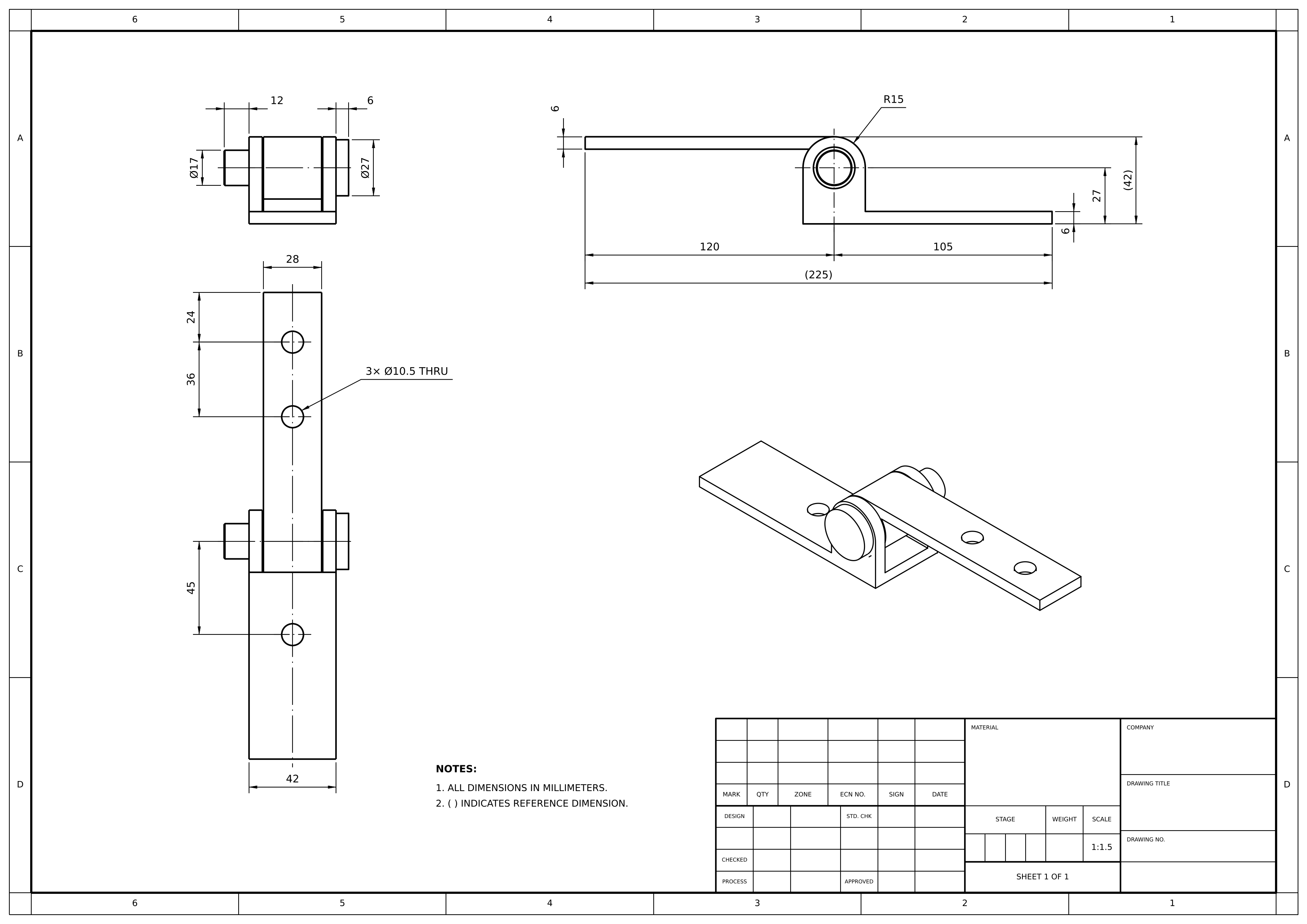
A three-part laptop-style hinge assembly is used as the model to create a drawing, where you can insert different views and perform other drawing operations.
Create drawings from existing models
Import a part or assembly into zCAD. Online and use the drawing function to generate its drawing.
Work with zCAD. AI generated models
Open a model created by zCAD. AI in zCAD. Online and create its engineering drawing.
Document part and assembly geometry
Generate a drawing view to provide a 2D representation of 3D models.
Continue working in CAD environment
You can continue editing by using the available drawing features.
03 / From requirement to delivery
From CAD Assembly to Engineering Drawings in zCAD. Online
Use either an existing CAD file or a model created in zCAD. AI as the starting point for an engineering drawing.
Open the 3D model
Import an existing part or assembly in zCAD. Online. Alternatively generate a model in zCAD. Online and open it in zCAD. Online.
Drawing Generation
Open the drawing function from the selected part or assembly.
Review the drawing
Drawing will be created, insert the views and check whether they represent the intended part or assembly clearly.
Refine the model or drawing
You can use the drawing functions as needed. Make any necessary adjustments in the model using the available CAD tools and then generate or review the drawing again as needed.
Project at a Glance
Project Input
- An existing part or assembly file imported into zCAD. Online.
- A model, either an existing model or one generated by zCAD. AI.
- The selected model geometry to be used for drawing.
Expected Outputs
- An engineering drawing generated from a 3D CAD model.
- Drawing views representing part or assembly.
- A drawing that can be reviewed for design communication.
Typical Uses
- Contract manufacturing: Share a part drawing with a supplier.
- Small machine builders: Communicate the shape of a part or assembly during design discussions.
- Hardware startups: Prepare a drawing view as a part of a production handoff.
Before you get started
Frequently Asked Questions
Can I generate an engineering drawing from an existing 3D model?
Yes, you can import a 3D model in zCAD. Online and use the drawing function to generate its drawing.
Can I create drawings from models generated in zCAD. AI?
Yes, open the generated model in zCAD. Online, generate its drawing and use the available drawing tools.
Can I create drawings for both individual parts and assemblies?
You can use part and assembly models as the starting point for creating drawings in zCAD. Online. Review the generated view to ensure it communicates the intended design.
What does the generated drawing include?
When you generate drawing, you can insert multiple views as per the requirement and then available drawing features can be used. You can add the information for your intended use.
- Should I use zCAD. AI or zCAD. Online?
Use zCAD. AI when you want to generate a 3D model from a text description. Use zCAD. Online to import existing models, as well as to use/edit models generated by zCAD. AI, create engineering drawings and continue working using the available CAD tools.
zCAD / Assembly and Part Drawings
Create Assembly Drawings That Stay Linked to Your Model
Generate a drawing view from your 3D parts and assemblies in zCAD. Online. Review the drawing and use it to communicate the design.