
2D Drawings to 3D
Turn 2D Drawings into Editable 3D CAD models
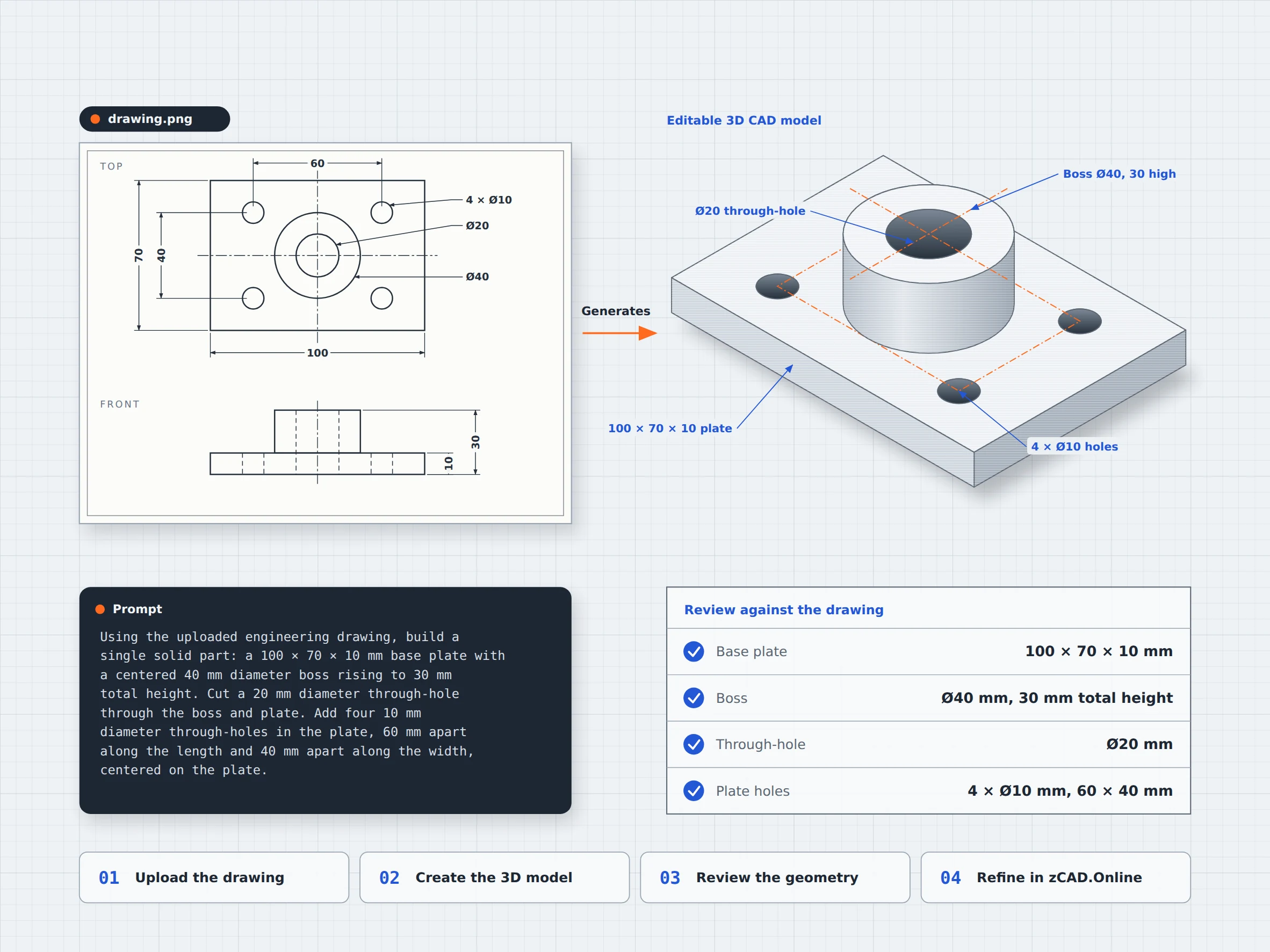
Turn a drawing reference into a 3D CAD model. Upload engineering drawing in form of image in PNG, JPEG, or WebP format and provide a prompt describing the model you want to create. Generate an editable 3D CAD model in zCAD. AI and continue refining it in zCAD. Online.
01 / The engineering challenge
Why turning a 2D drawing into 3D is slow
A 2D drawing shows outlines and dimensions, but a 3D model requires translating that information into geometry. Creating each feature manually can take time, especially when a design includes multiple parts.
The Challenges of 2D-to-3D Modeling
Rebuilding geometry takes time
Turning drawing outlines into 3D features requires additional modeling steps, from creating sketches to forming geometry. zCAD. AI can directly convert the drawing uploaded into an editable 3D model.
Dimensions need careful interpretation
Dimensions, hole positions, and spacings must be interpreted correctly when recreating a part from a drawing reference. However in zCAD. AI, review the generated model against your drawing provided to identify the differences.
Modeling multiple components
Creating several components from a drawing can require repeated modeling steps, however in zCAD. AI you can use the uploaded drawing as a reference to create the 3D geometry, then review and refine the resulting parts.
02 / Connected capabilities
Use drawing references to create 3D parts
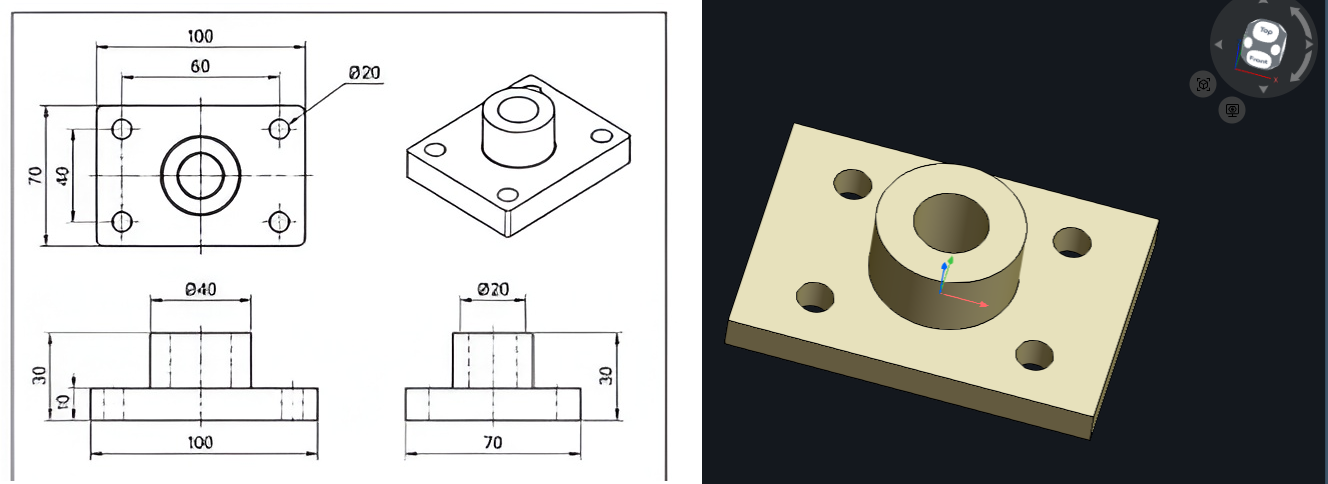
Use an uploaded drawing image as a reference for creating a 3D CAD model in zCAD. AI, once geometry is created, inspect it. The created model can be refined in zCAD. Online.
Upload a drawing reference
Upload a drawing image in PNG, JPEG, or WebP format, that drawing will be used as a reference for creating a 3D model.
Model creation
Describe the required part and its features to generate the model.
Editable CAD geometry
Generate a CAD model from your drawing that can be further modified, rather than just a visual representation of the part.
Connected CAD workflow
Open the generated model in zCAD. Online to inspect and refine it using available CAD tools.
03 / From requirement to delivery
From 2D drawing references to editable 3D CAD model
Start with uploading an engineering drawing in zCAD. AI, review and refine the model in zCAD. Online before using it.
Upload the drawing
In zCAD. AI, describe the part; write what a part does, its overall dimensions, and which features or connections are important.
Create the 3D model
According to the uploaded drawing, a 3D model will be created with the dimensions as shown in the uploaded image.
Review the geometry
Compare the model created with the drawing, Check visible dimensions, hole positions, and if model is according to intended design.
Refine the CAD model
Make any necessary adjustments using the available modeling tools in zCAD. Online, then review the updated result.
Project at a Glance
Project Inputs
- A drawing image in PNG, JPEG, or WebP format.
- Visible outlines and dimensions
- Reference details for individual parts
Expected Outputs
- A 3D CAD model based on the drawing reference.
- Editable geometry for further refinement
- A model that can be reviewed against the original drawing
Typical Uses
- Job shops: Create a 3D reference from a customer drawing to support quoting.
- Laser cutting: Create a 3D reference model from a drawing to visualize the part’s shape and hole positions before fabrication.
- Design archives: Recreate a 3D reference model from an older dimensioned drawing.
Before you get started
Frequently Asked Questions
Can I turn a 2D drawing image into a CAD model?
You can upload a drawing image in PNG, JPEG, or WebP format, a 3D model will be created. Review the resulting geometry against the original drawing.
Which image formats are supported?
The supported drawing image formats for this workflow are PNG, JPEG, and WebP.
Will the 3D model match every dimension in the drawing automatically?
Once the model is created, inspect the resulting model against the drawing and adjust the geometry where necessary.
Should I use zCAD. AI or zCAD. Online?
Use zCAD. AI to generate a 3D model from the corresponding drawing, an editable model will be generated; After creation of model in zCAD. AI, model can be refined further in zCAD. Online.
Can I edit the generated model?
Yes. The generated model is editable and can be opened in zCAD. Online for further modifications using the available CAD tools.
zCAD / 2D drawings to 3D
Turn your drawing into a 3D model
Start with a drawing reference, build its 3D geometry, and refine the model in zCAD. Online.