

The Revolve Surface tool is used in the Surface module to rotate a sketch profile, model edge, or feature curve around a specified axis to generate surface geometry. Select a profile curve and a revolution axis, then set the revolution angle to create a revolved surface.
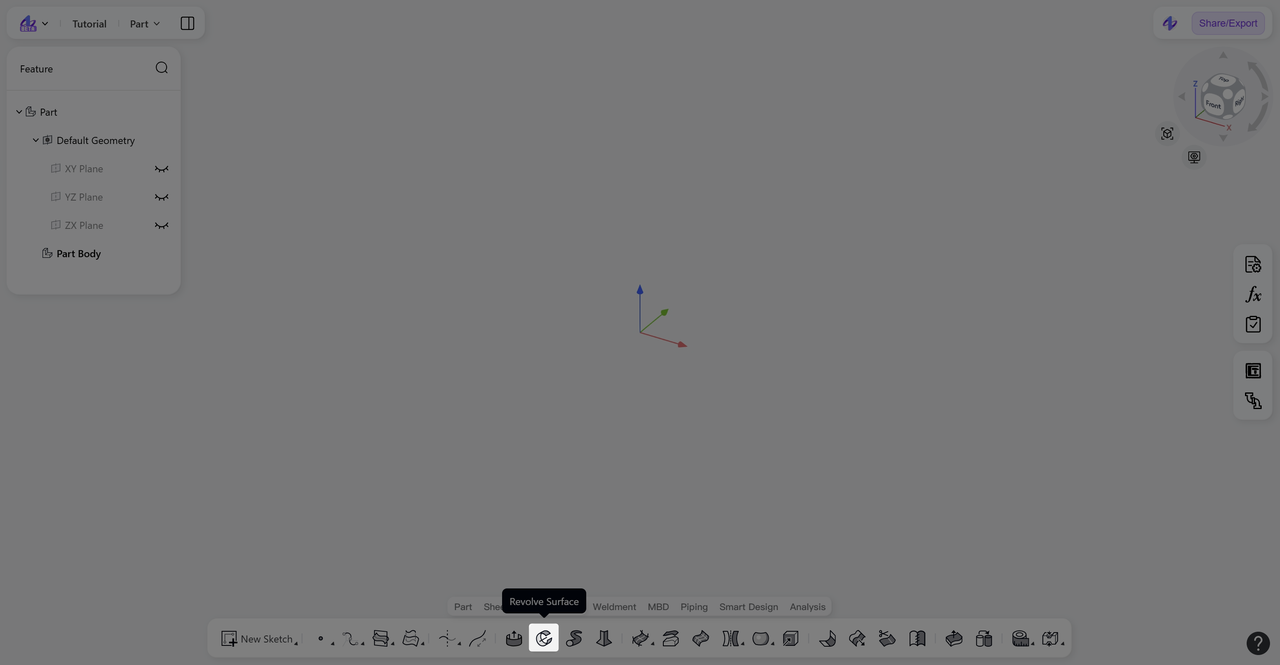
Steps
Click the "Revolve Surface" icon in the toolbar to enter the Revolve Surface mode.
Select the sketch profile, model edge, or feature curve to be revolved.
Select the revolution axis (model edge, sketch line, reference axis, X-axis, Y-axis, Z-axis).
Set the revolution angle (default 360°).
Select the revolution direction: "One Side", "Two Sides", or "Symmetric".
(Optional) Click "Reverse" to flip the revolution direction.
Click "Confirm" to generate the revolved surface and exit the Revolve Surface mode.
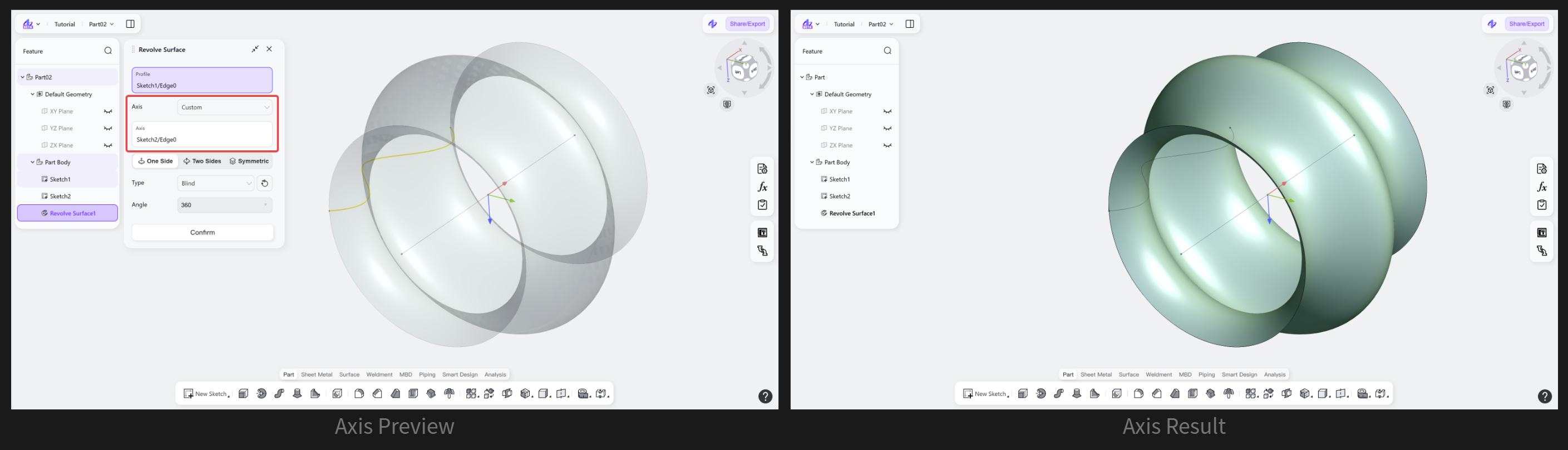
Revolution Axis
Generates a surface by rotating the selected profile or curve about a specified axis.
Steps
Select "Axis".
Select a linear reference, such as a sketch line, model edge, or reference axis.
(Optional) Select"Custom", "X Axis", "Y Axis", or "Z Axis" to generate the surface based on a specified axis.
Revolution Method
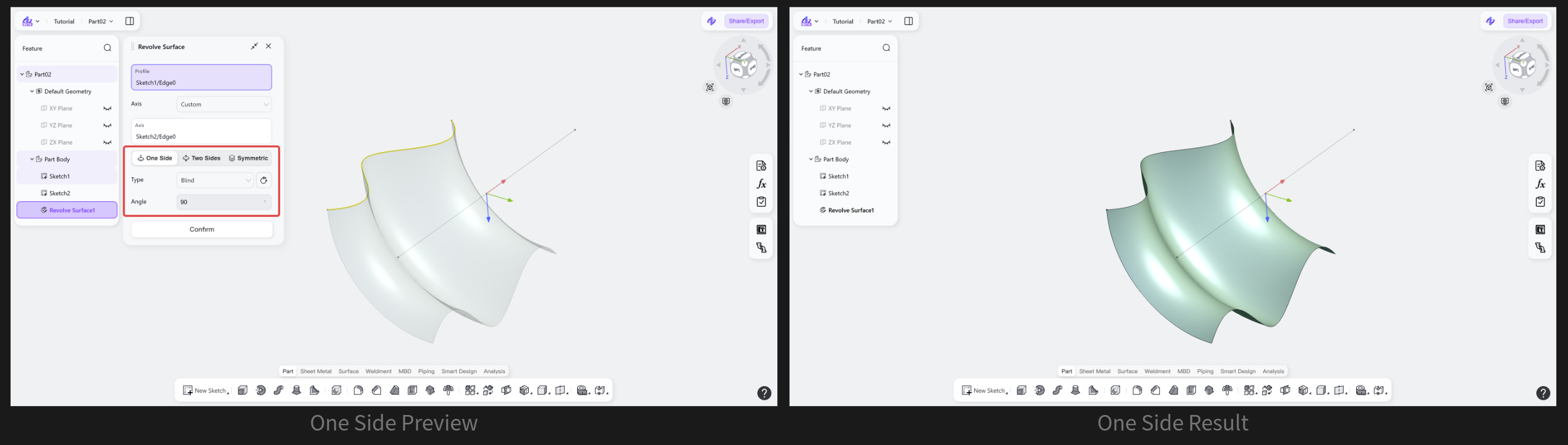
Revolution Method: One Side
Generates a surface by rotating in one direction along a specified axis.
Steps: Select "One Side".
Revolution Method: Two Sides
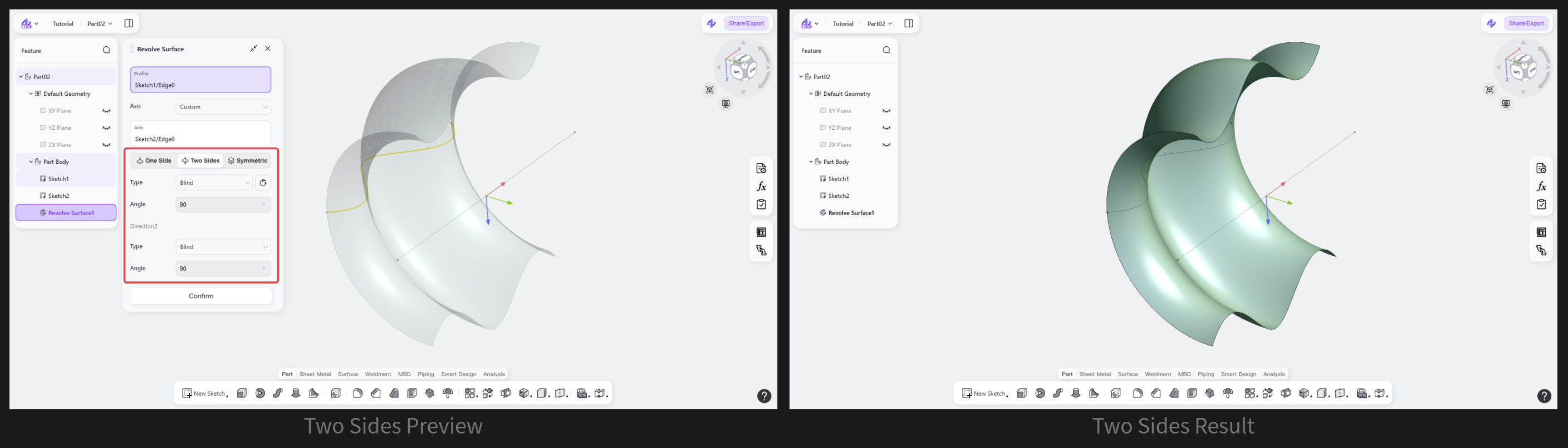
Generates a surface by rotating in both directions along a specified axis.
Steps: Select "Two Sides".
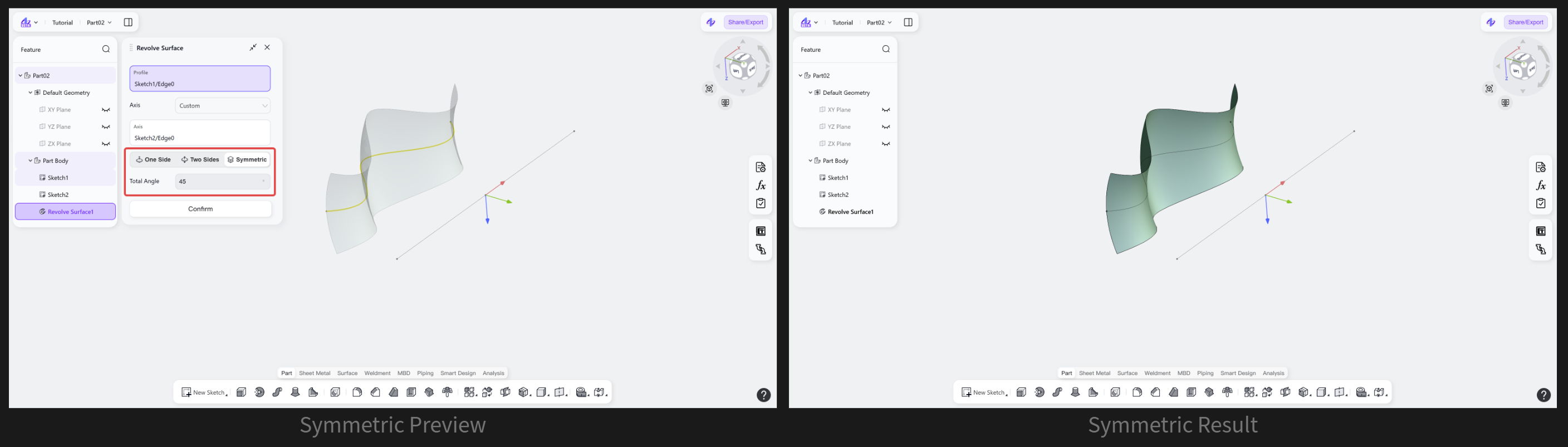
Revolution Method: Symmetric
Generates a surface by rotating symmetrically along a specified axis.
Steps: Select "Symmetric".
Revolution Type
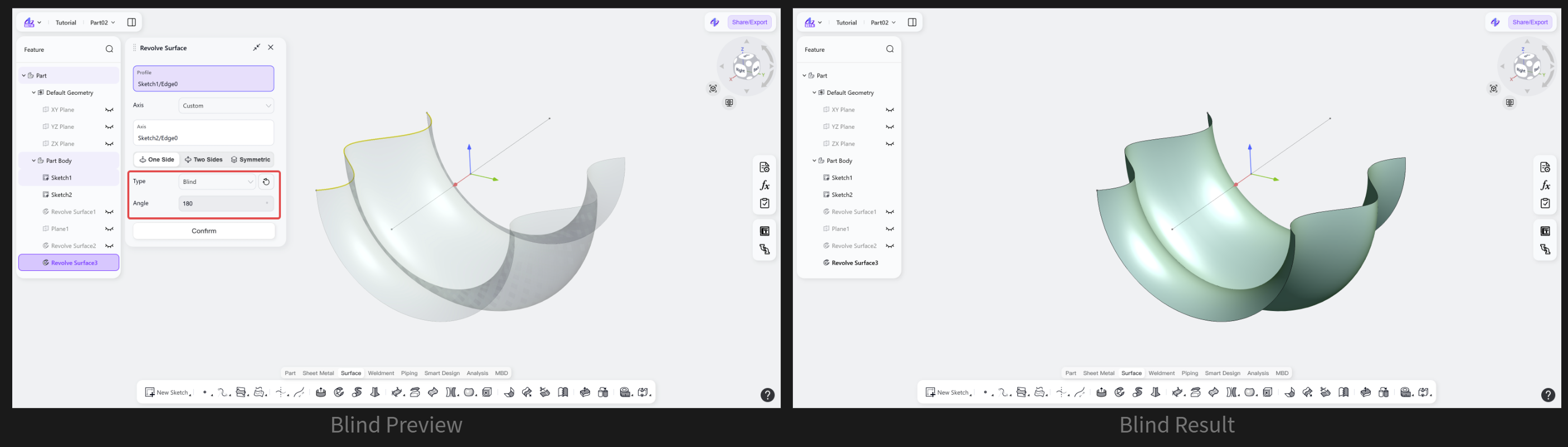
Revolution Type: Blind
Rotates the selected profile around a specified axis by a fixed angle to generate a revolved surface.
Steps
Select "Blind".
(Optional) Click "Backward" to switch the revolution direction.
Enter the angle value.
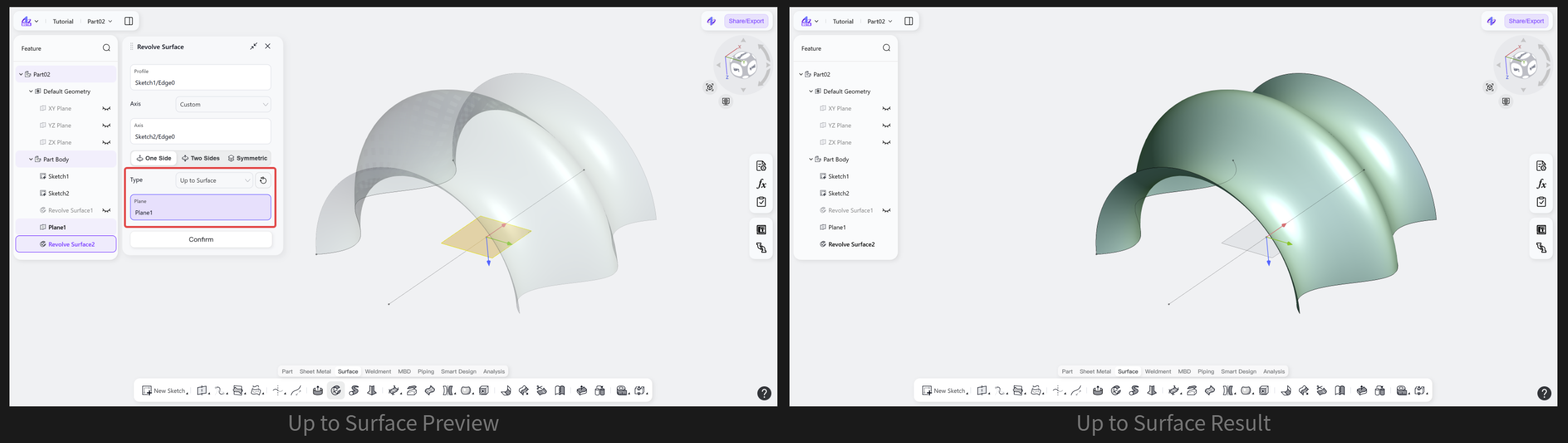
Revolution Type: Up to Surface
Rotates the sketch profile, model edge, or feature curve along a specified axis so that the revolved surface terminates at the selected target face.
Steps
Select "Up to Surface".
(Optional) Click "Backward" to switch the revolution direction.
Select an existing face as the target face to end the revolution.
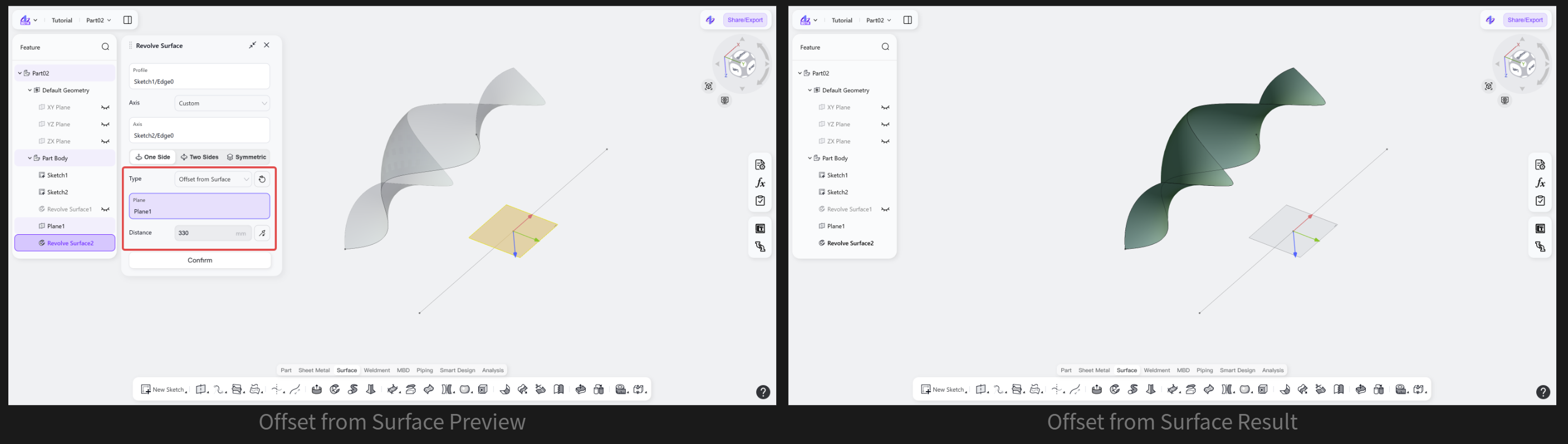
Revolution Type: Offset from Surface
Rotates the sketch profile, model edge, or curve along a specified axis, extending the revolved surface to a position at a specified distance from the target face.
Steps
Select "Offset from Surface".
(Optional) Click "Backward" to switch the revolution direction.
Select the target face to revolve up to.
Enter the offset distance from the target face.
Notes
The profile curve must be on one side of the revolution axis and cannot cross it.
The revolution angle supports any value between 0° and 360°.
When "Symmetric" is selected, the profile rotates through half of the specified angle in each direction about the revolution axis.