

The 3D Spline tool creates smooth free-form curves for surface modeling. By selecting multiple points in 3D space in sequence and defining parameters such as the start and end directions, an open or closed spline can be created.
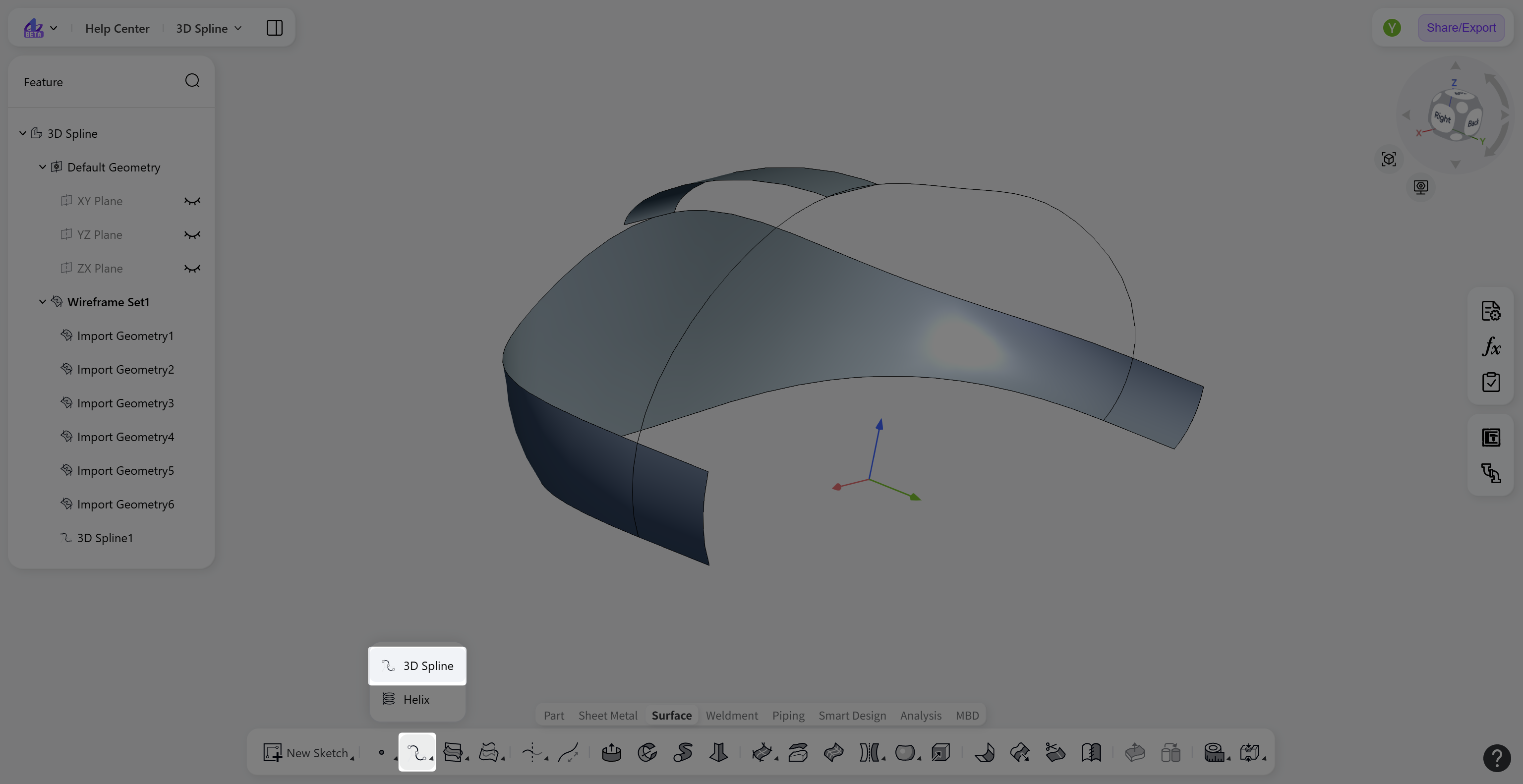
Steps
Click the "3D Spline" icon in the toolbar to enter the "3D Spline" creation mode.
Select "Open Curve" or "Closed Curve" to create an open or closed spline.
Enter the required curve "Order".
In the "Points" field, select points in 3D space to define the spline.
(Optional) Specify the "Start Direction", enter the "Start Magnitude", or enable "Match Start Curvature" to control the curvature continuity between the spline curve and the adjacent edge.
(Optional) Specify the "End Direction", enter the "End Magnitude", or enable "Match End Curvature" to control the curvature continuity between the spline curve and the adjacent edge.
Click "Confirm" to create the 3D spline and exit the "3D Spline" editing mode.
3D Spline Type
Select "Open Curve" or "Closed Curve" to create an open or closed spline.
Steps: Select "Open Curve" or "Closed Curve".
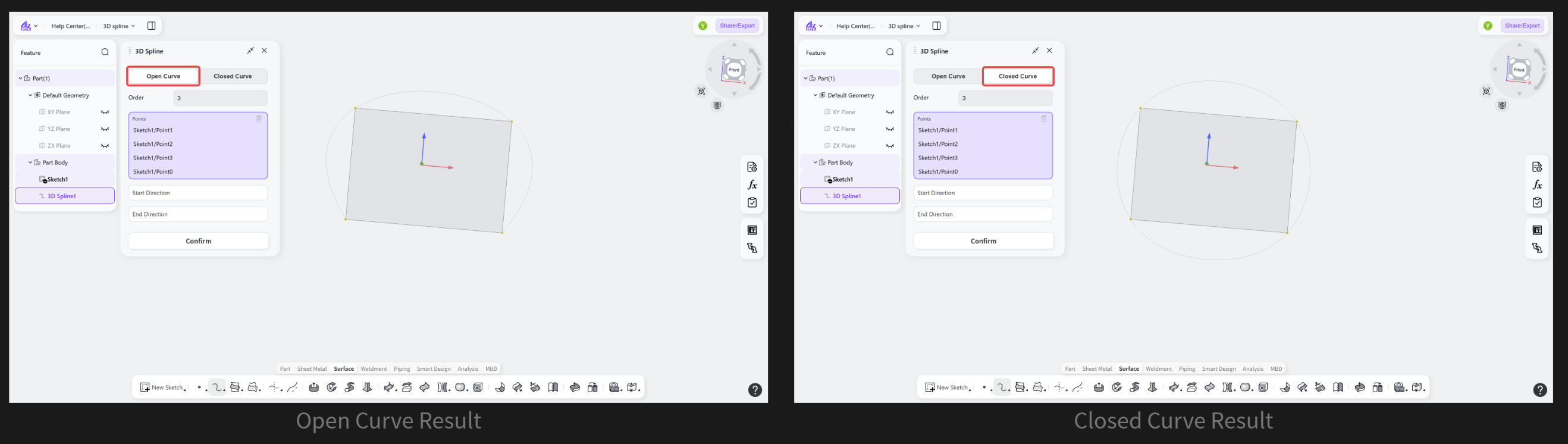
3D Spline Shape Editing
Shape Editing: Direction Control
A line or plane can be specified to control the tangent direction at the start or end point of the 3D spline, ensuring tangent continuity between the generated spline curve and the specified reference.
Steps
Specify the "Start Direction" or "End Direction".
(Optional) Click "Reverse" to reverse the direction used for tangent continuity.
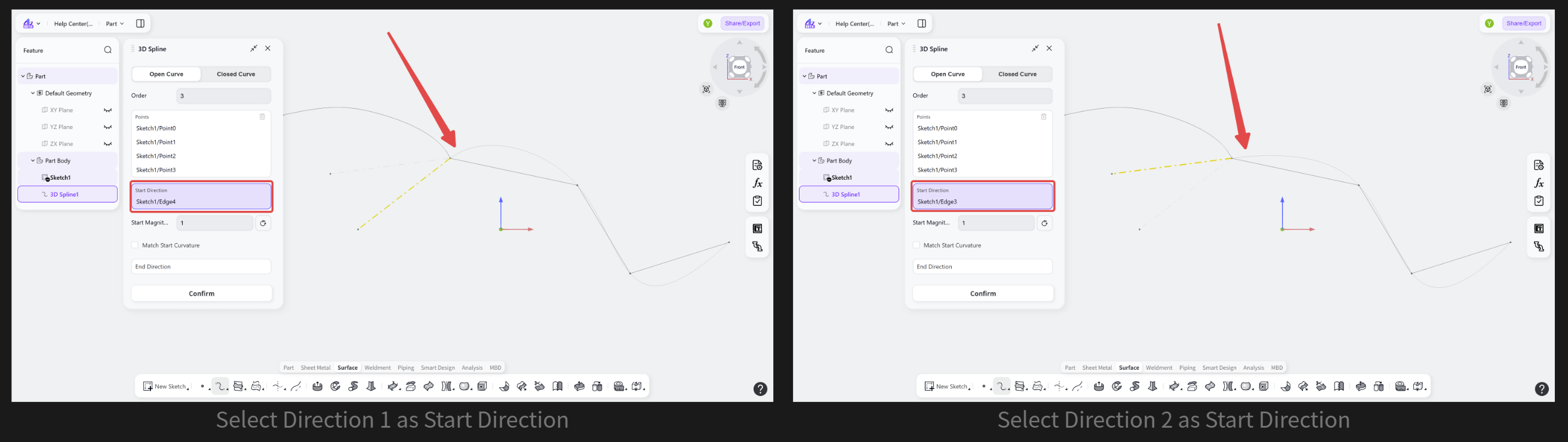
Shape Editing: Magnitude Control
Enter a value to control the magnitude at the start or end point of the 3D spline, further adjusting its shape.
Steps: Enter the "Start Magnitude" or "End Magnitude".
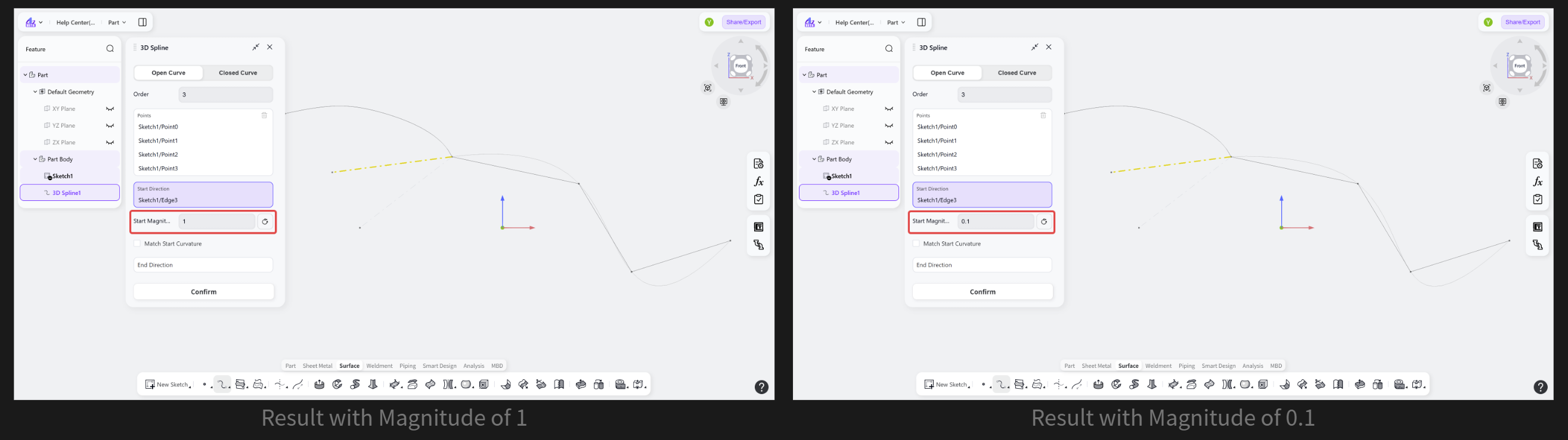
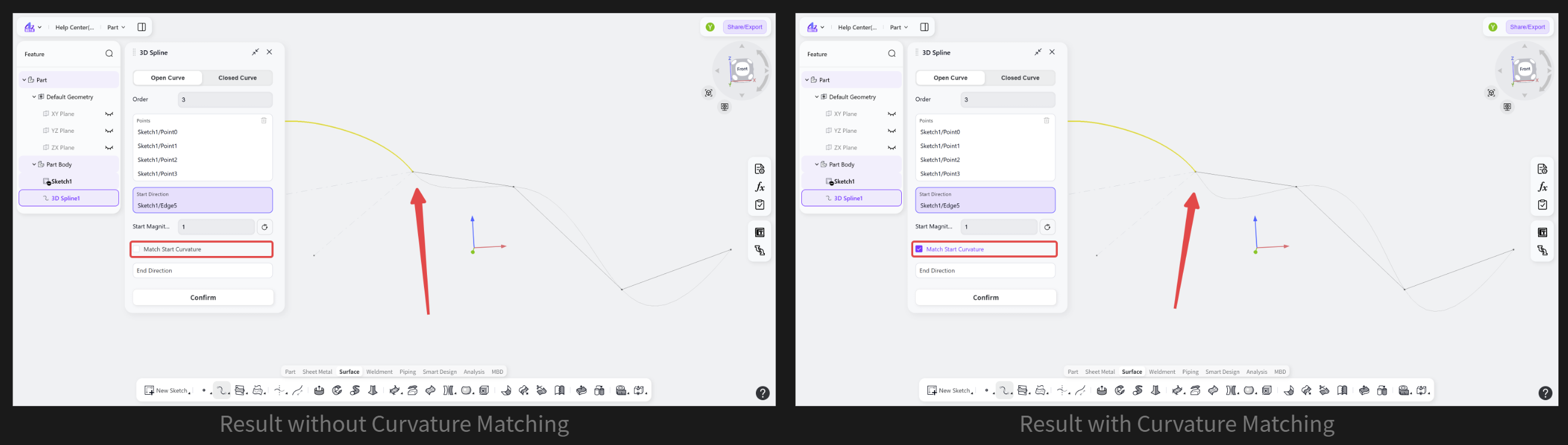
Shape Editing: Curvature Matching
Enables curvature continuity between the spline and the specified start or end reference, creating a smoother transition to the adjacent edge (G2 continuity).
Steps: Enable "Match Start Curvature" or "Match End Curvature".
Notes
The "Start Direction" and "End Direction" fields support lines, curves, and planes. When a plane is selected, its normal direction is used by default.
When only the "Start Direction" or "End Direction" is specified without enabling curvature matching, the generated spline curve maintains tangent continuity (G1) with the specified reference. When "Match Start Curvature" or "Match End Curvature" is enabled, the spline curve maintains curvature continuity (G2) with the specified reference.