
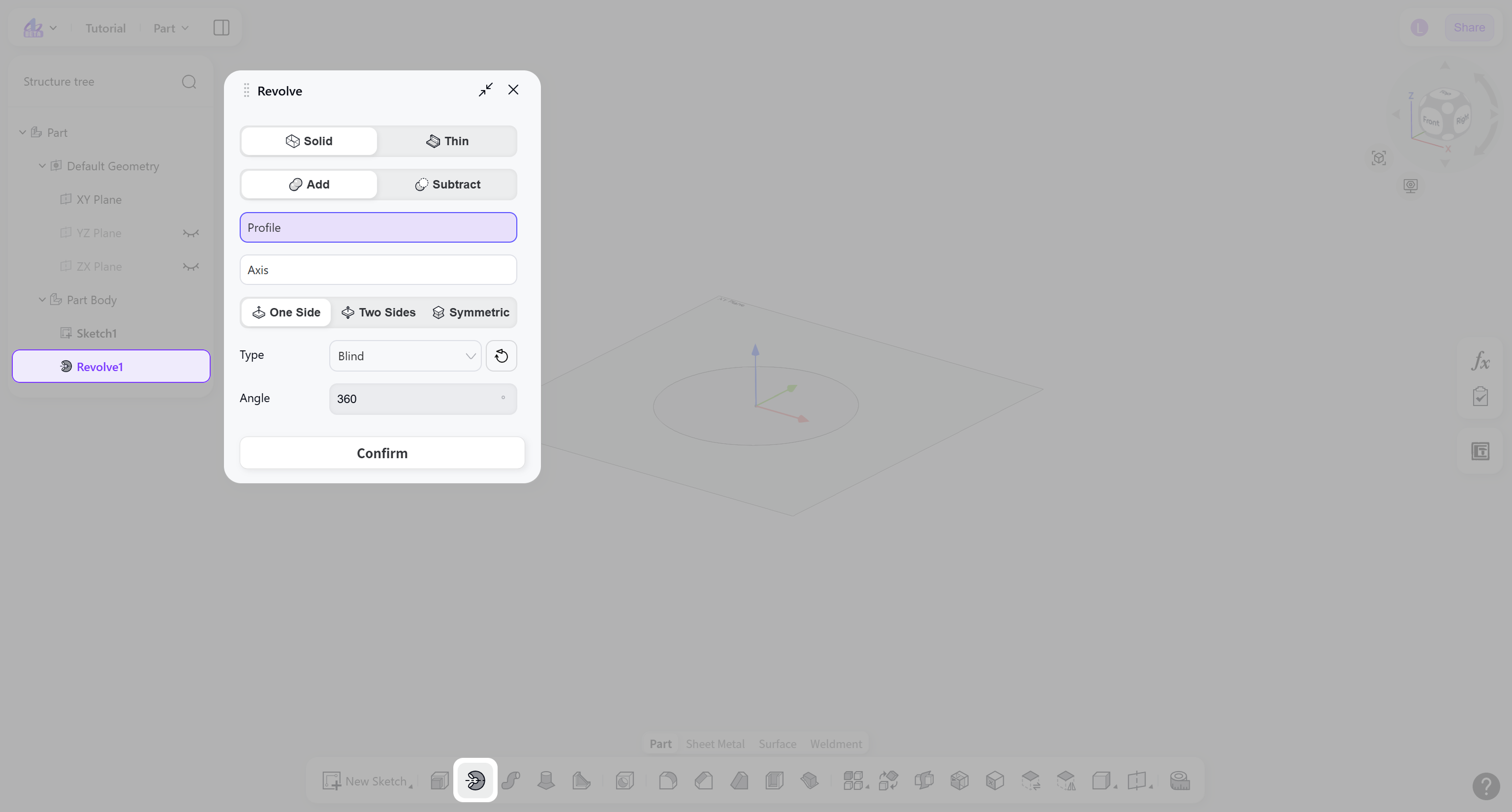
The Revolve tool converts a 2D sketch into a 3D solid in the Part module by rotating the sketch around a specified axis through a defined angle. This is for the creation of rotational geometry such as cylinders, cones, and spheres.
Steps:
Select the feature type: "Solid" or "Thin".
Select the boolean type: "Add" or "Subtract".
Select the closed profile or open curve to be revolved.
Select the revolve method: "One Side", "Two Sides", "Symmetric".
Select the revolve type and set the termination condition.
Feature Type
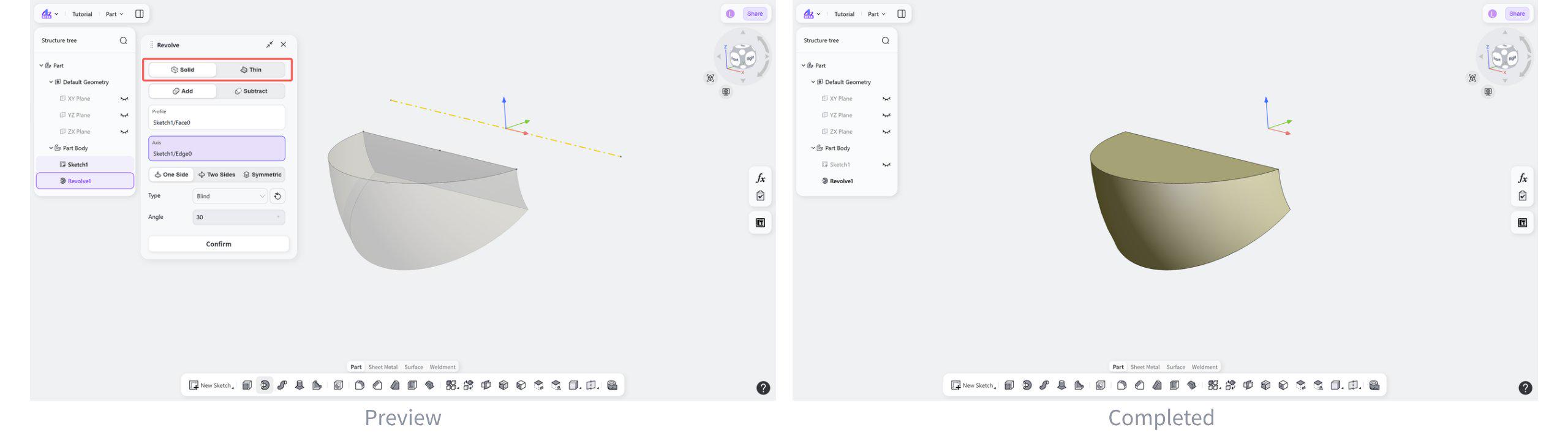
Feature Type: Solid
Generates a 3D solid by revolving a 2D sketch around a specified axis.
Steps:
Select "Solid".
Select the closed profile to be revolved in the sketch.
Feature Type: Thin
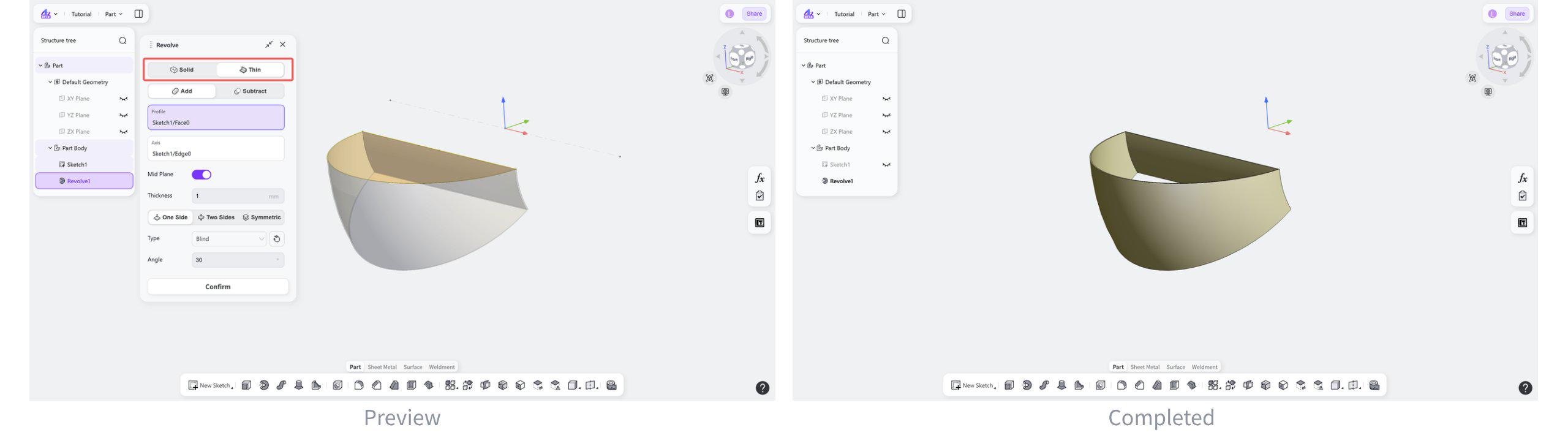
Generates a thin-wall feature by revolving a 2D sketch around a specified axis.
Steps:
Select "Thin".
Select the closed profile or open curve to be revolved in the sketch.
(Optional) Enable "Mid Plane" to apply the thickness symmetrically on both sides of the sketch plane.
Boolean Type
Boolean Type: Addtion
Merges the newly created rotated geometry with the existing solid.
Select "Add".
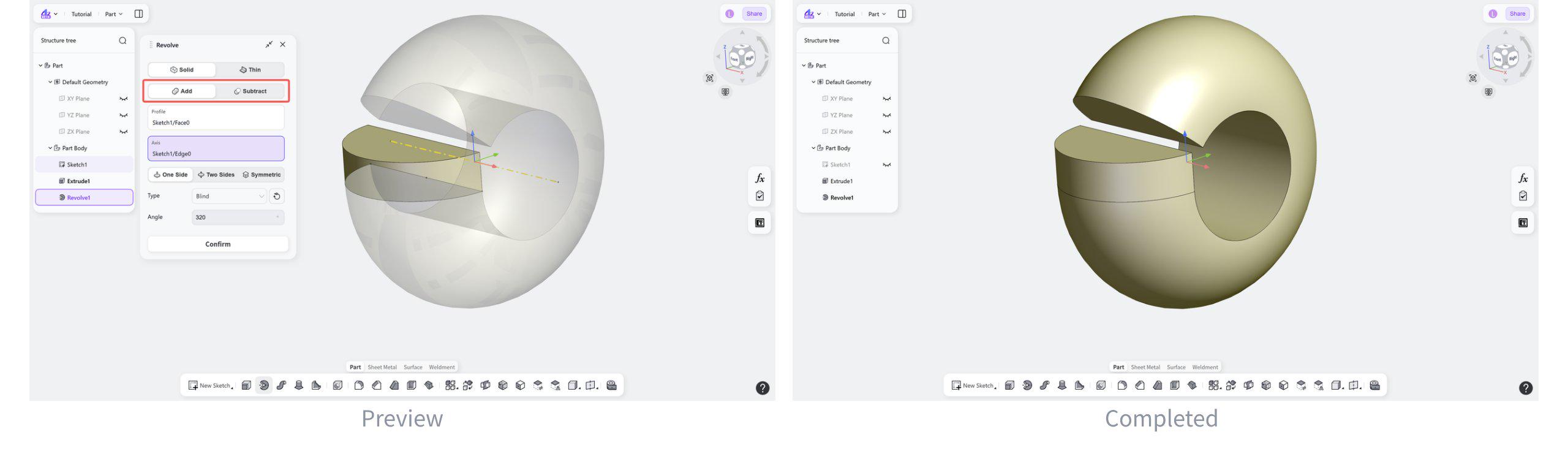
Boolean Type: Substraction
Subtracts the newly created revolved geometry from the existing solid and removes the overlapping material from the original body.
Select "Substract".
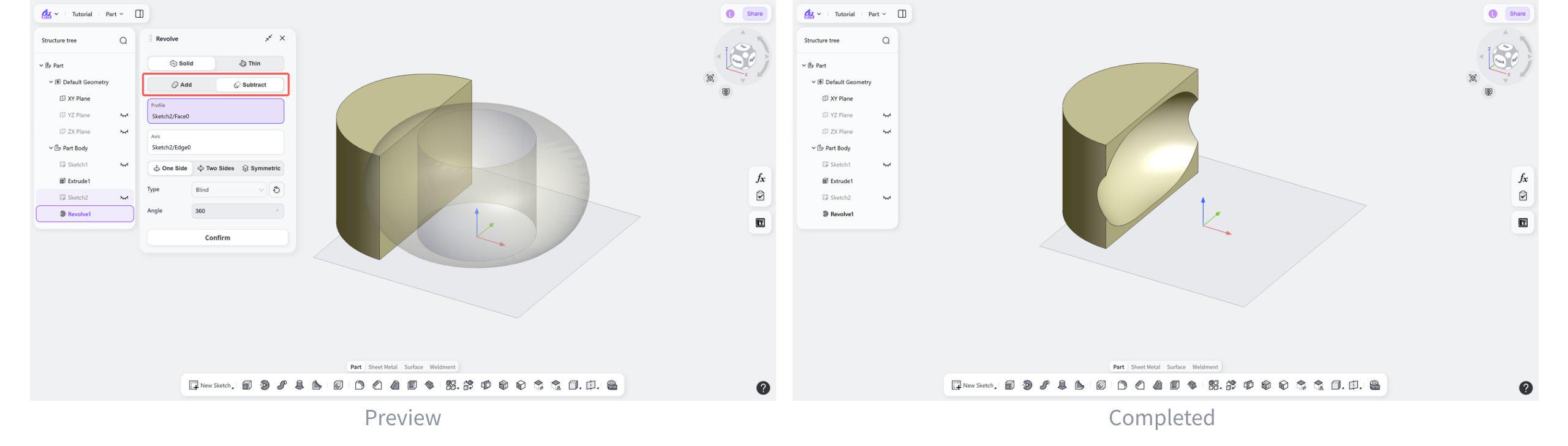
Revolve Method
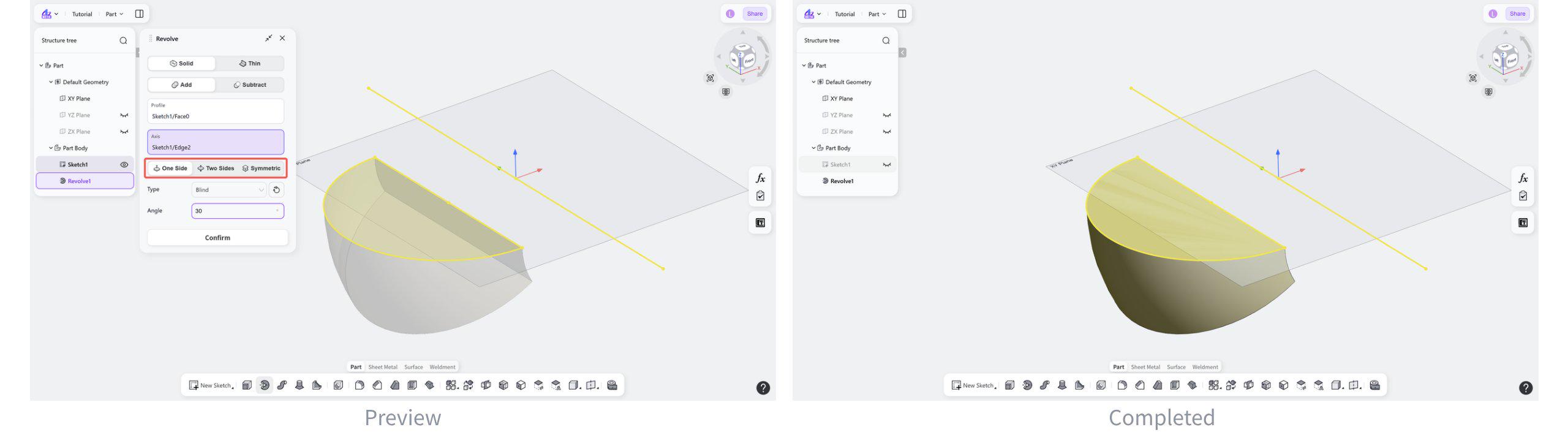
Revolve Method: One Side
Generates a 3D Solid by revolving a 2D sketch around a specified axis in one direction.
Select "One Side".
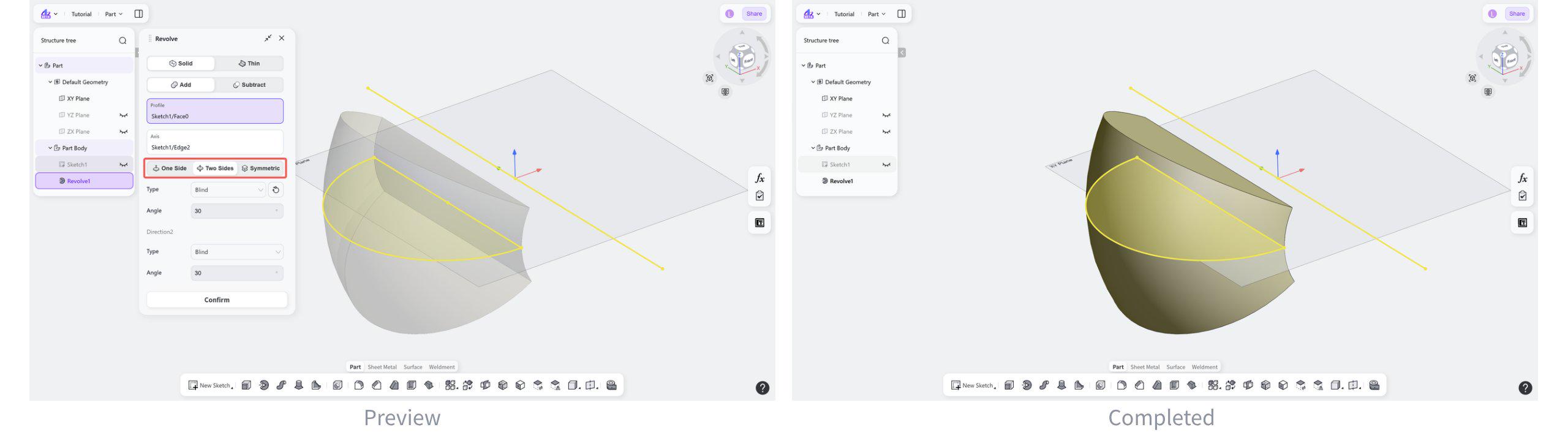
Revolve Method: Two Sides
Generates a 3D Solid by revolving a 2D sketch around a specified axis in both directions.
Select "Two Sides".
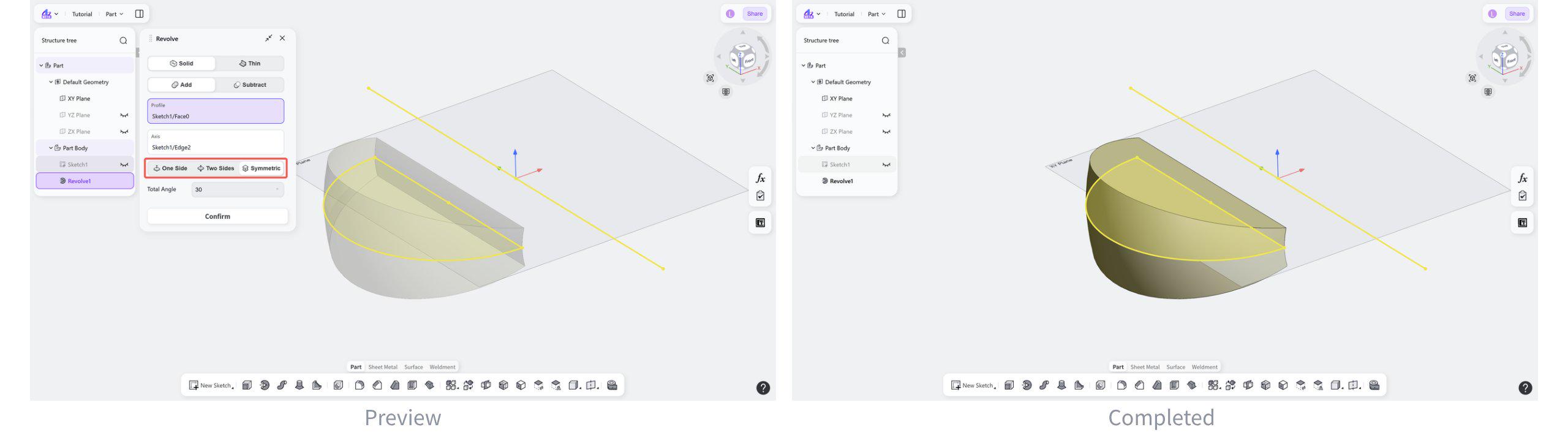
Revolve Method: Symmetric
Generates a symmetric 3D Solid by revolving a 2D sketch around the specified axis.
Select "Symmetric".
Revolve Type
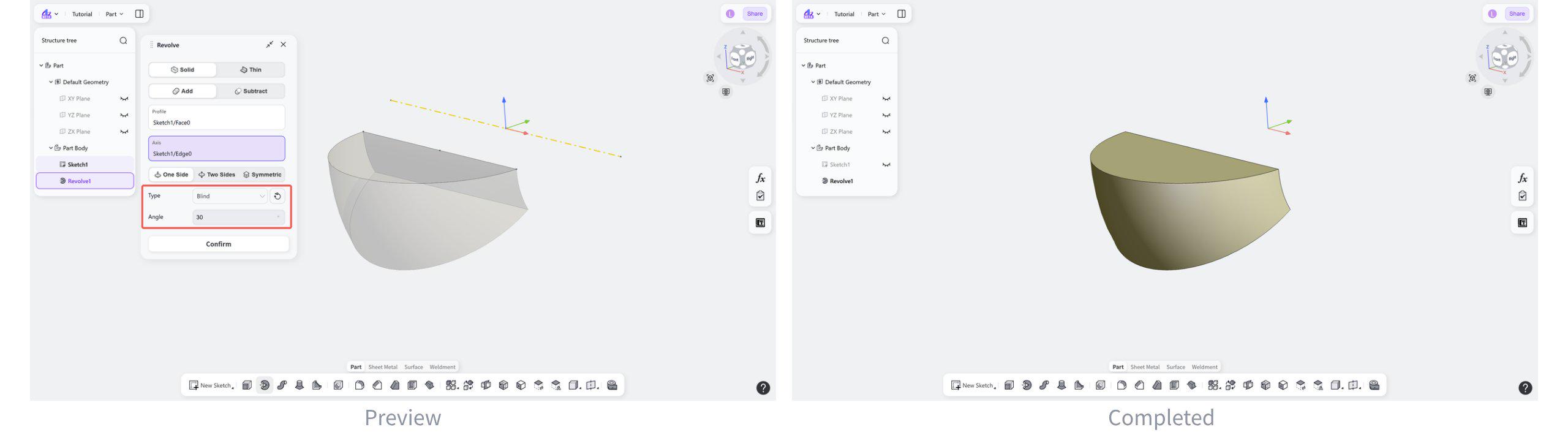
Revolve Type: Blind
Generates a 3D solid by rotating a 2D sketch about a specified axis through a fixed angle.
Steps:
Select "Blind".
(Optional) Click the "Reverse" button to switch the rotation direction.
Enter the rotation angle.
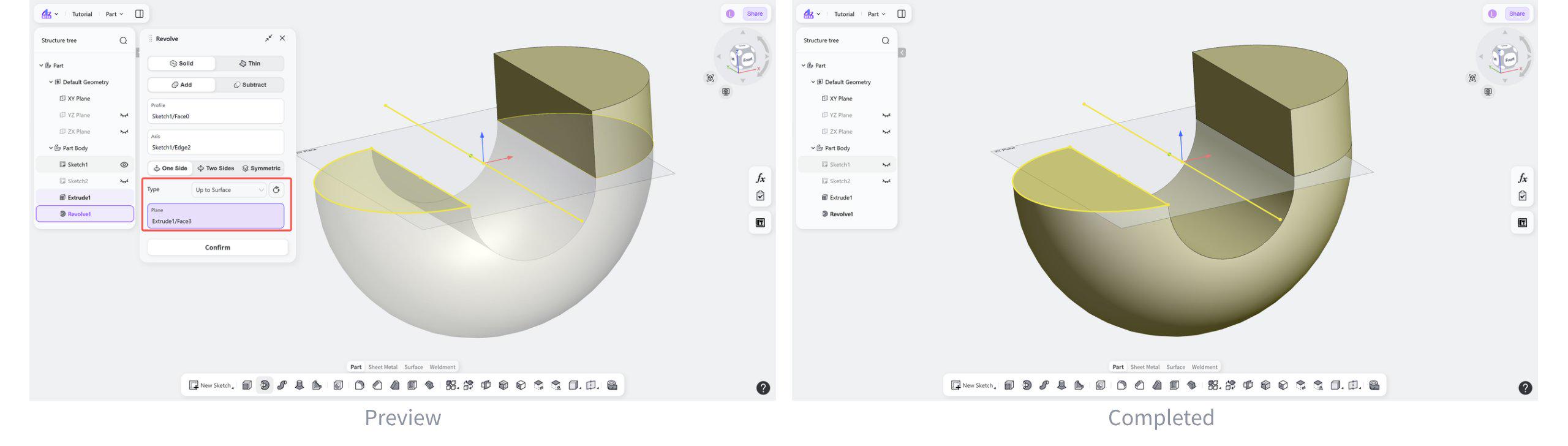
Revolve Type: Up to Surface
Revolves a 2D sketch around a specified axis and uses a selected surface as the termination face of the revolved solid.
Steps:
Select "Up to Surface".
(Optional) Click the "Reverse" button to switch the rotation direction.
Select an existing face as the target face where the revolution ends.
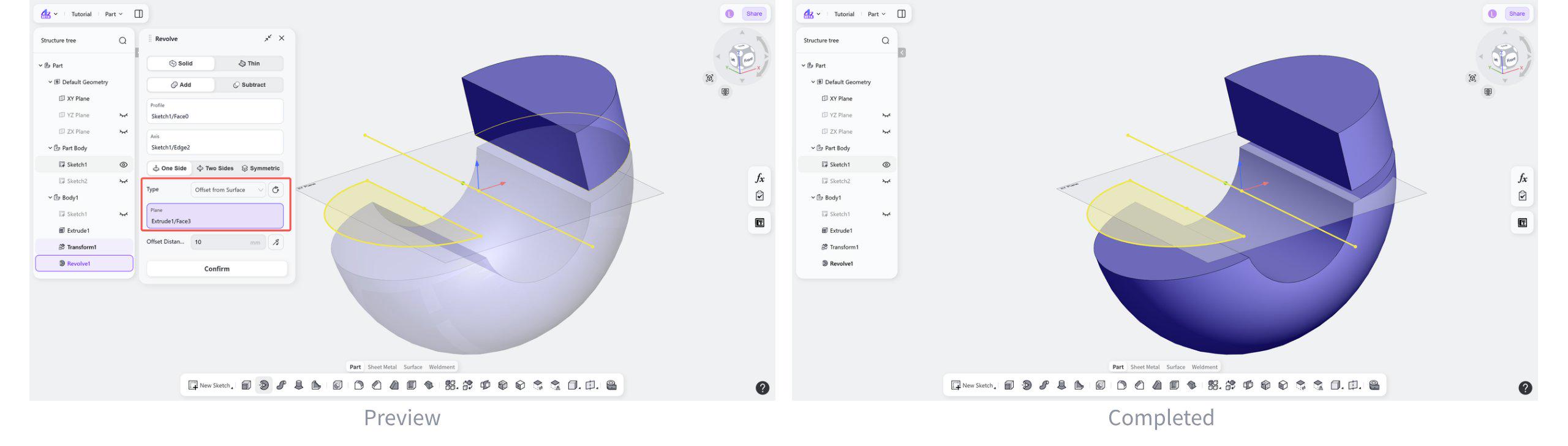
Revolve Type: Offset from Surface
Revolves the sketch toward a selected face while maintaining a specified offset distance from that face.
Steps:
Select "Offset from Surface".
(Optional) Click the "Reverse" button to switch the rotation direction.
Select the target face for the revolve operation.
Enter the offset distance to the specified face.