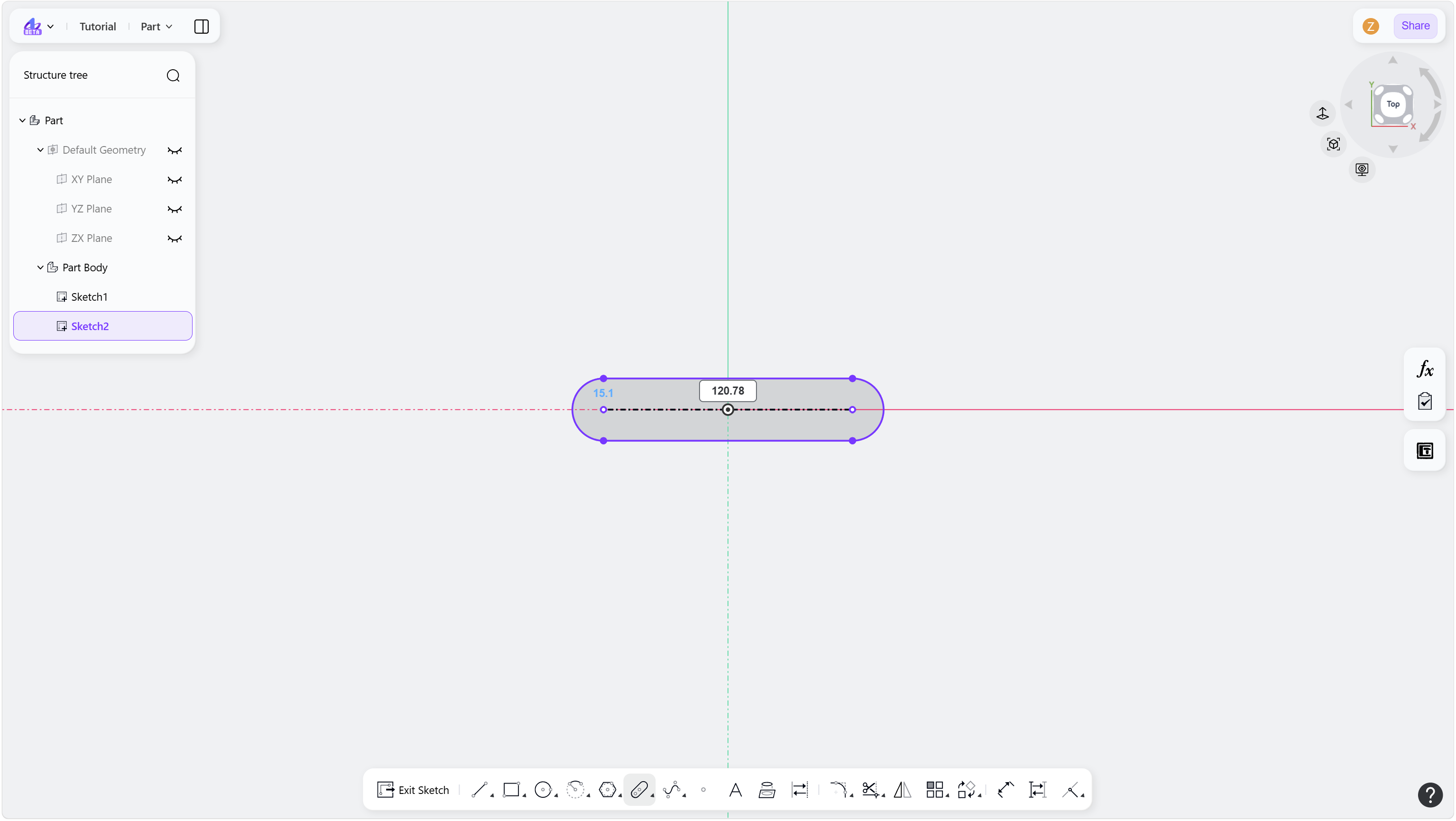

Steps
Hover over the "Slot" icon in the toolbar.
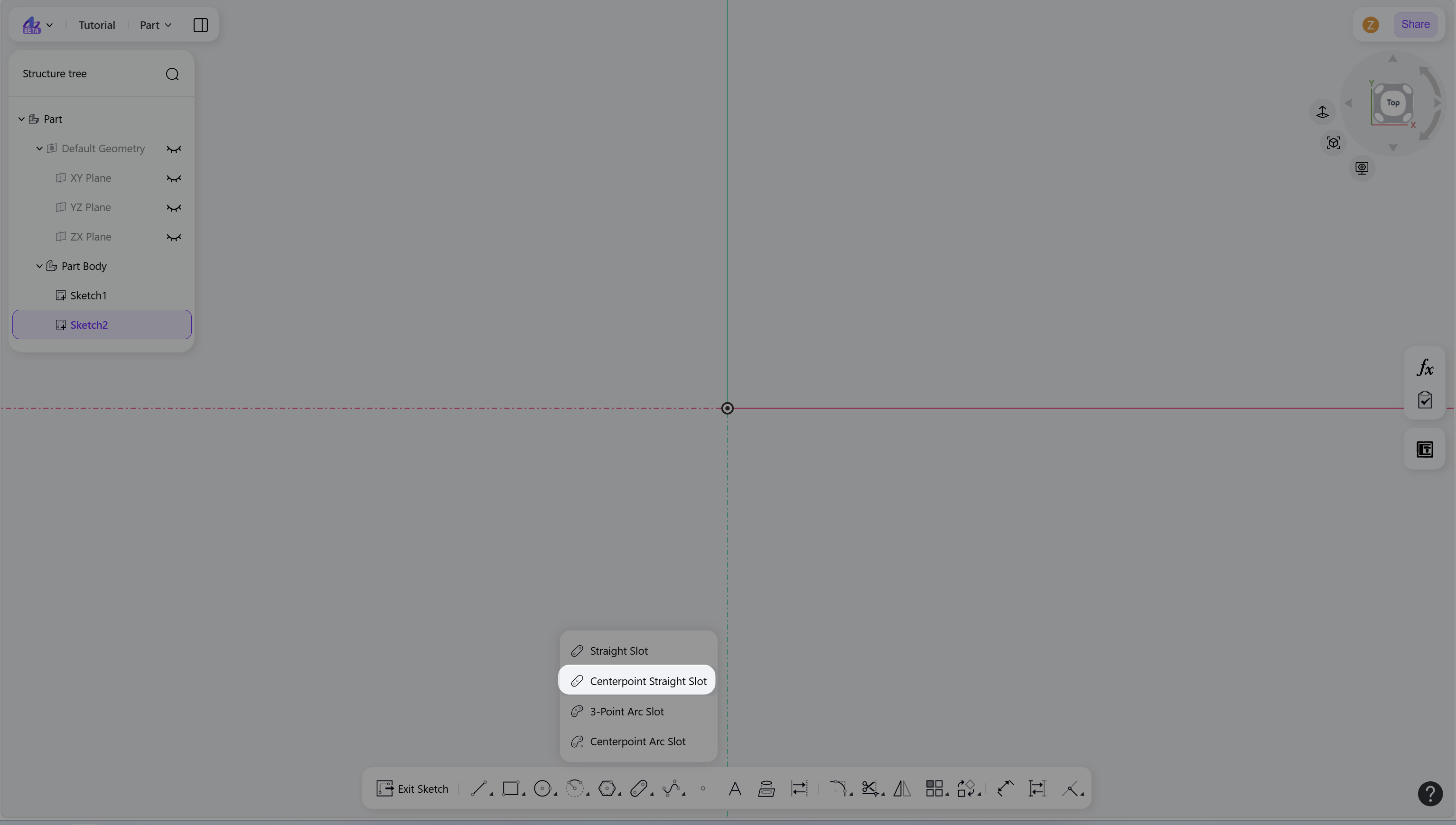
Click the "Centerpoint Straight Slot" to enter Centerpoint Straight Slot mode.
Create a Centerpoint Straight Slot:
Left-click to define the center of the slot.
Move the cursor and left-click to define one endpoint of the slot centerline. A center-symmetric slot centerline is then created.
Move the cursor again and left-click to define the slot width.
(Optional) Enter a value and press Enter to apply dimensional constraints.
Right-click or press Esc to exit.
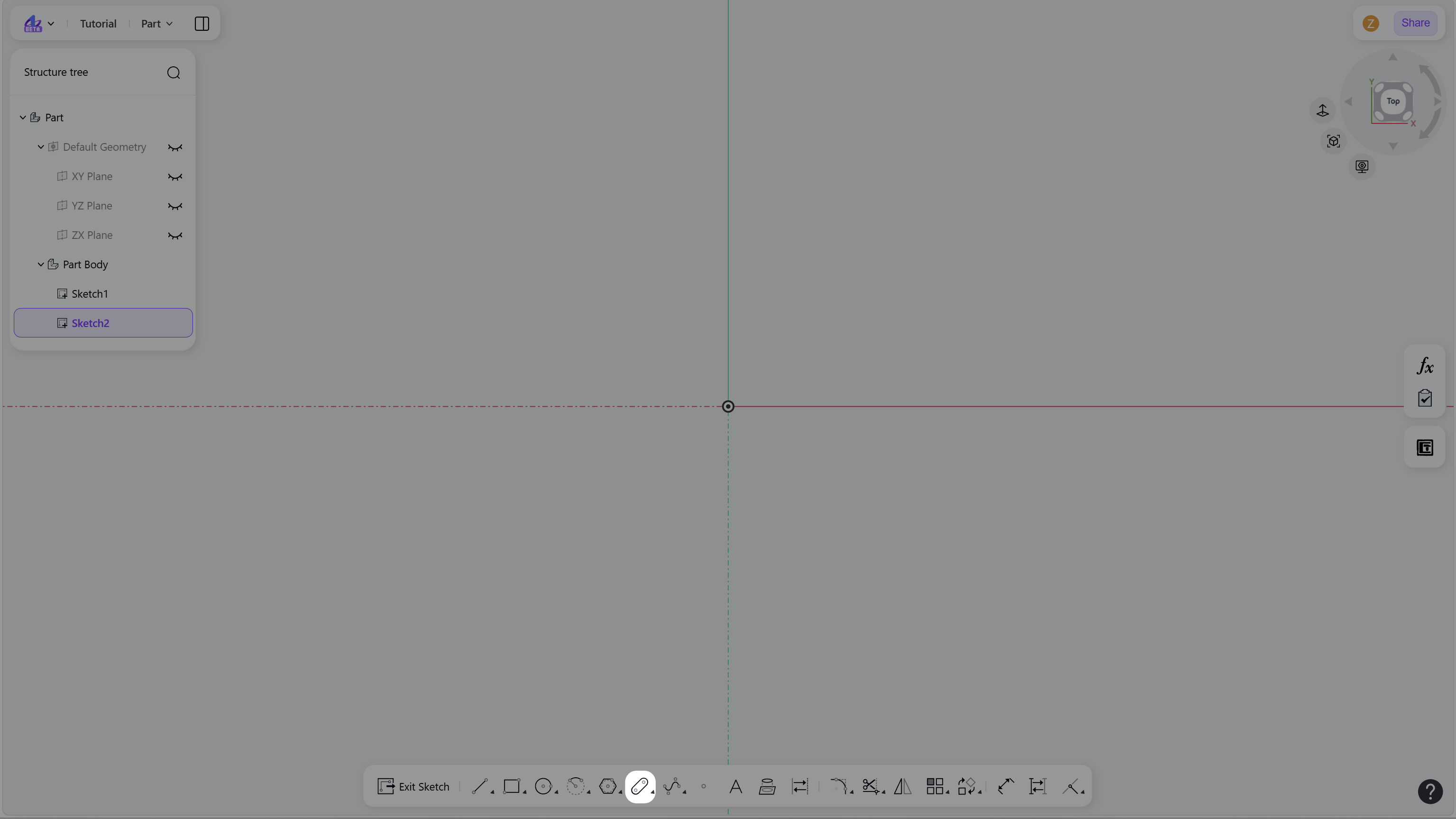
Step 1 - Hover over the "Slot" icon in the toolbar:
Step 2 - Click the "Centerpoint Straight Slot" to enter Centerpoint Straight Slot mode:
Step 3 - Left-click to define the center of the slot:
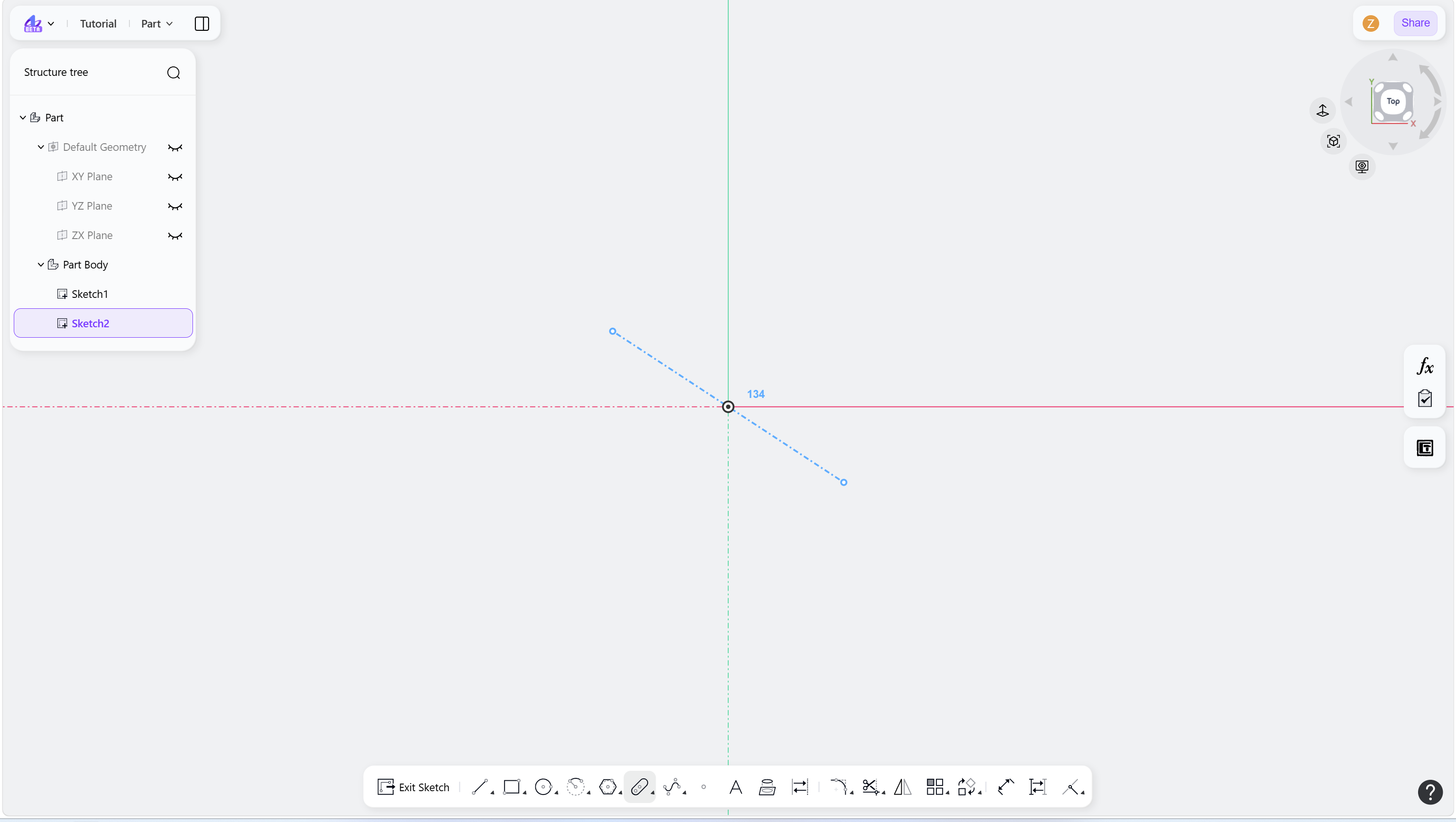
Step 4 - Left-click to define one endpoint of the slot centerline:
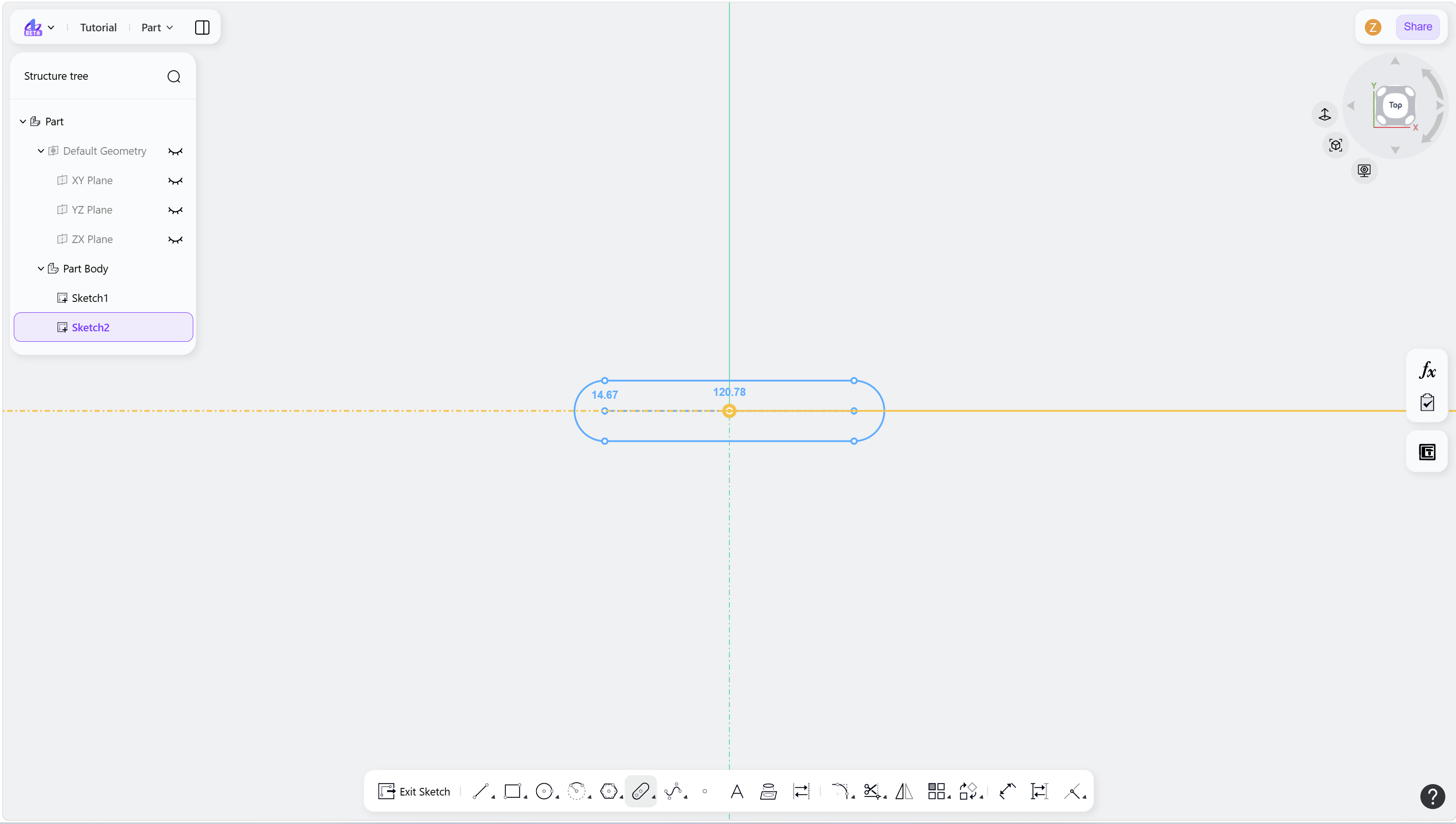
Step 5 - Left-click to define the slot width: