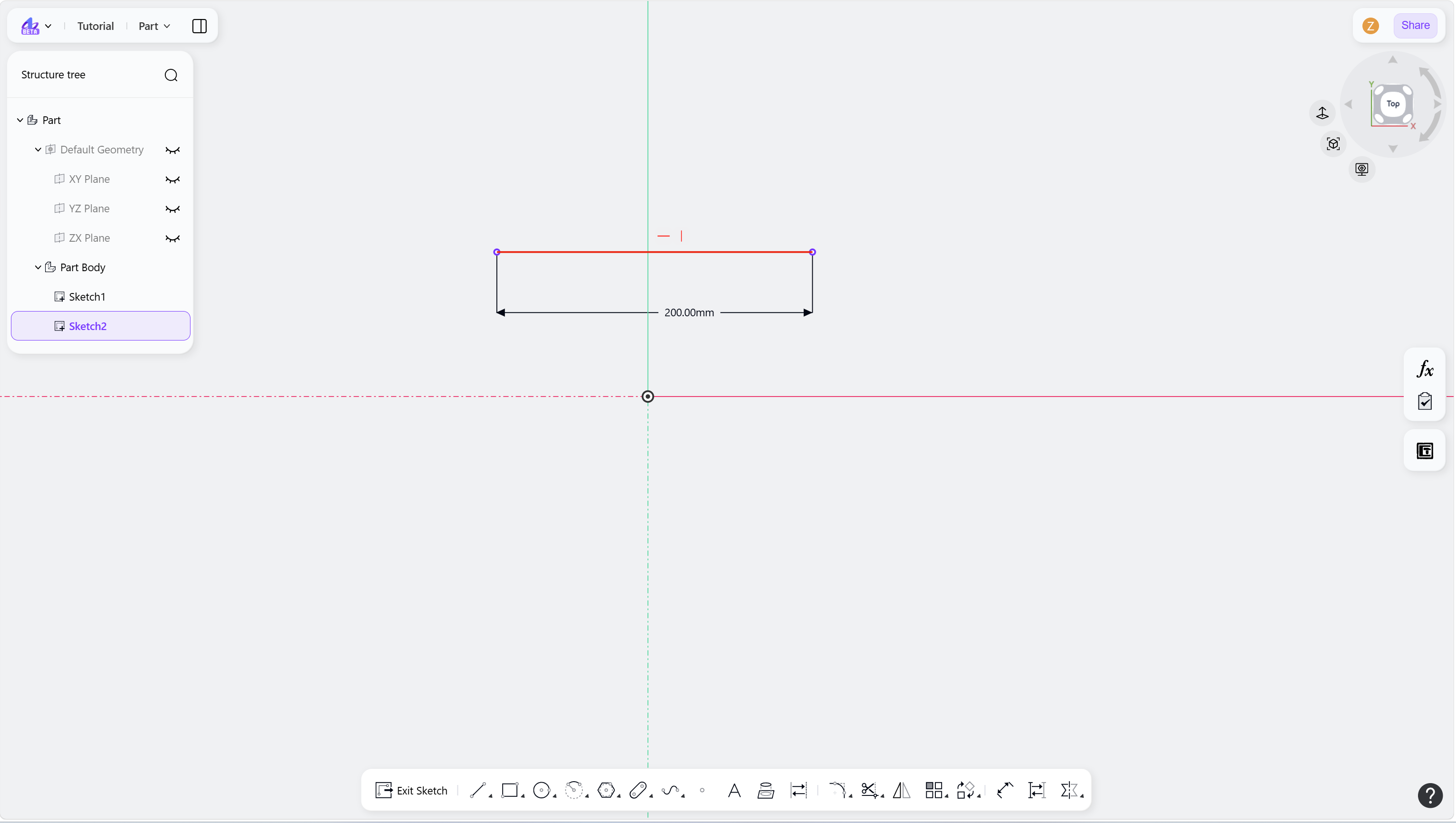
Steps
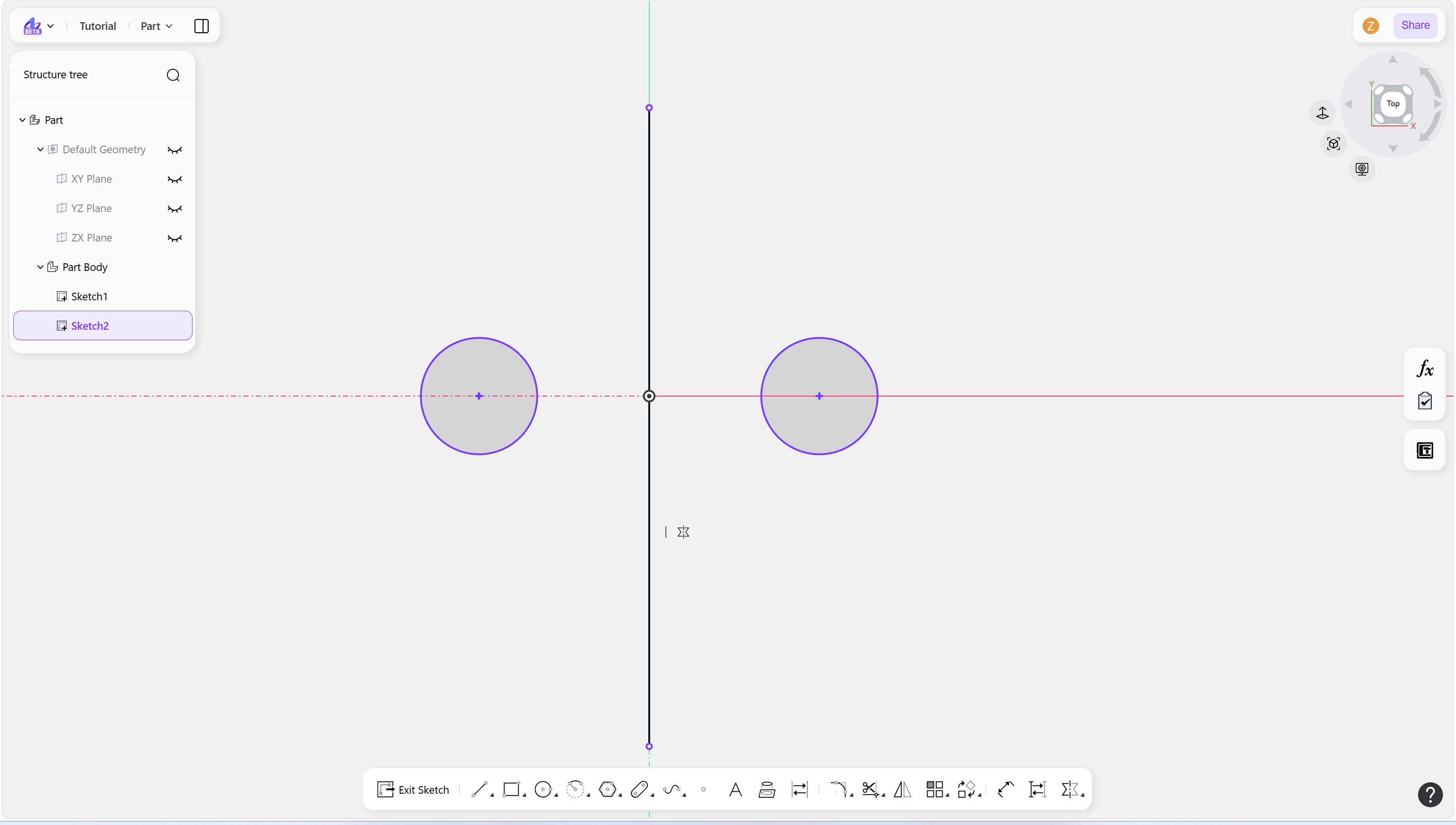
Hover over a sketch element to display its current constraint list.
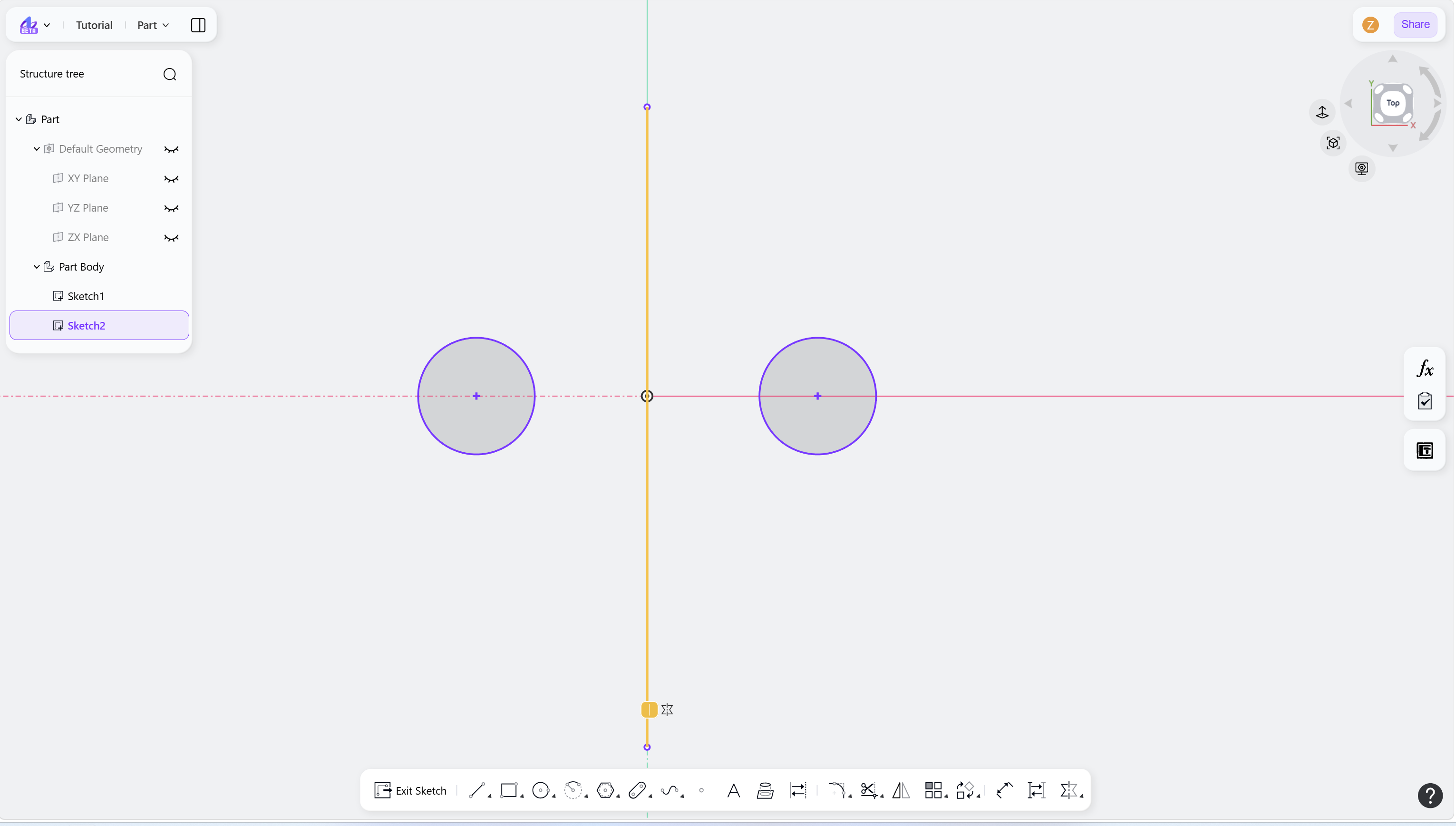
Hover over a constraint icon, and the icon will be highlighted.
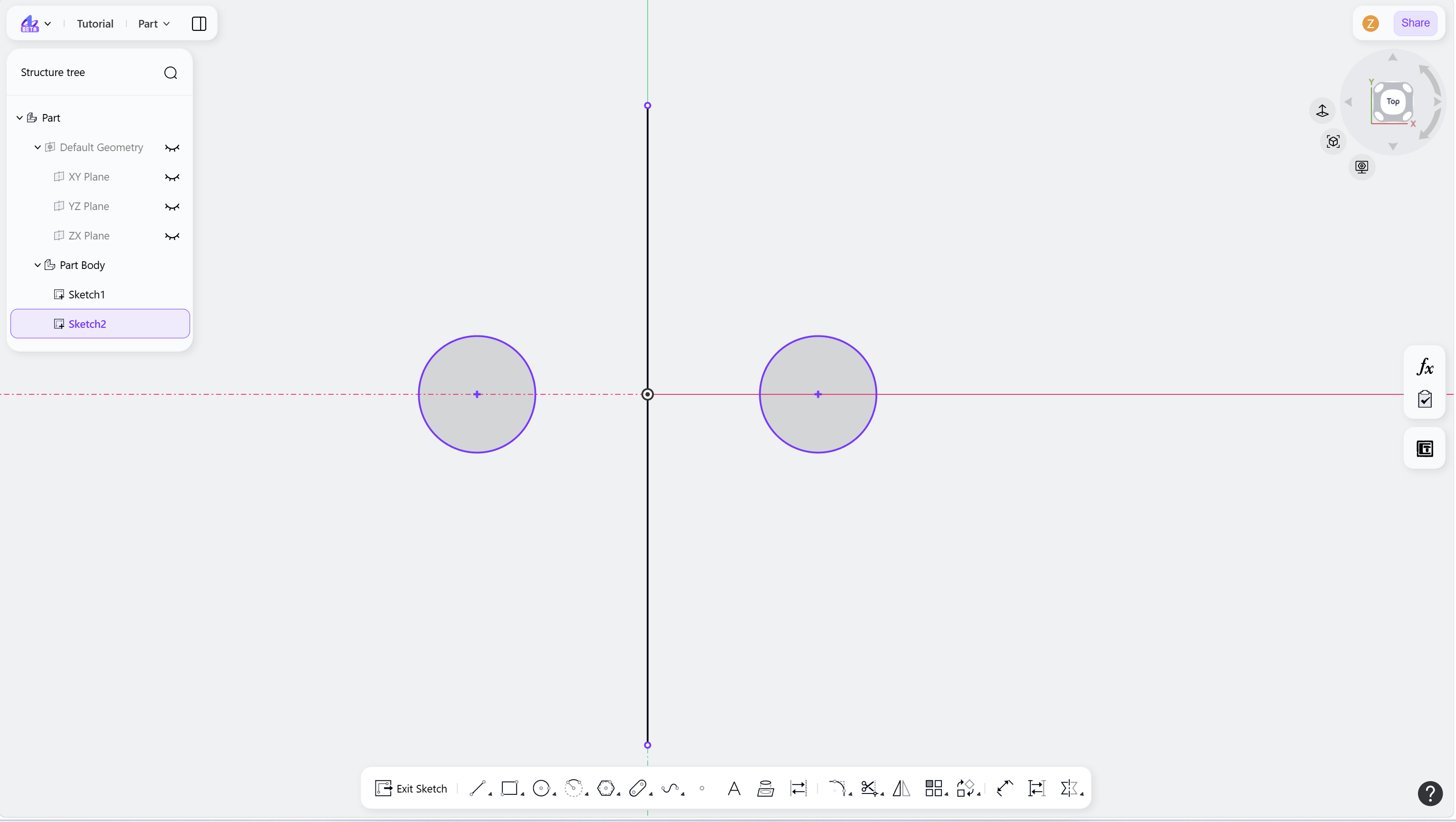
Move the cursor to the empty area or click the empty area to hide the constraint icon.
Step 1 - Hover over a sketch element:
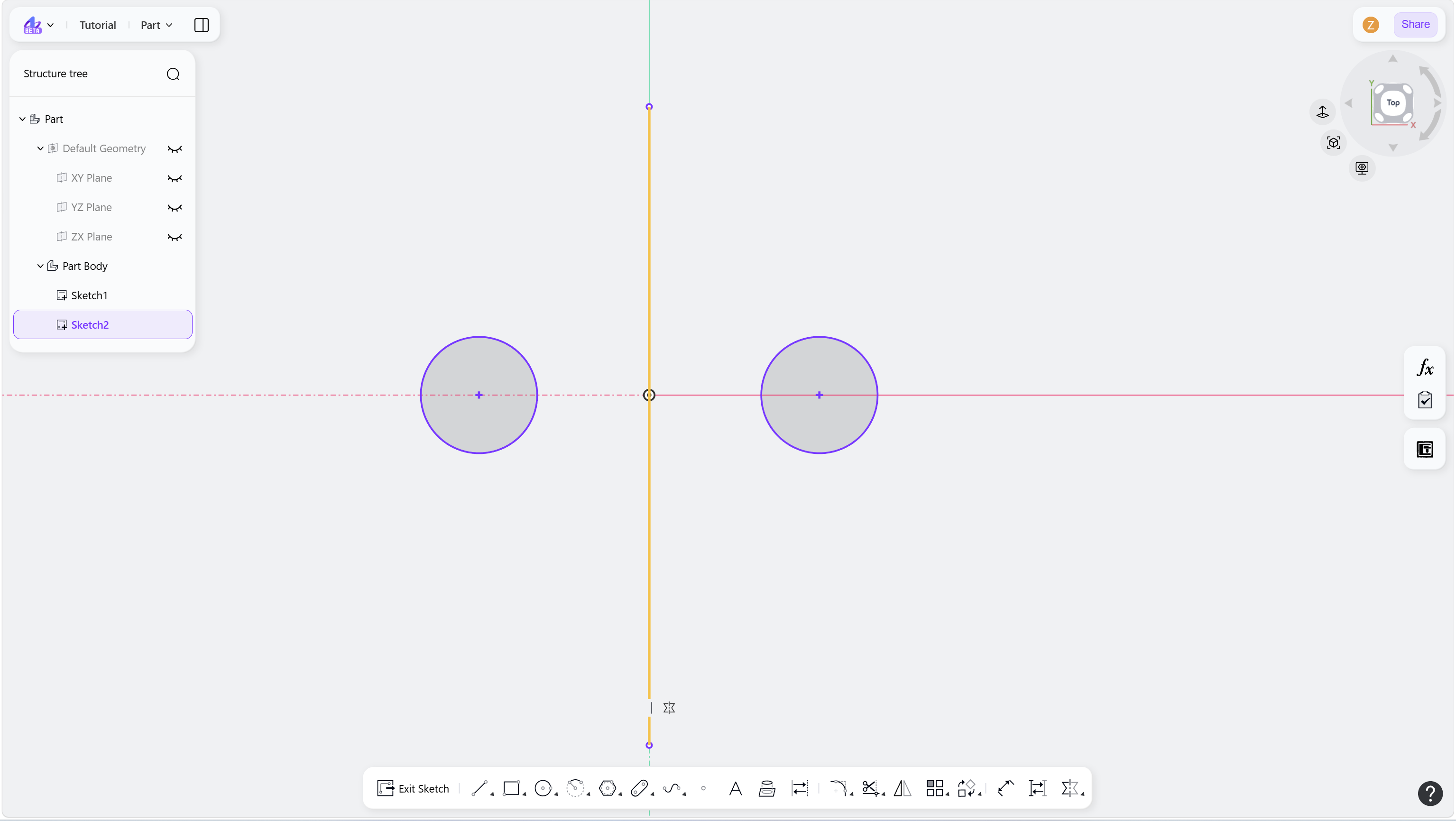
Step 2 - Hover over a constraint icon, and the icon will be highlighted:
Step 3 - Move the cursor to the empty area or click the empty area to hide the constraint icon:
Notes
The color of the constraint icon indicates its constraint status:
Icon in black: The constraint is in a normal state.
Icon in red: A conflict exists in the added constraint, and the constraint solver cannot resolve it normally. The users need to delete certain current constraints or modify the related dimensions.