

The Transform tool moves, copies, or rotates sketch geometry.
Steps
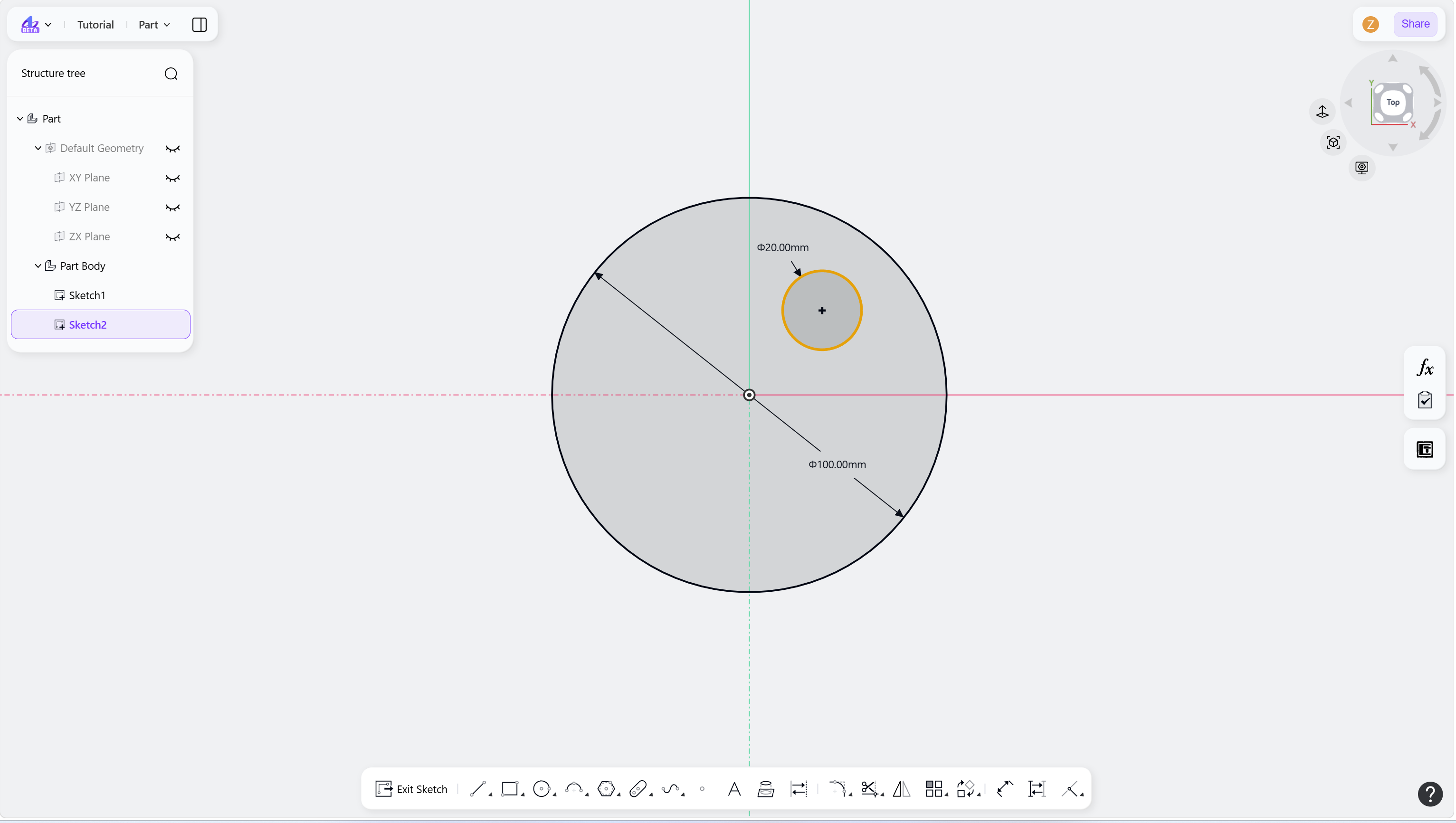
Select sketch geometry to transform.
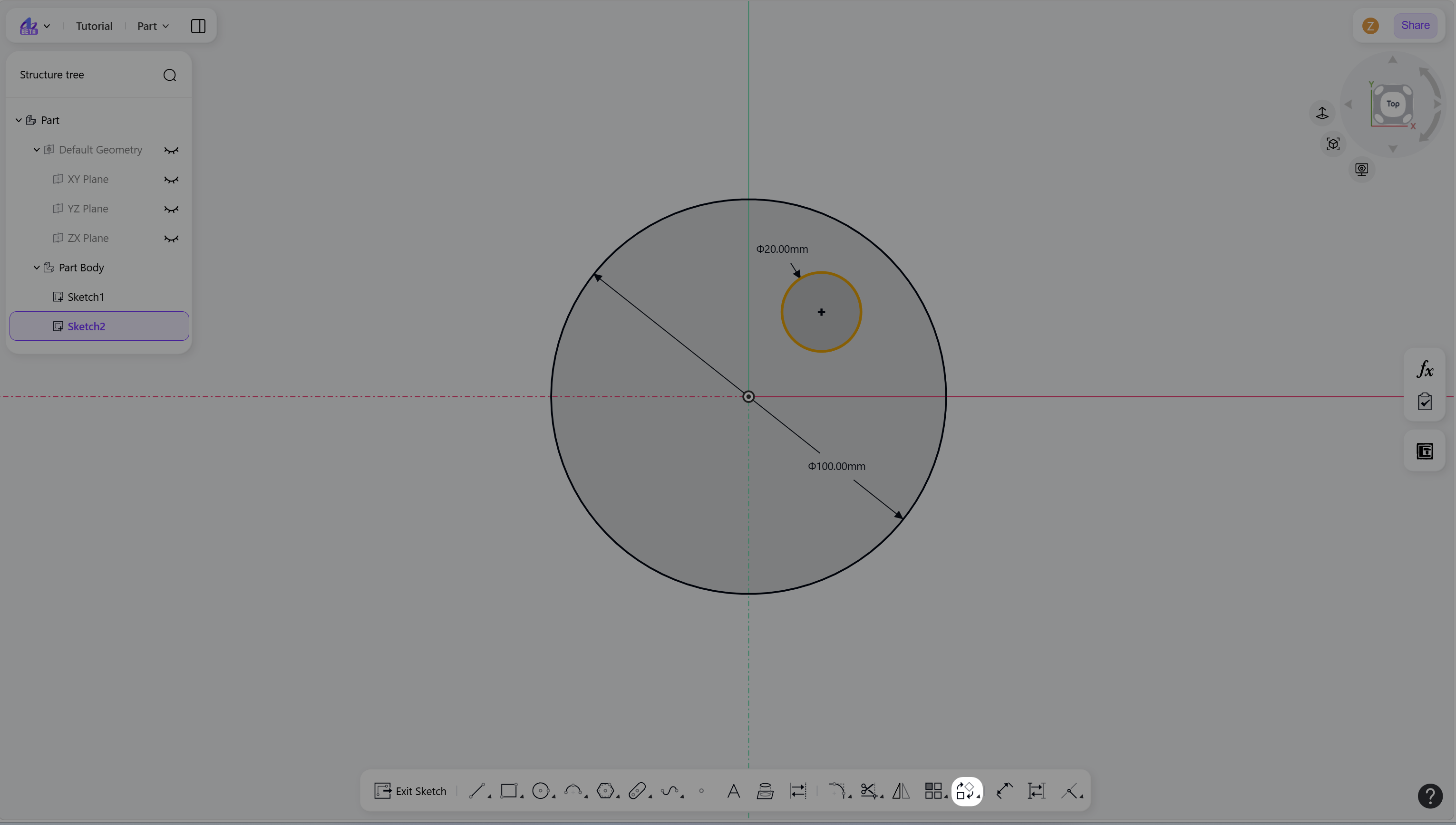
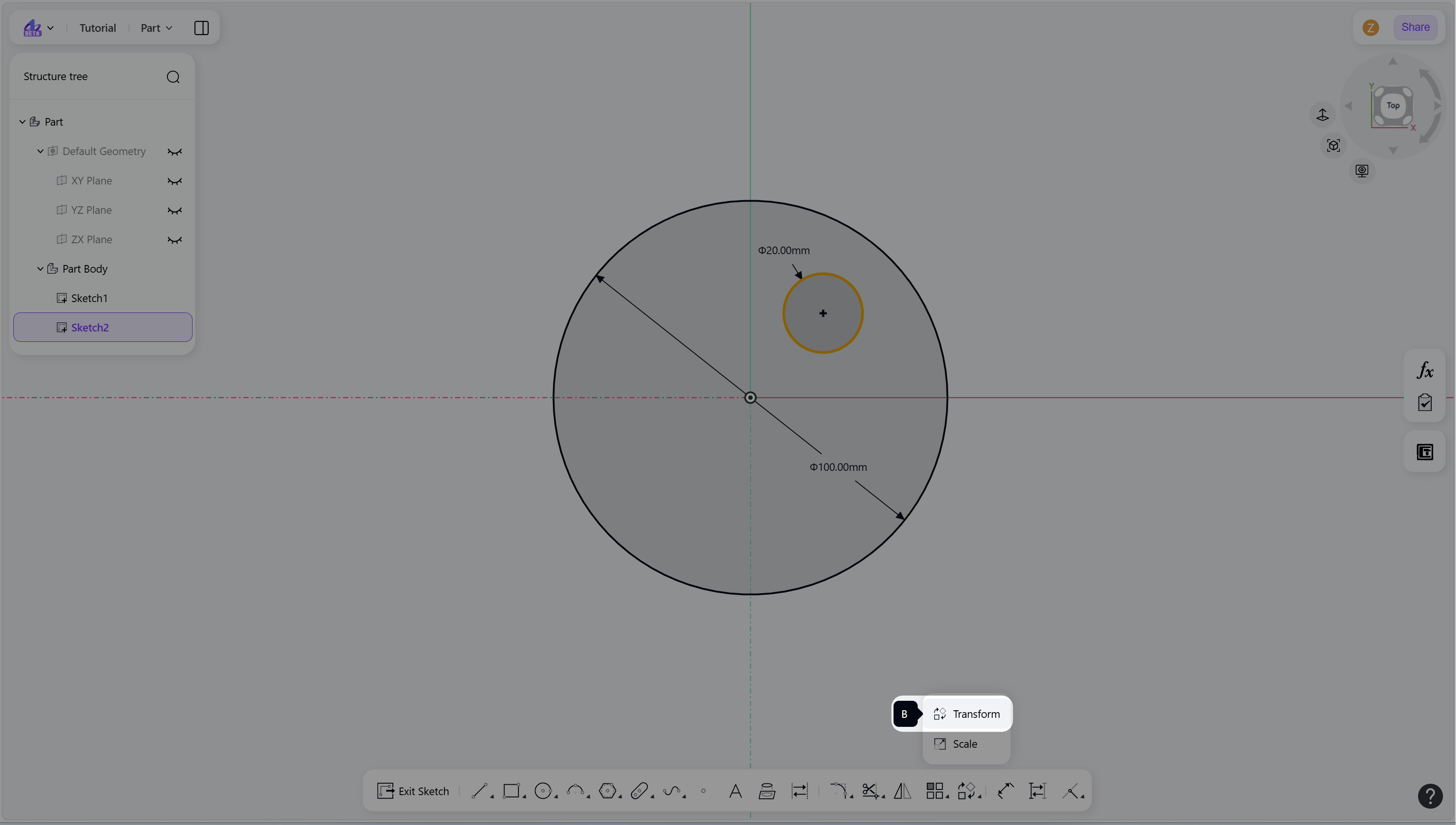
Hover over the "Transform/Scale" icon in the toolbar, and select the "Transform".
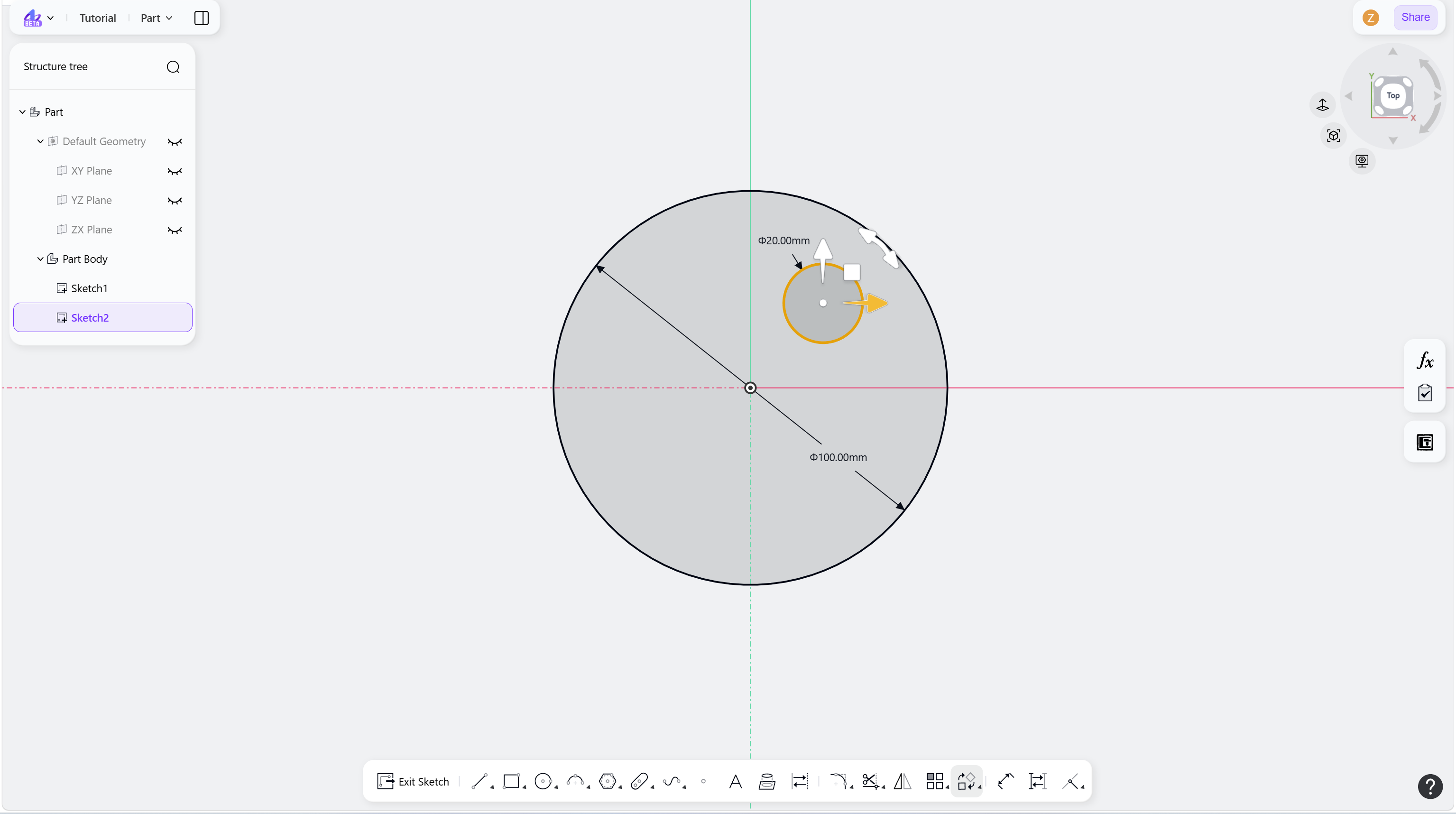
Drag the manipulator to move or rotate the geometry.
Release the cursor to confirm the transformation.
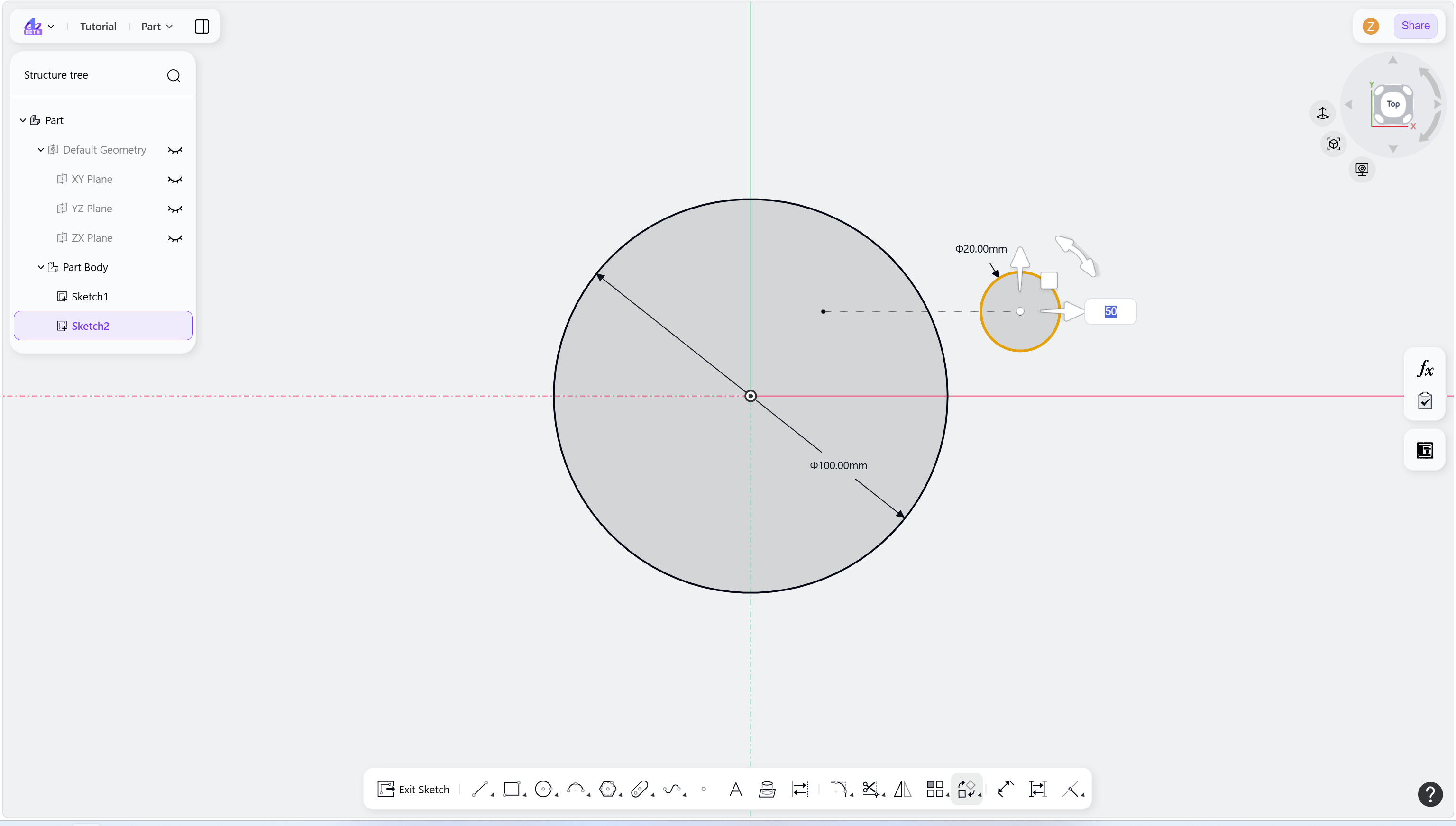
(Optional) Enter a value and press Enter to apply dimensional input.
Right-click or press Esc to exit.
Step 1 - Select sketch geometry to transform:
Step 2 - Hover over the "Transform/Scale" icon in the toolbar:
Step 3 - Enter the transform mode:
Step 4 - Drag the manipulator to move or rotate the geometry:
Step 5 - Release the cursor to confirm the transformation:
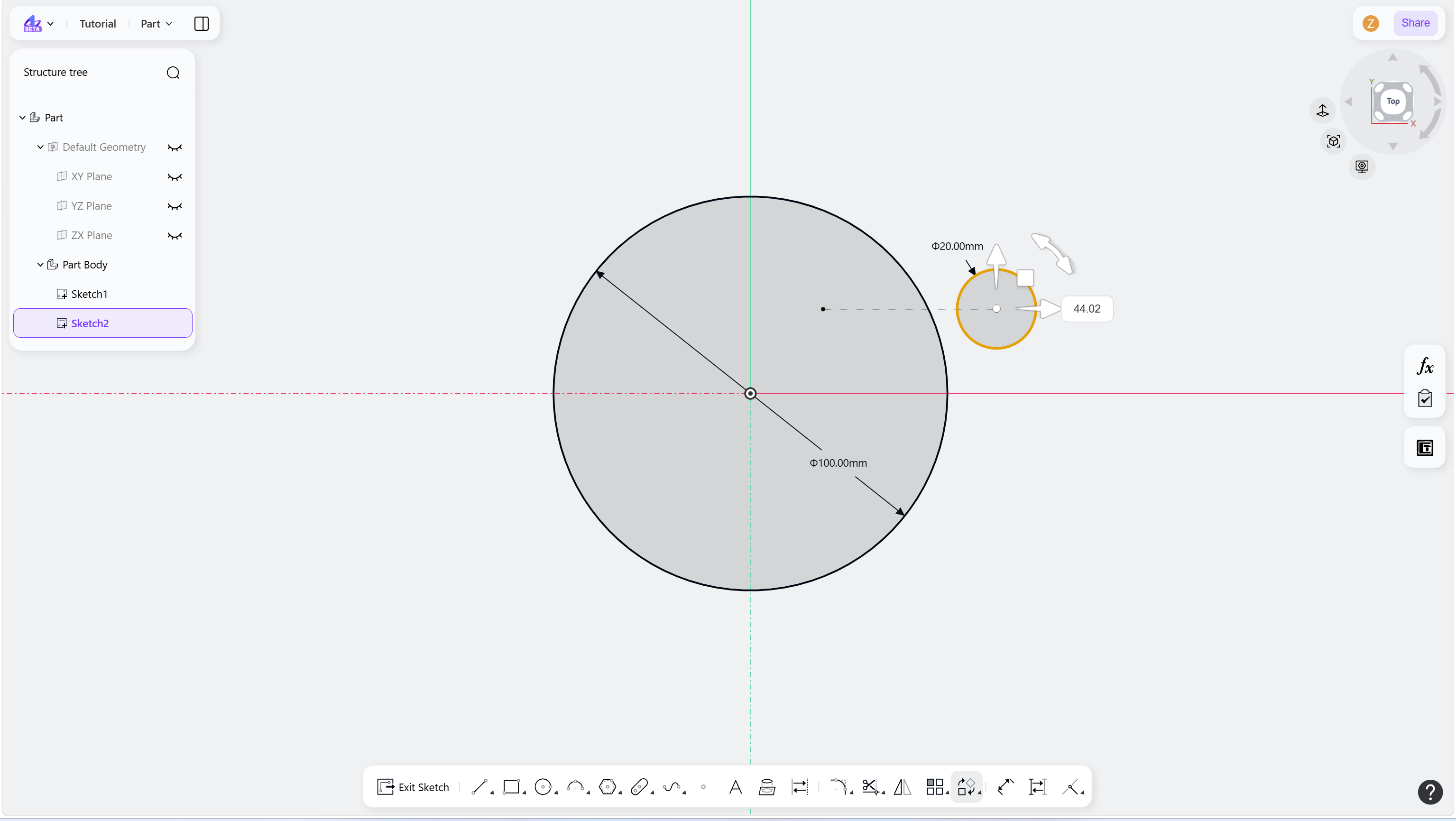
Step 6 - Enter the dimension:
Notes
Hold Ctrl while transforming to create copies.
Press Ctrl+D to repeat the previous copy operation.
Continuous operations are supported.