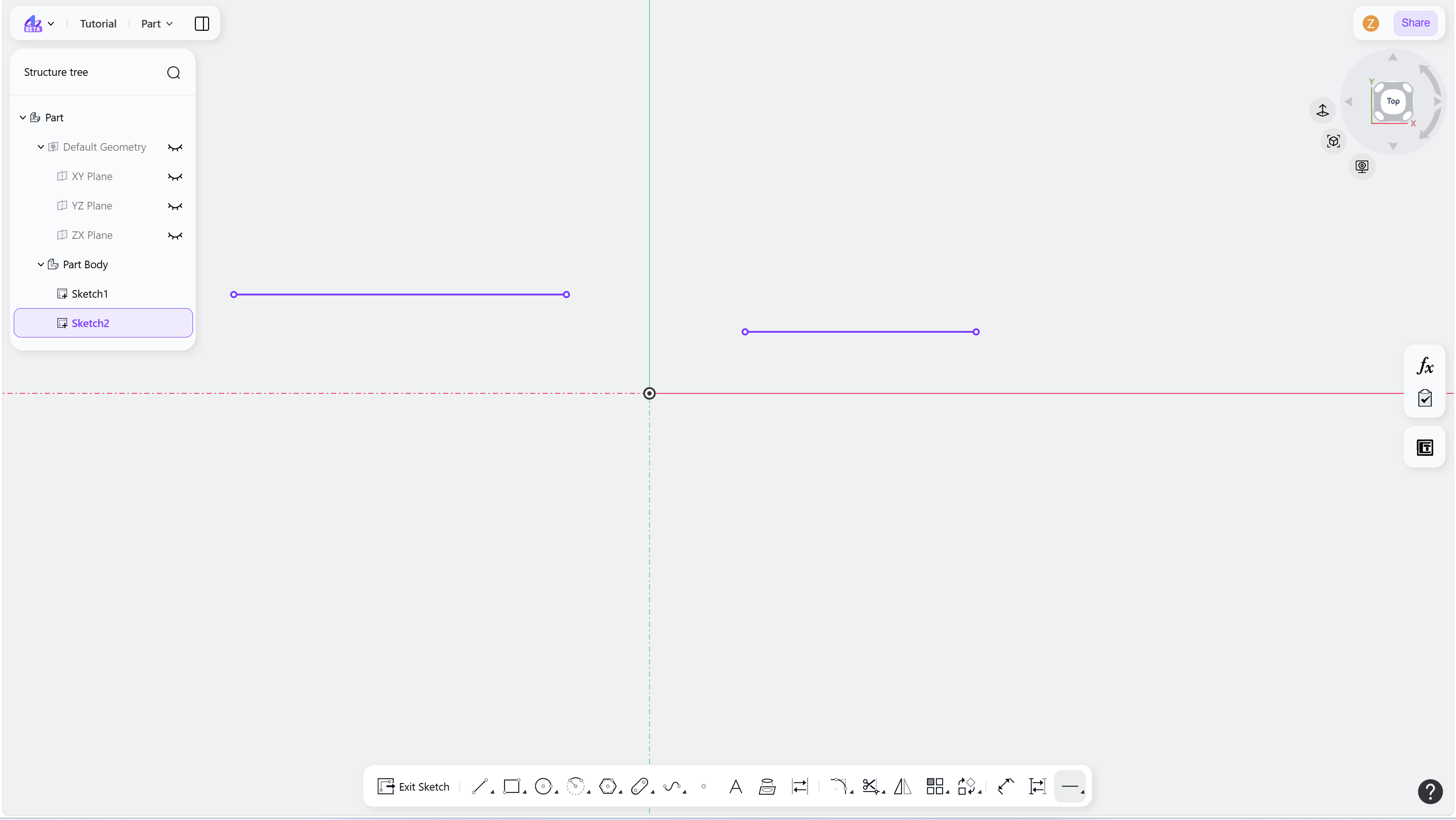
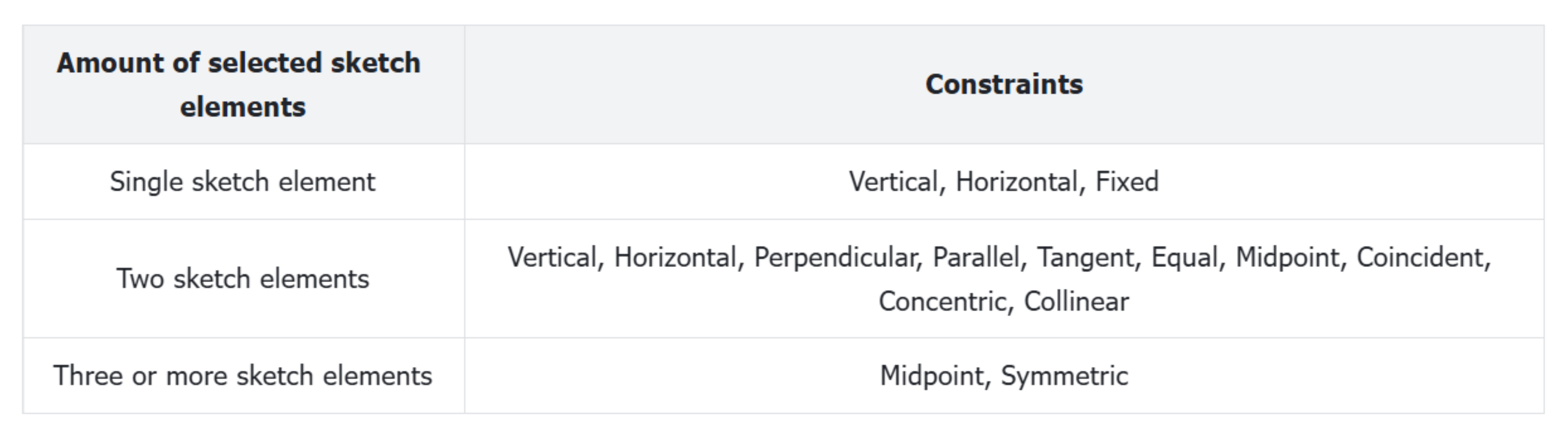
Create via Menu
Select the sketch element to apply the constraint to. A shortcut menu will automatically appear.
Select the desired constraint from the menu. The constraint will be applied to the sketch element.
Step 1 - Select the sketch elements:
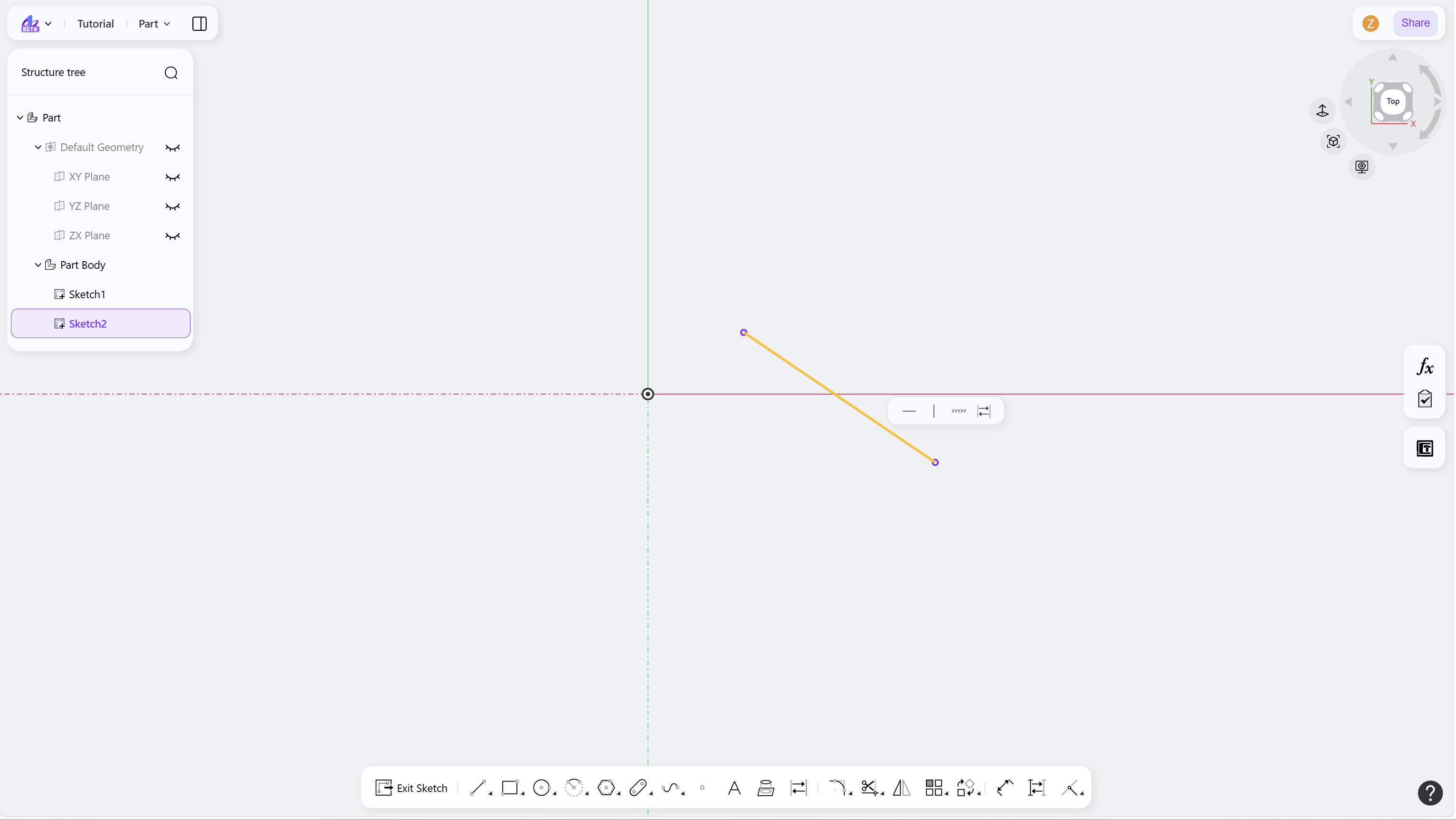
Step2-1 - Select the desired constraint in the menu:
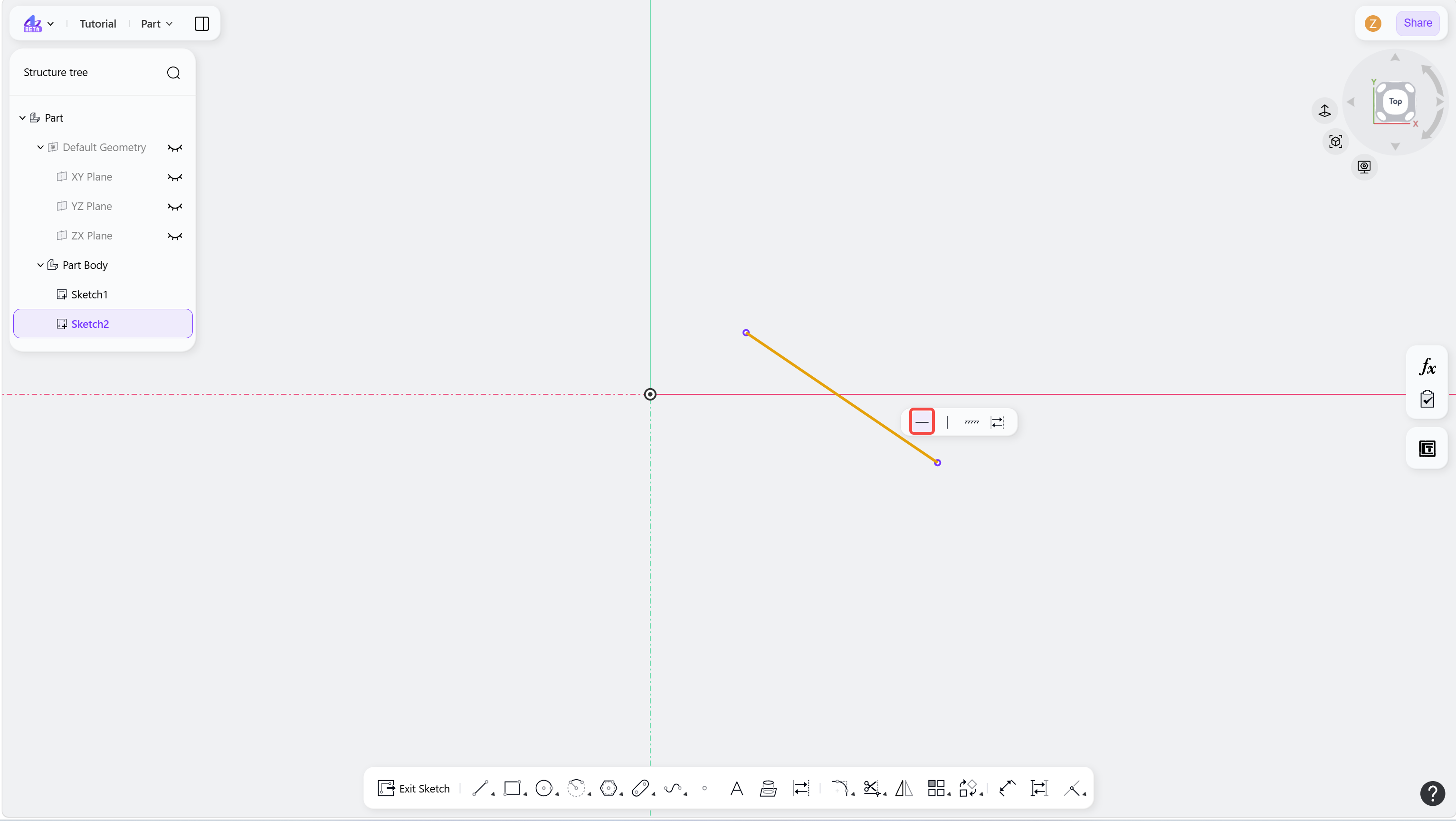
Step2-2 - The constraint will be applied to the sketch element:
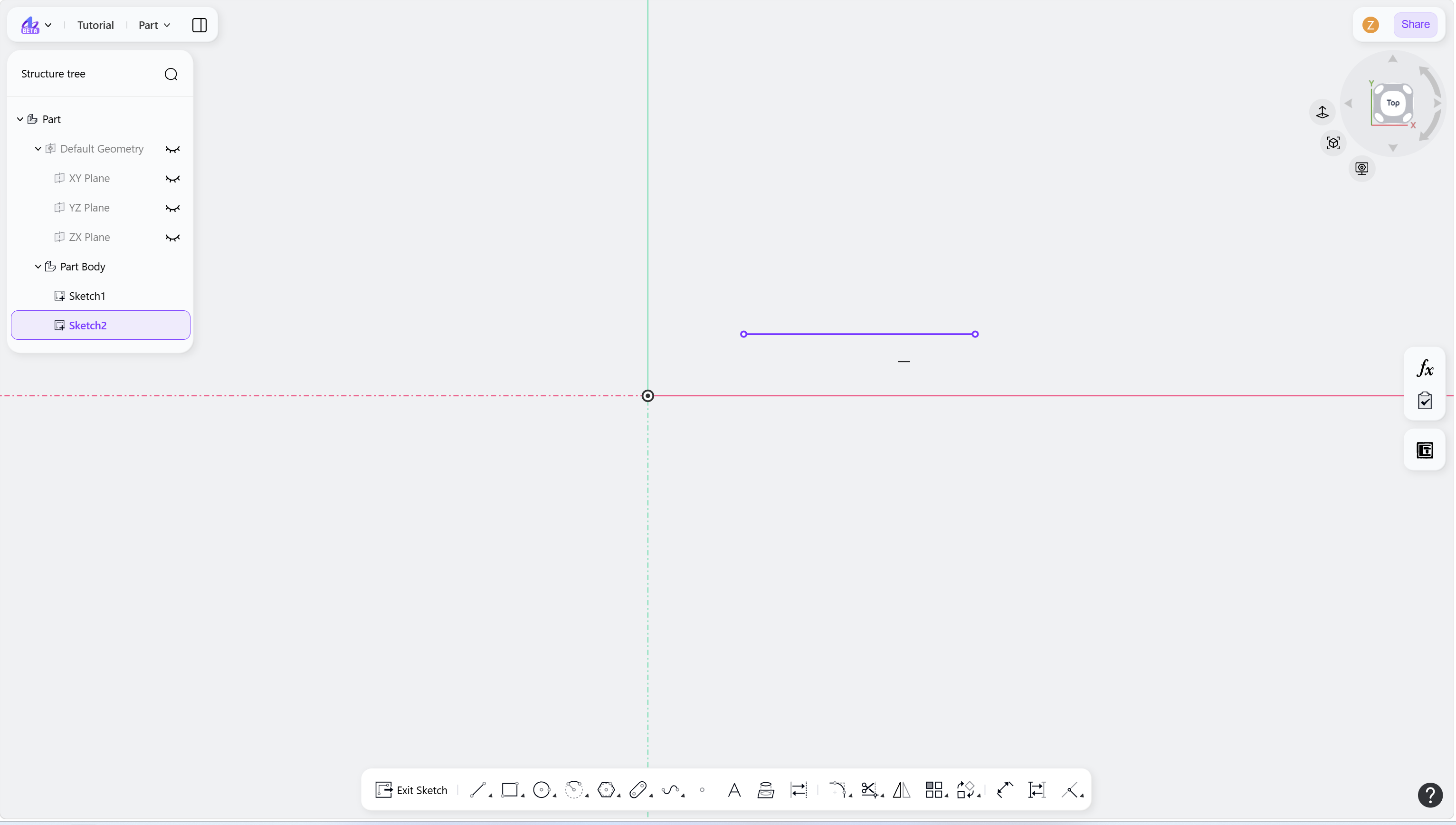
Create with Element First
Select the sketch element to apply the constraint.
Hover the cursor over the "Constraint" icon in the toolbar to show the constraint menu.
Select the required constraint from the toolbar. The constraint will be applied to the selected sketch element.
Step 1 - Select the sketch element:
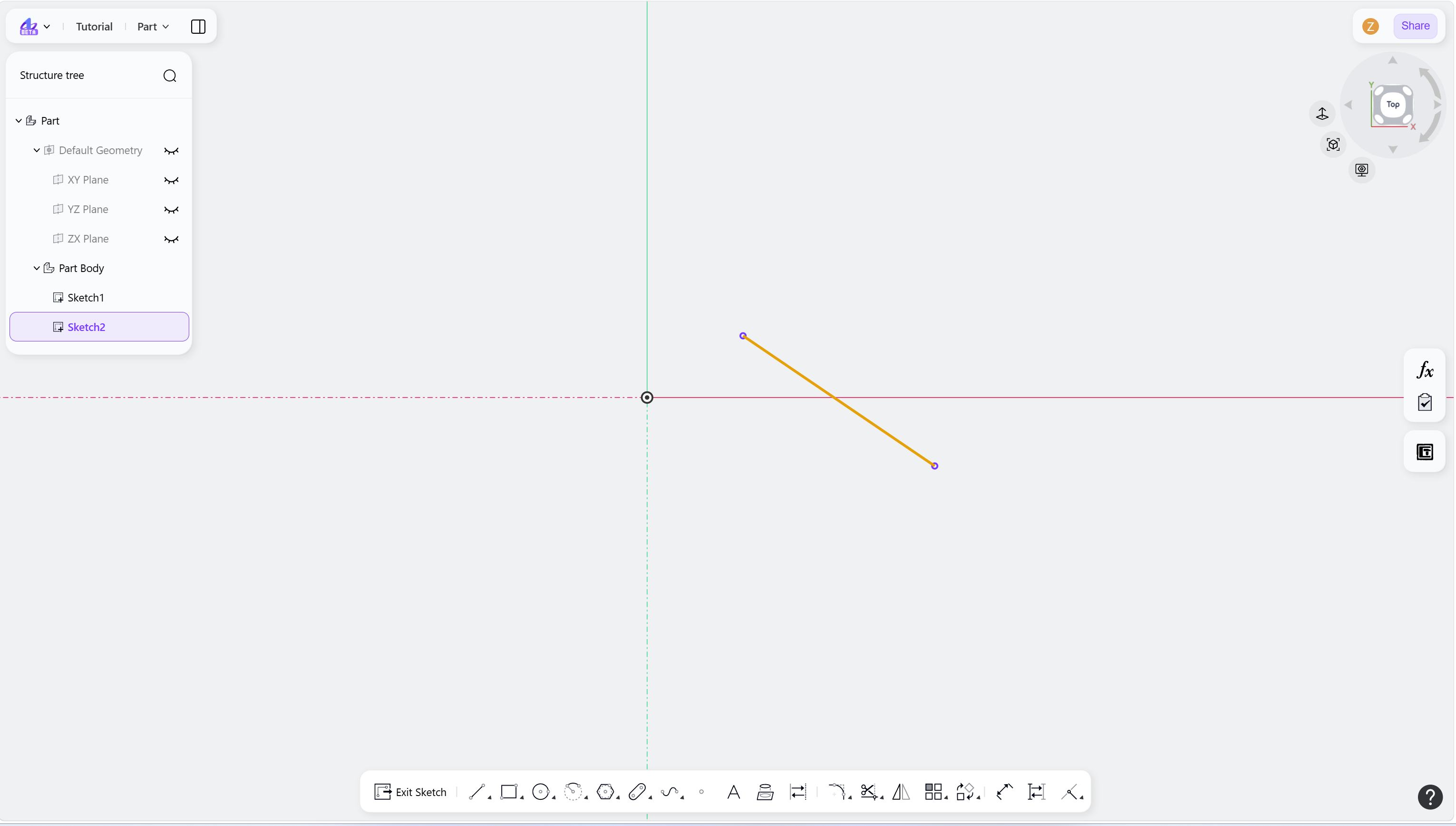
Step 2 - Hover over the "Constraint" icon in the toolbar:
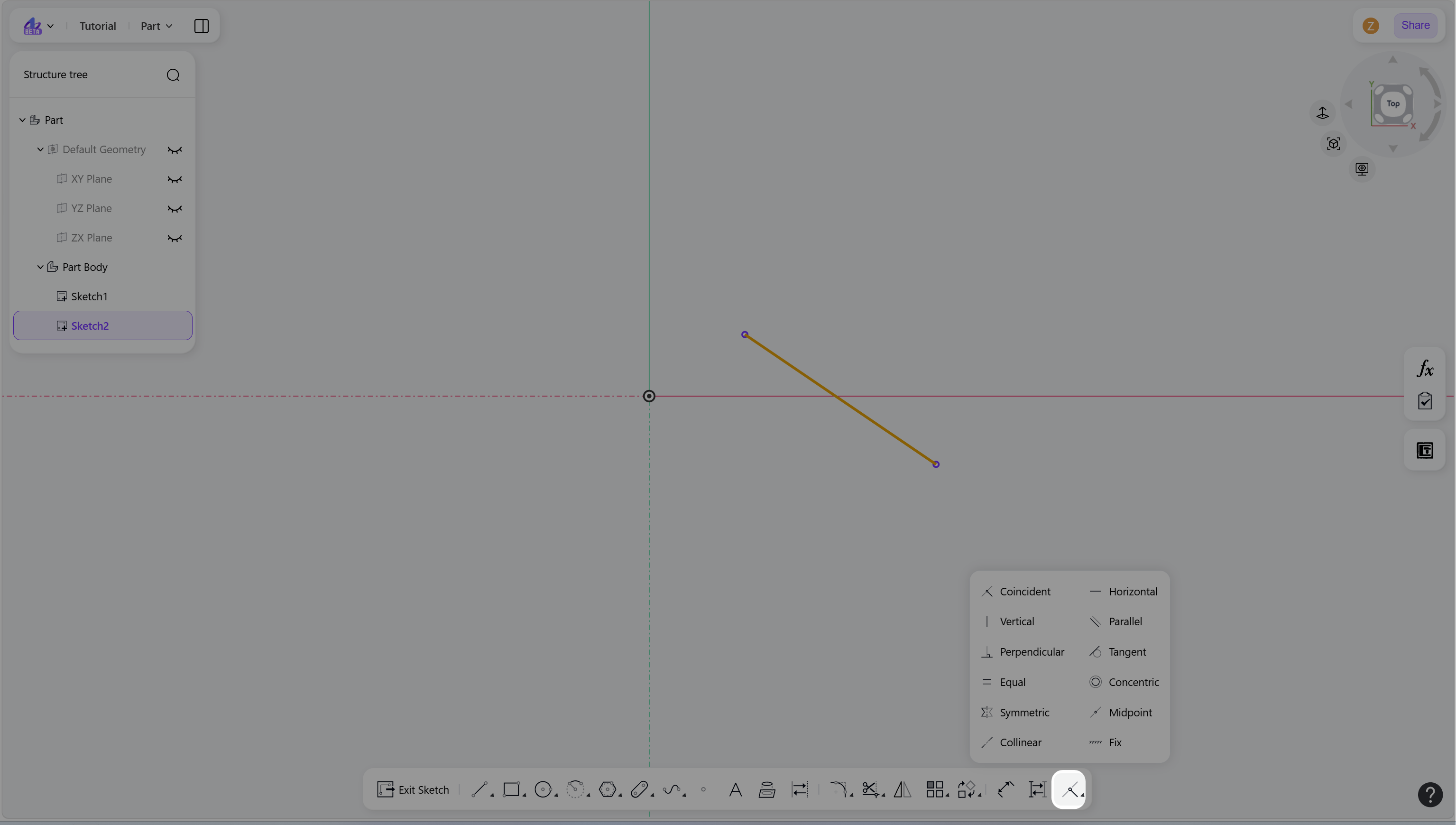
Step 3-1 Click the desired constraint:
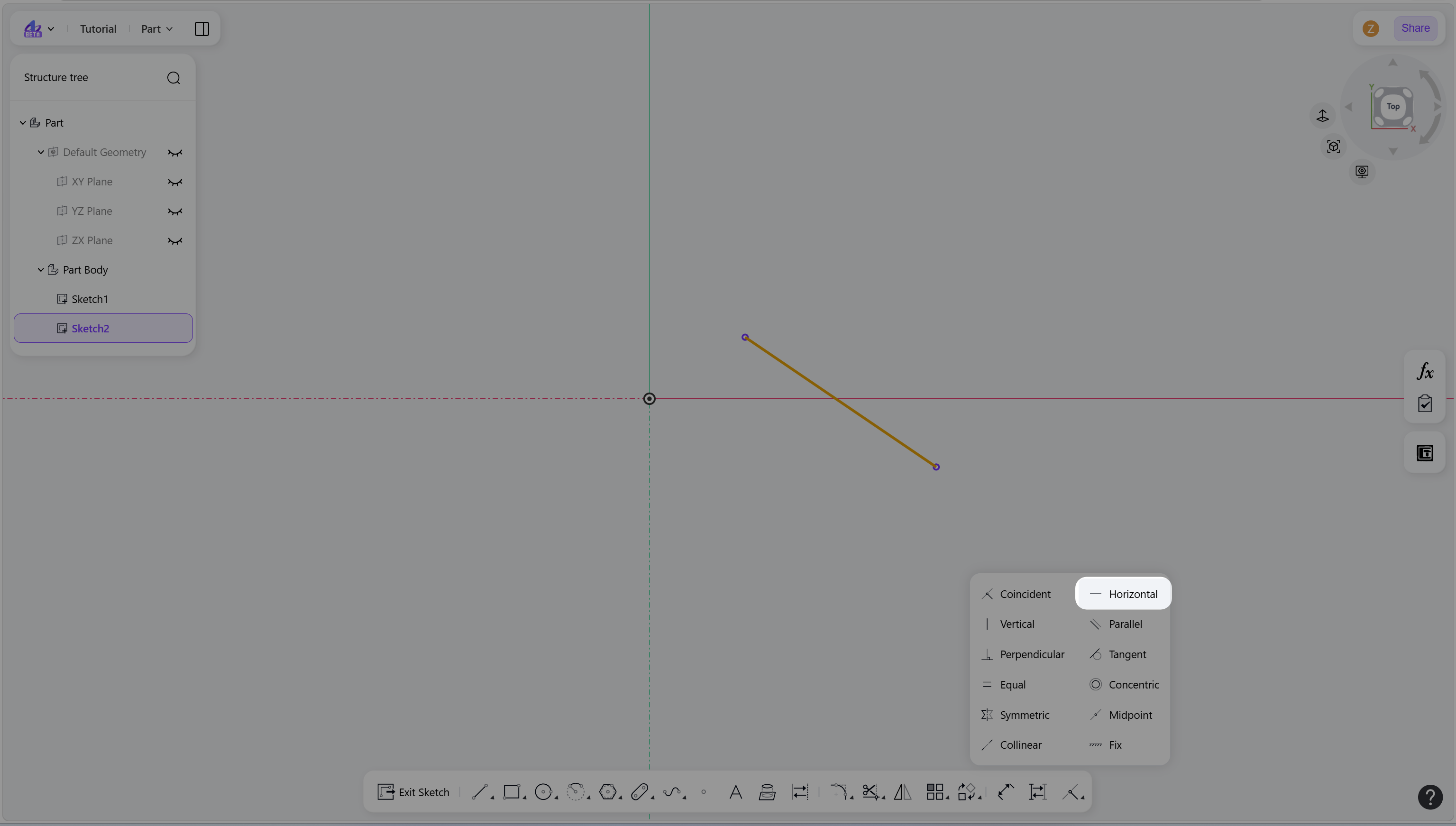
Step 3-2 The constraint is applied to the selected element:
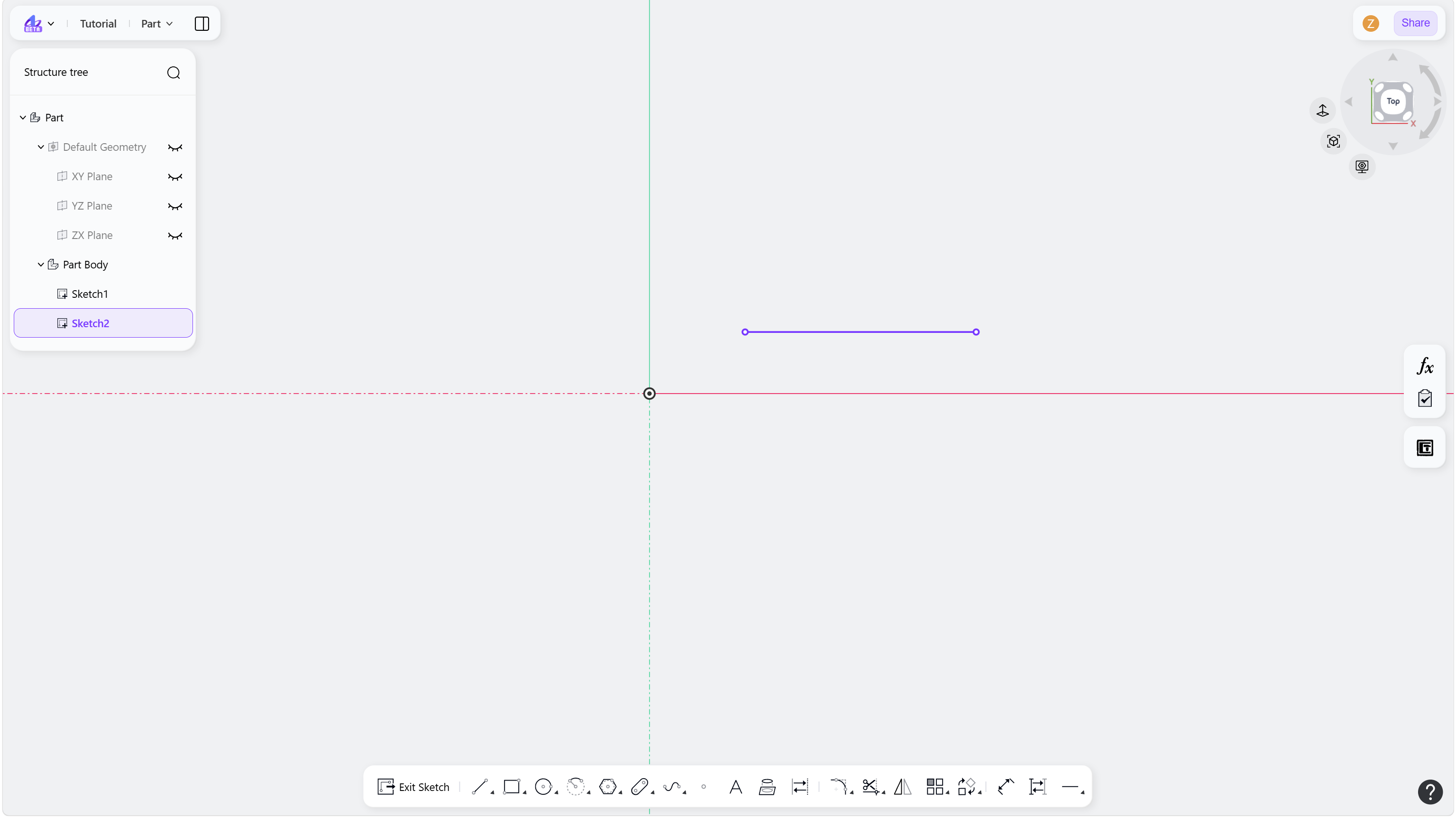
Create with Constraint First
Hover the cursor over the "Constraint" icon in the toolbar to show the constraint menu.
Select the required constraint from the toolbar to enter the corresponding constraint mode.
Select the sketch element to be defined. The constraint will be applied to the selected sketch element.
Elements can be selected continuously, and the same constraint will be applied to all selected elements/ the pairs of selected elemetns.
Right-click or press Esc to exit.
Step 1 - Hover over the "Constraint" icon in the toolbar:
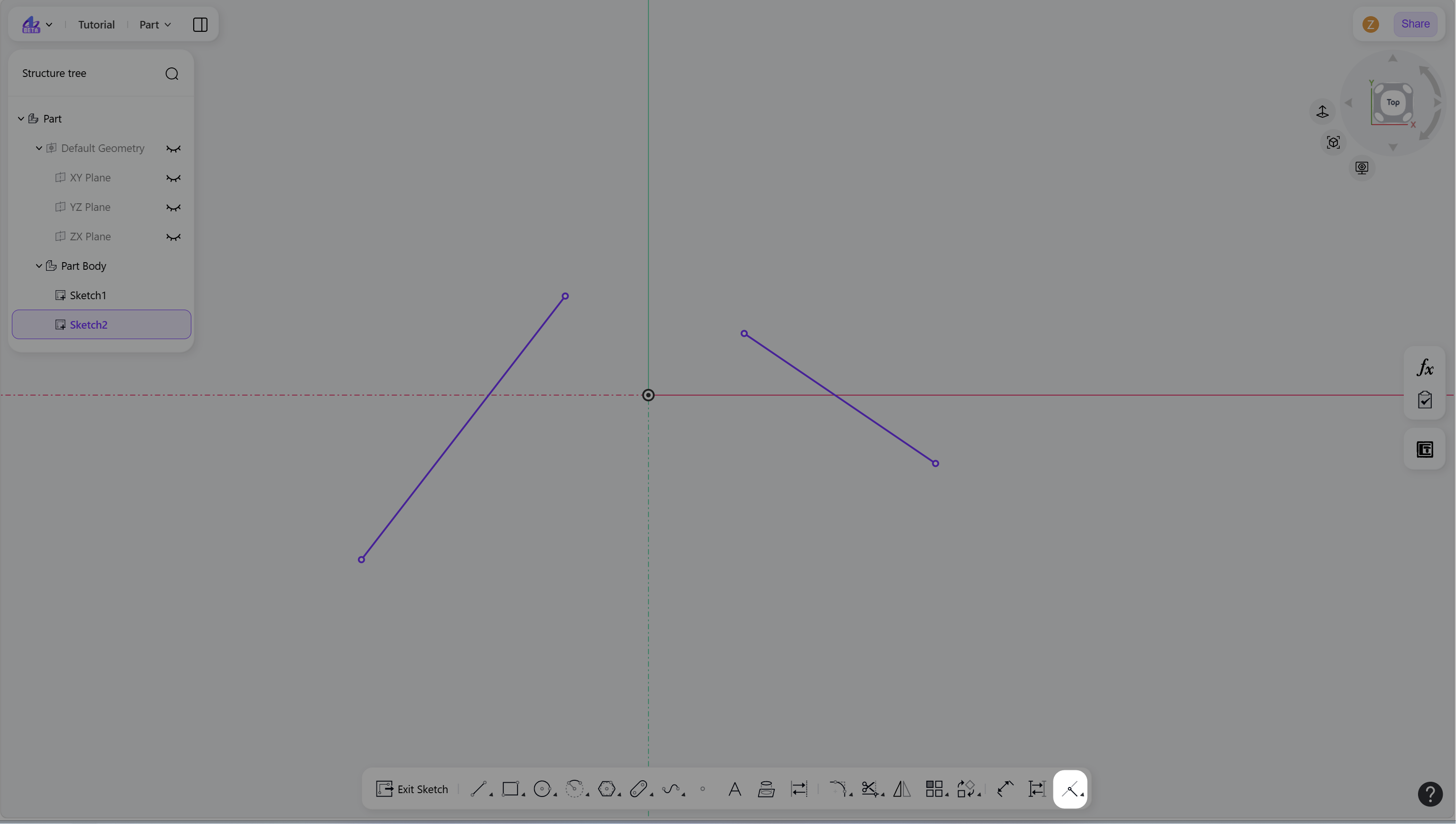
Step 2 - Select the required constraint:
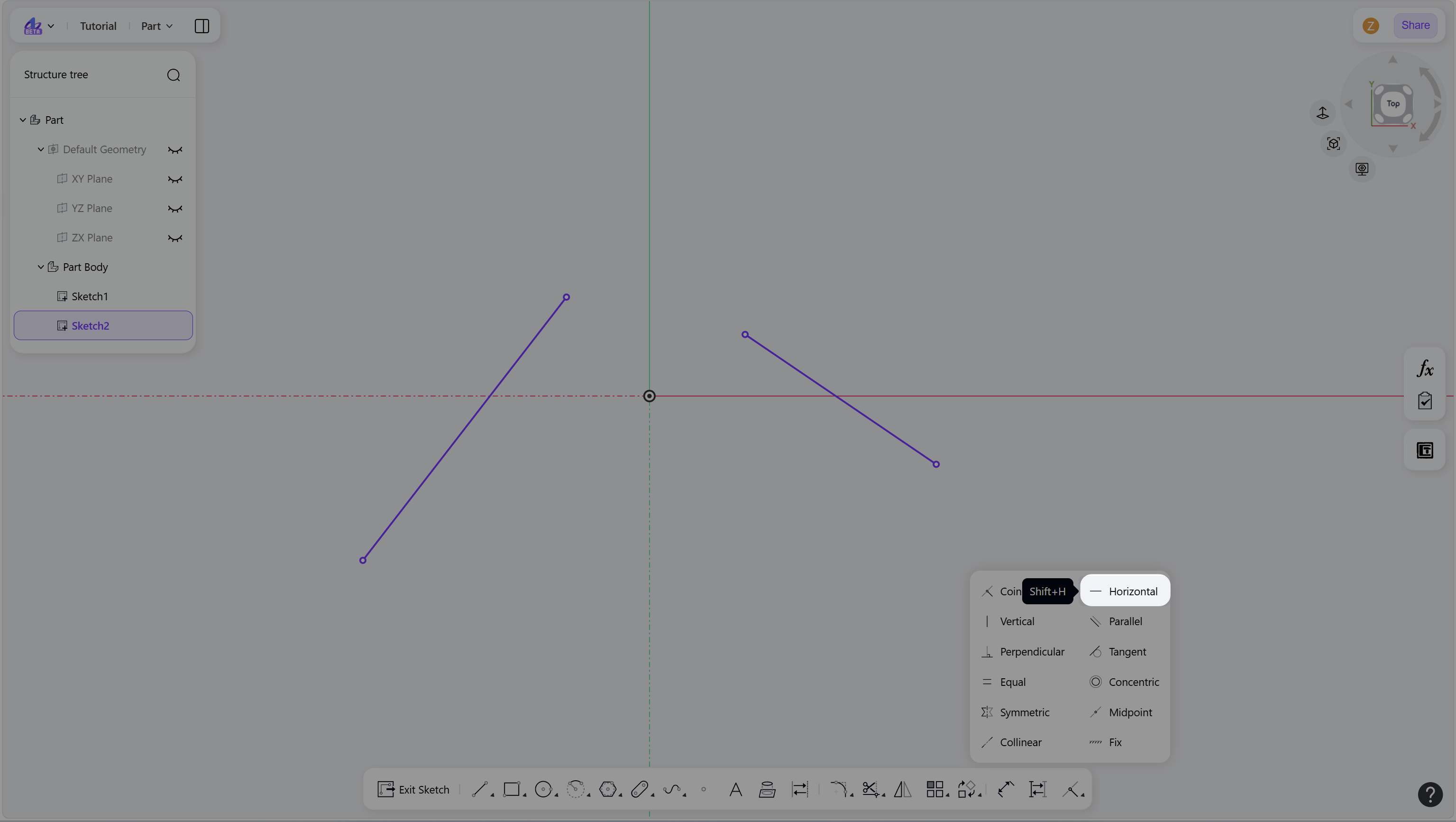
Step 3-1 Select the sketch element to be defined:
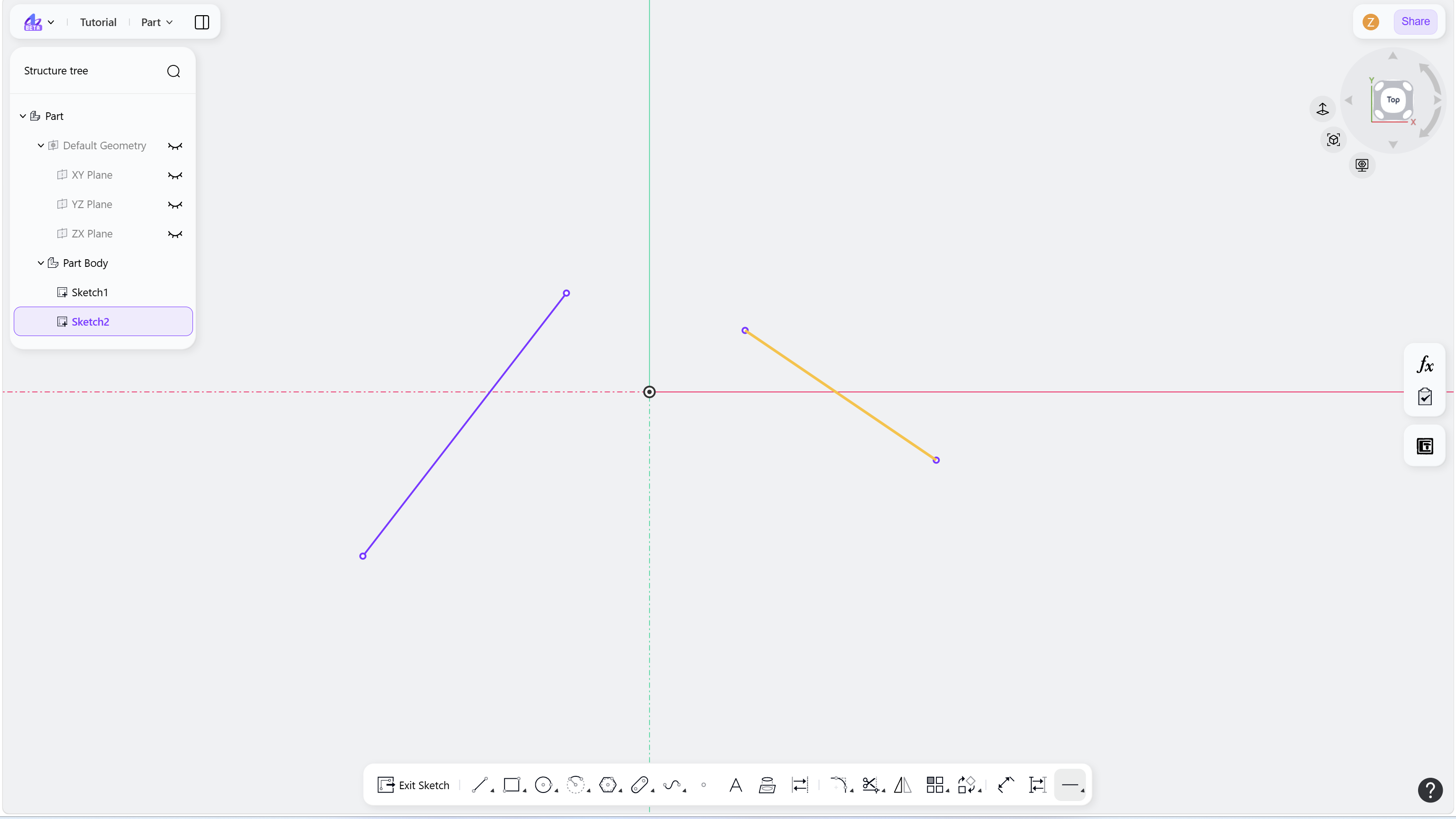
Step 3-2 The selected constraint is applied to the sketch element:
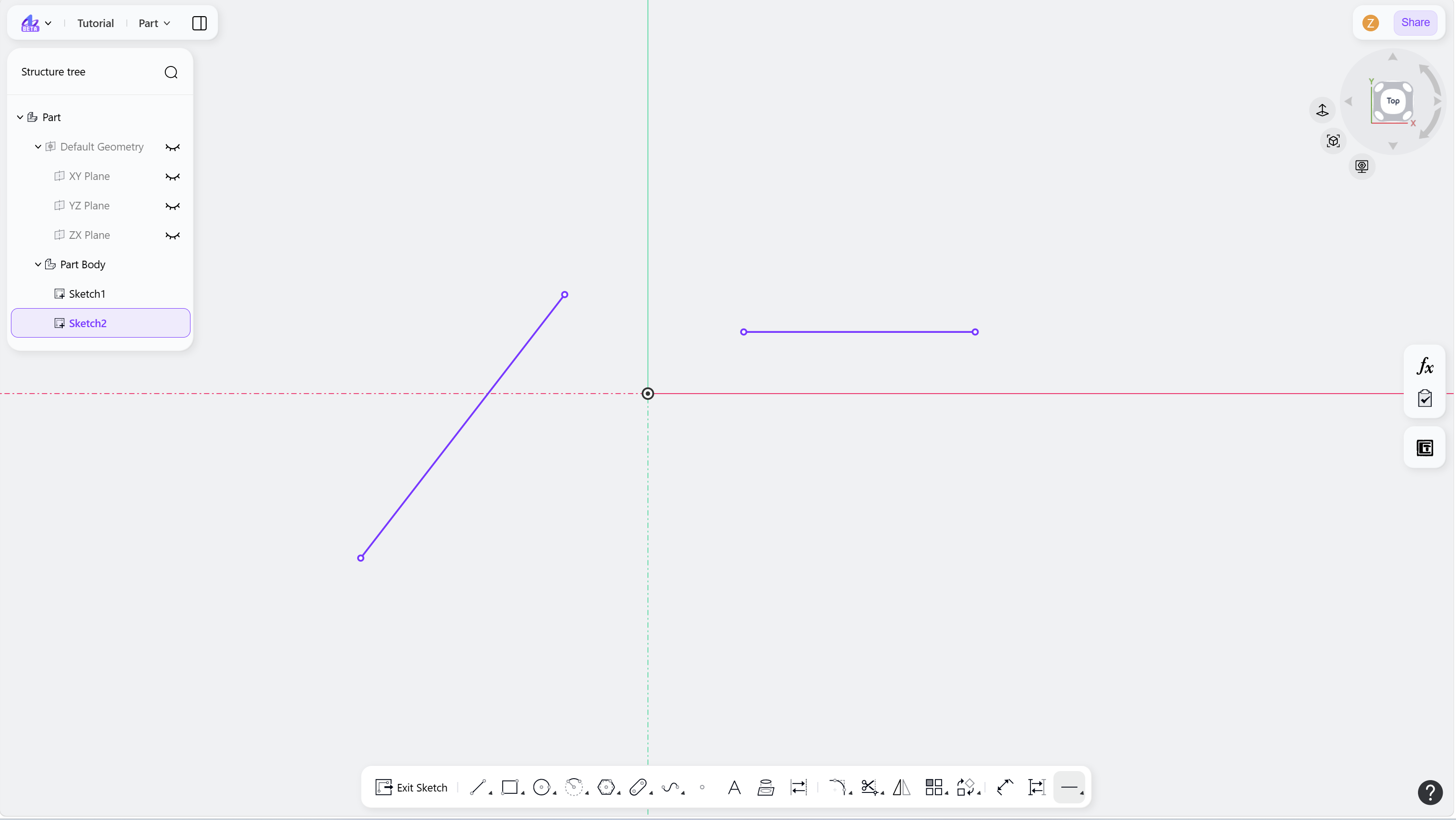
Step 4 - Continue to select the next element:
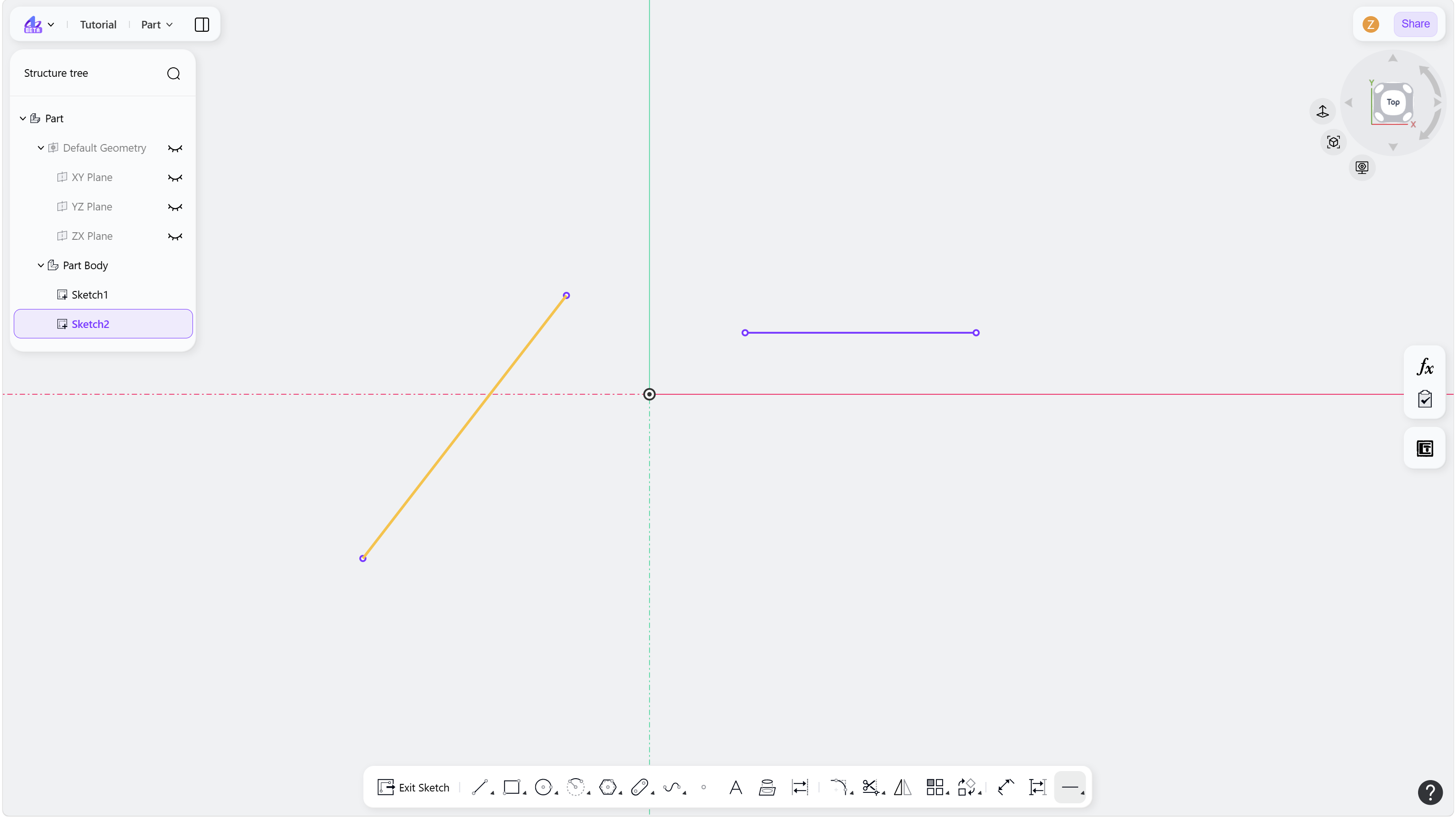
Step 5 - The selected constraint is applied to the sketch element: