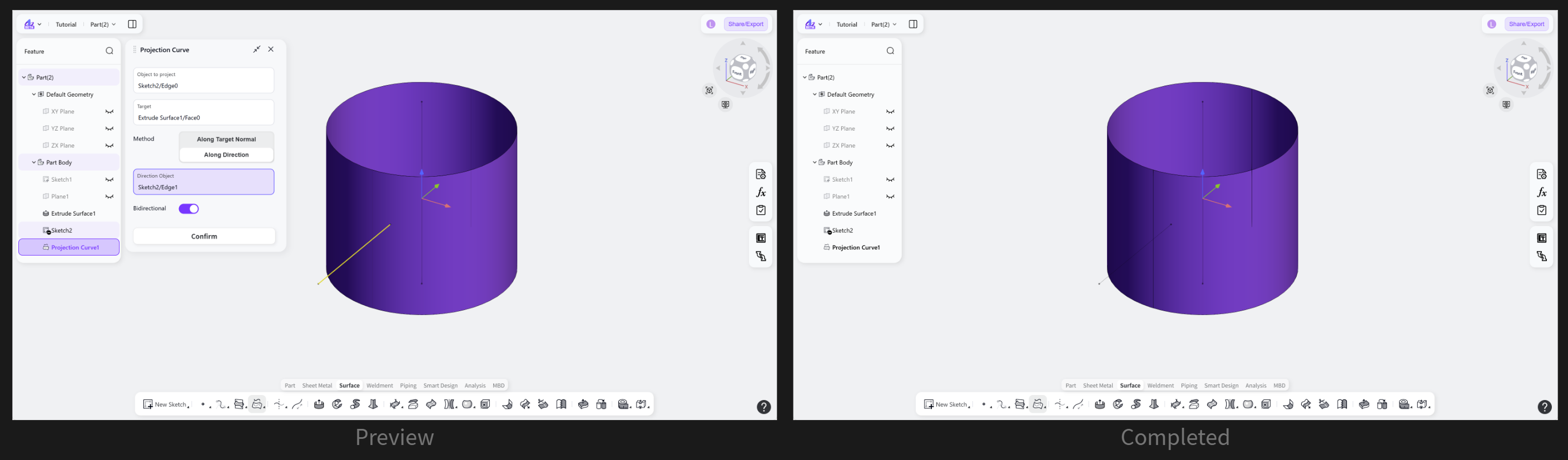

The Projection Curve tool is used to create projected curves on target faces in surface modeling. By selecting one or more curves to project and the target faces, projection curves can be generated based on the specified projection direction. These curves are commonly used for auxiliary surface construction, splitting, and model editing.
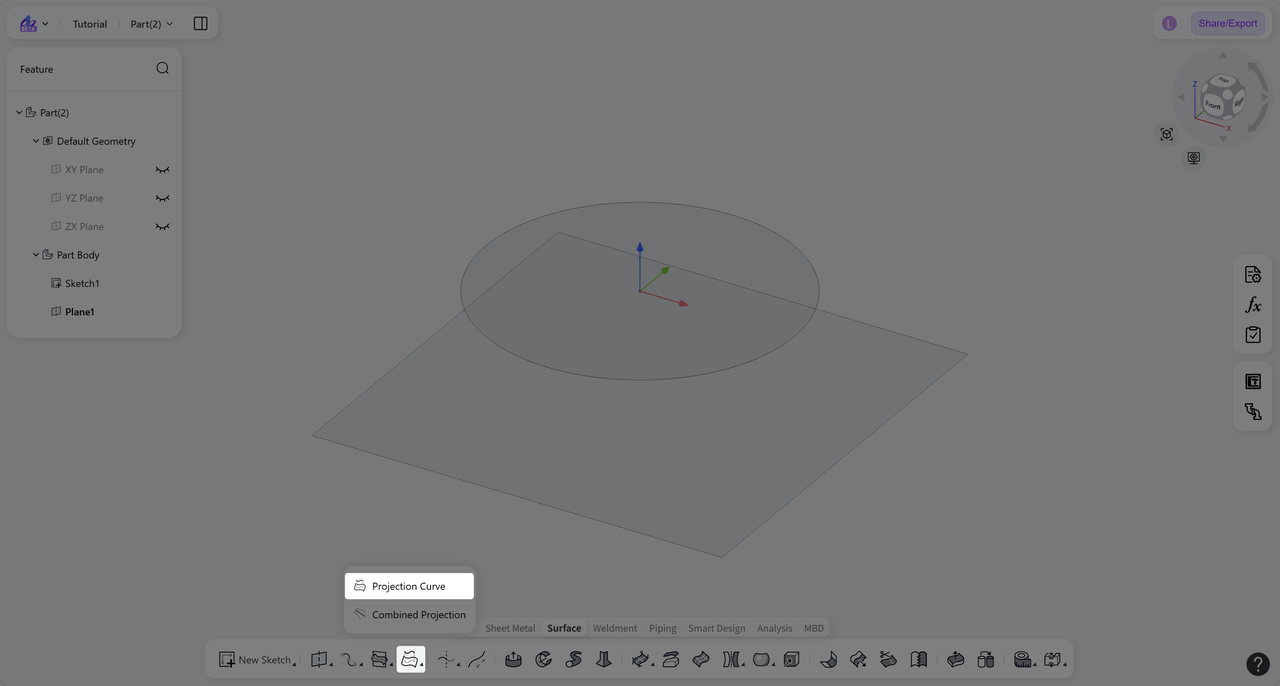
Steps:
Click the "Projection Curve" icon on the toolbar.
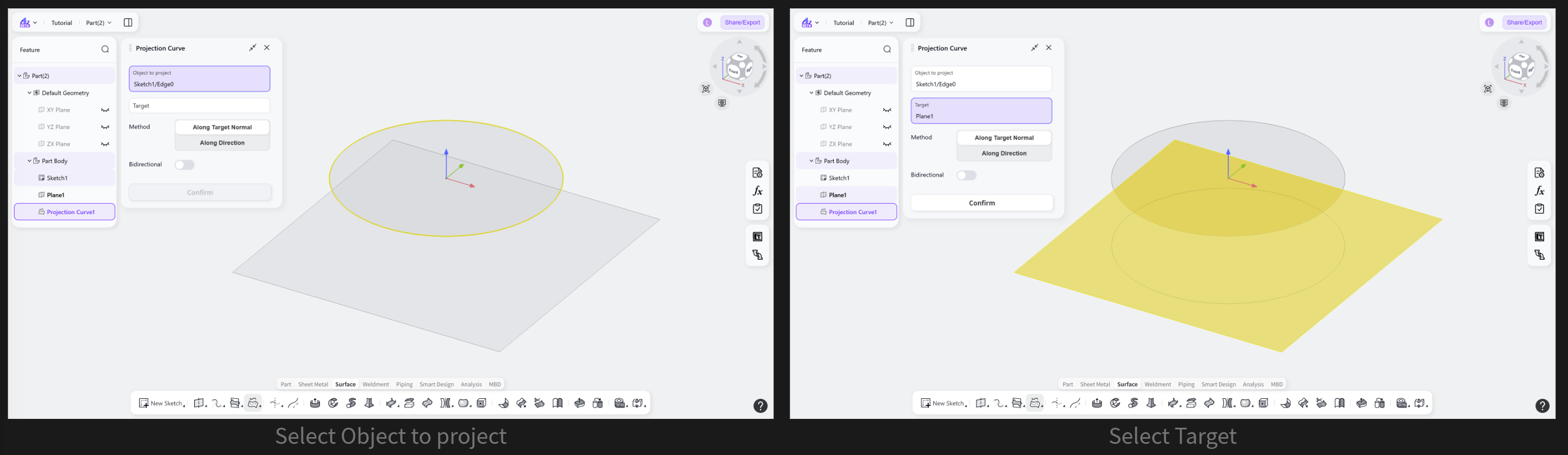
Select "Object to Project". A single curve or multiple curves can be selected.
Click "Target", then select one or more faces. Planes are also supported.
Select a "Method": "Along Target Normal" or "Along Direction".
(Optional) Enable "Bidirectional" to project from the "Object to Project" toward the target objects on both sides.
Click "Confirm" to create the projection curves.
Projection Method
Projection Method: Along Target Normal
The projection direction follows the normal direction of the "Target".
Steps: Select "Along Target Normal".
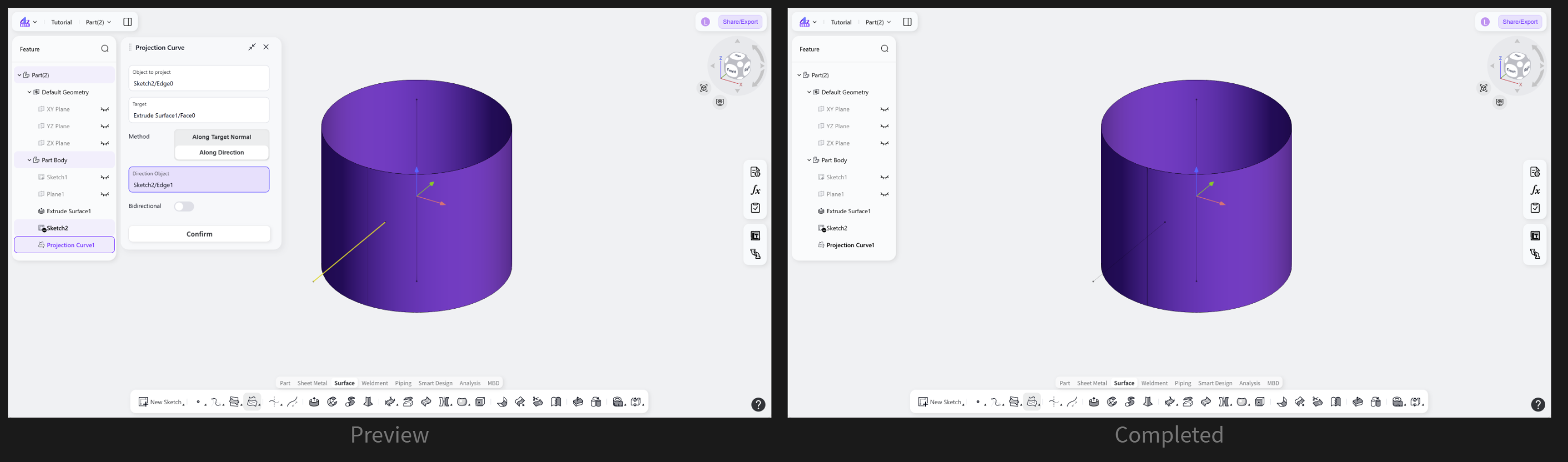
Projection Method: Along Direction
When the "Direction Object" is a line (including a model edge, sketch line, or axis), the projection follows the direction of the line.
When the "Direction Object" is a face (including a plane or model face), the projection direction follows the normal direction of the face.
Steps:
Select "Along Direction".
Select a line or face as the reference.
Projection Method: Bidirectional
Projects from the "Object to Project" toward the target objects on both sides.