
In ZIXEL 3D CAD, files are organized in the following structure:
Folder > Project > Part / Assembly / Drawing
A 3D Design Project serves as the main container for managing Parts, Assemblies, Drawings, and related design data. Version control is also supported within the project.
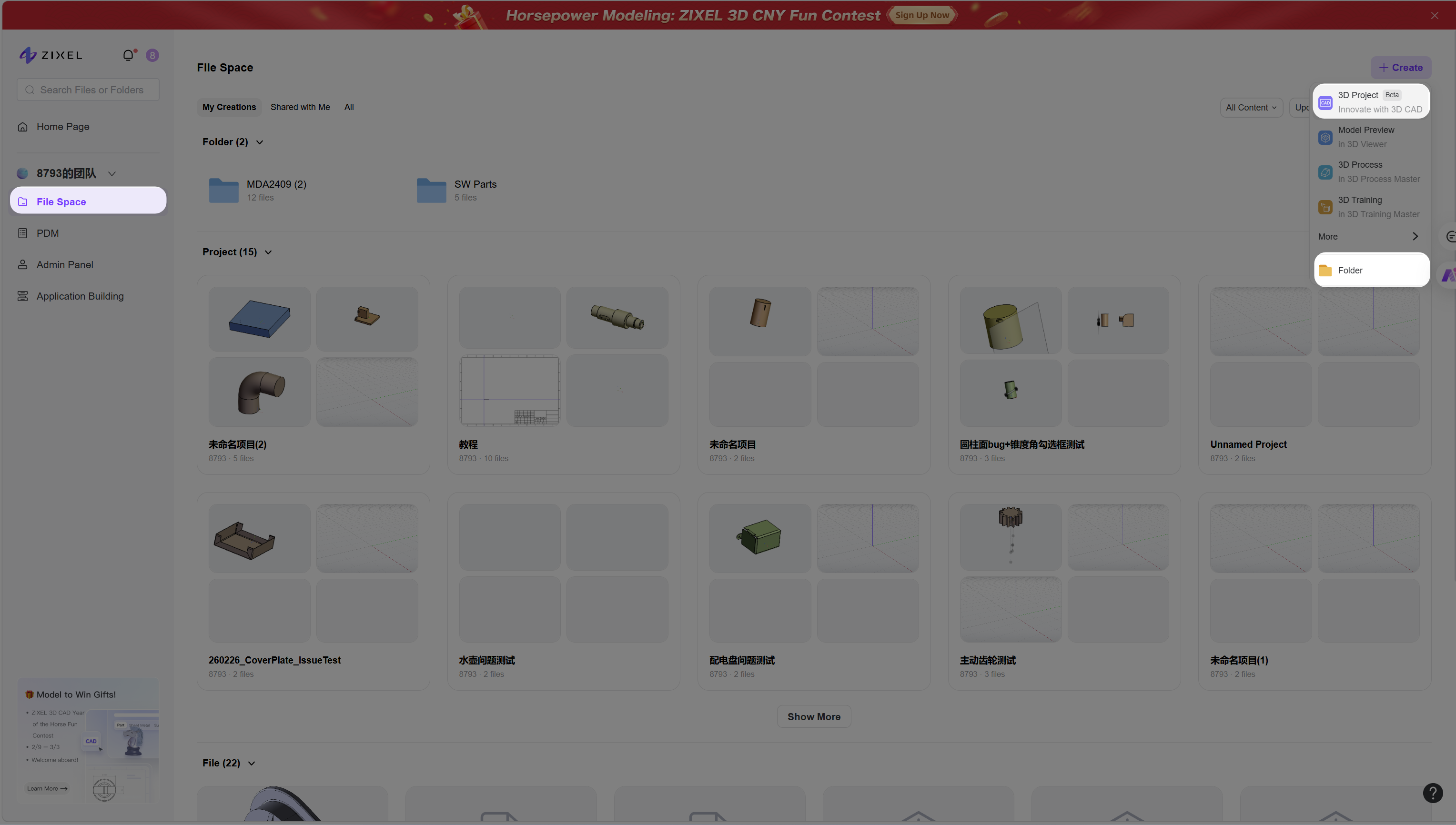
Create Projects in File Space
You can create projects directly in File Space, or create folders with multiple levels of subfolders.
Steps:
Click "File Space" in the left sidebar.
Click "Create" .
Select "3D Design Project" or "Folder".
Create Projects in Home Page
Steps:
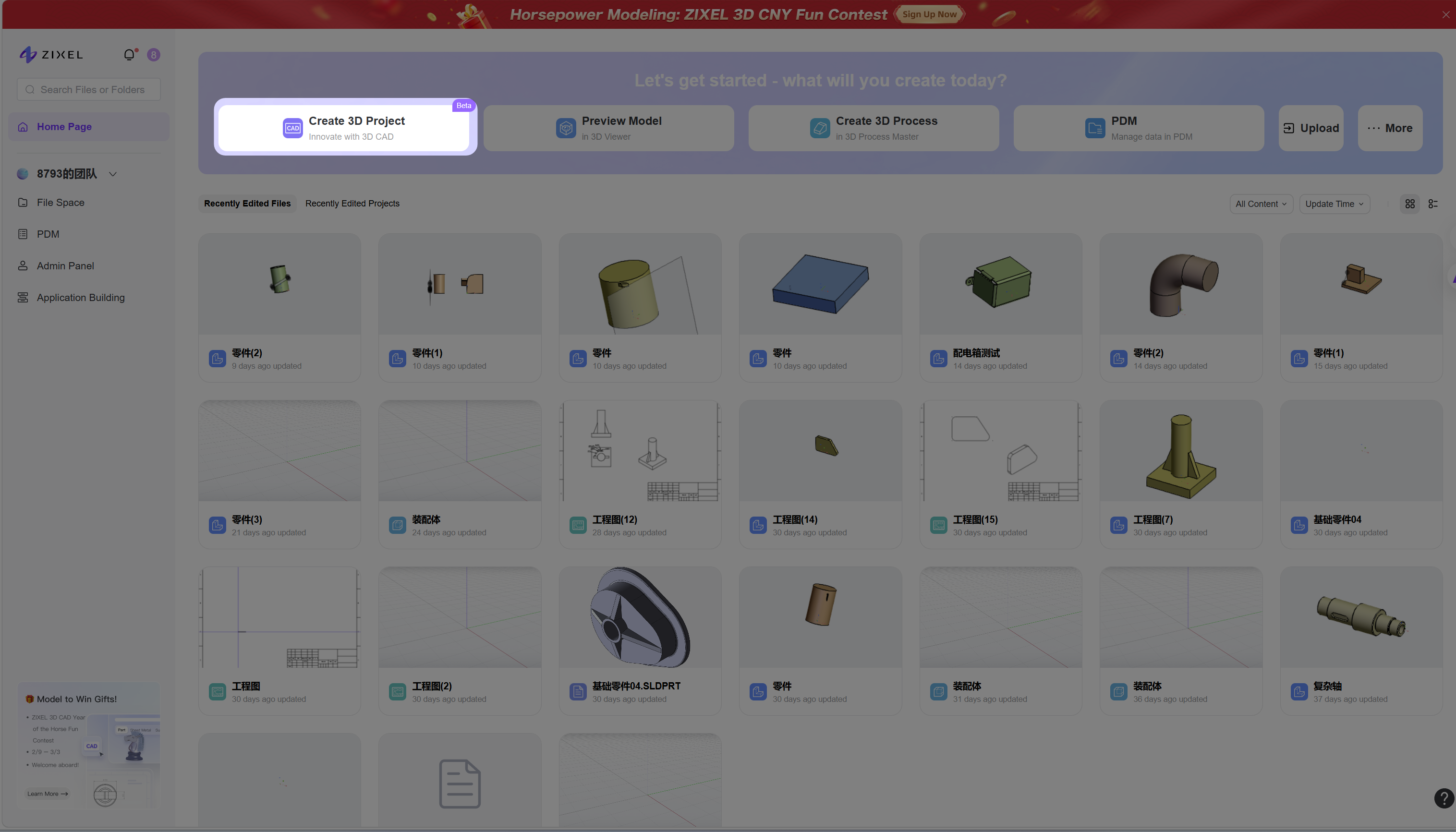
Click "3D Design Project" in the Application Module.
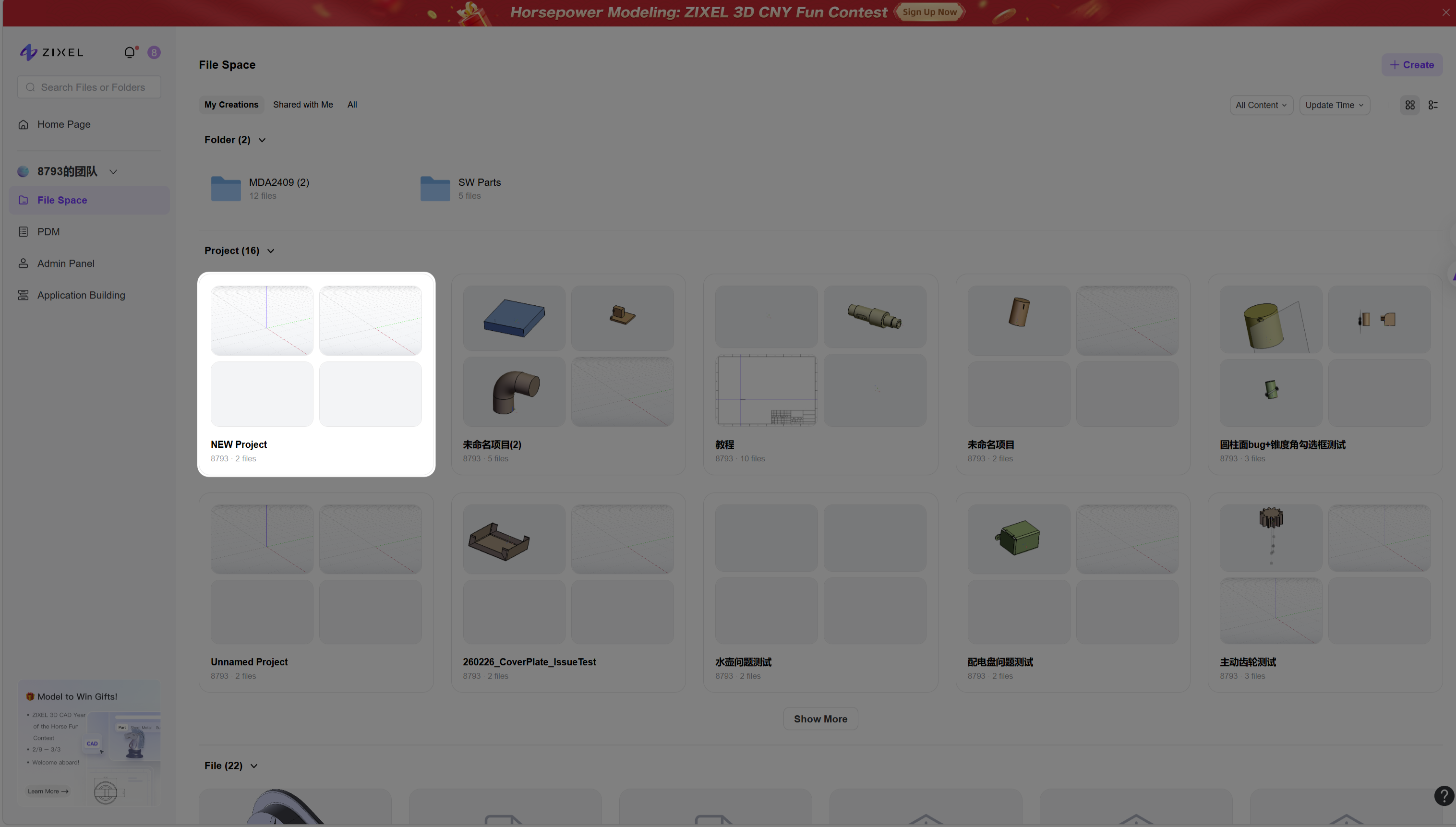
A new project will be created automatically at the root level in File Space.
Create Files in an Existing Project
Steps:
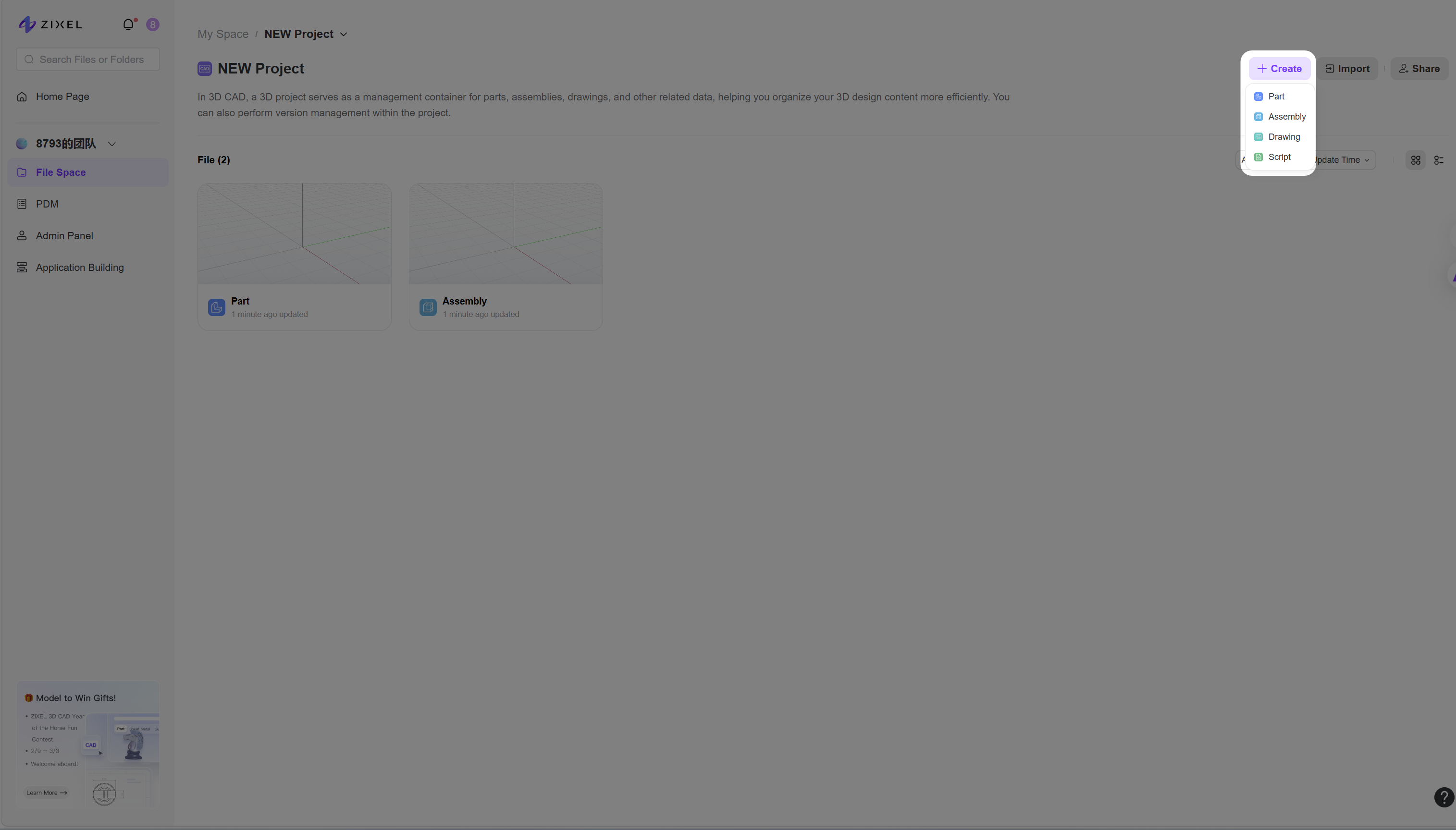
Open an existing project.
Click "Create".
Select the file type to be created: Part / Assembly / Drawing.
Notes
When a new project is created, two default files are generated automatically:
Part
Assembly
Double-click either file to start editing directly.