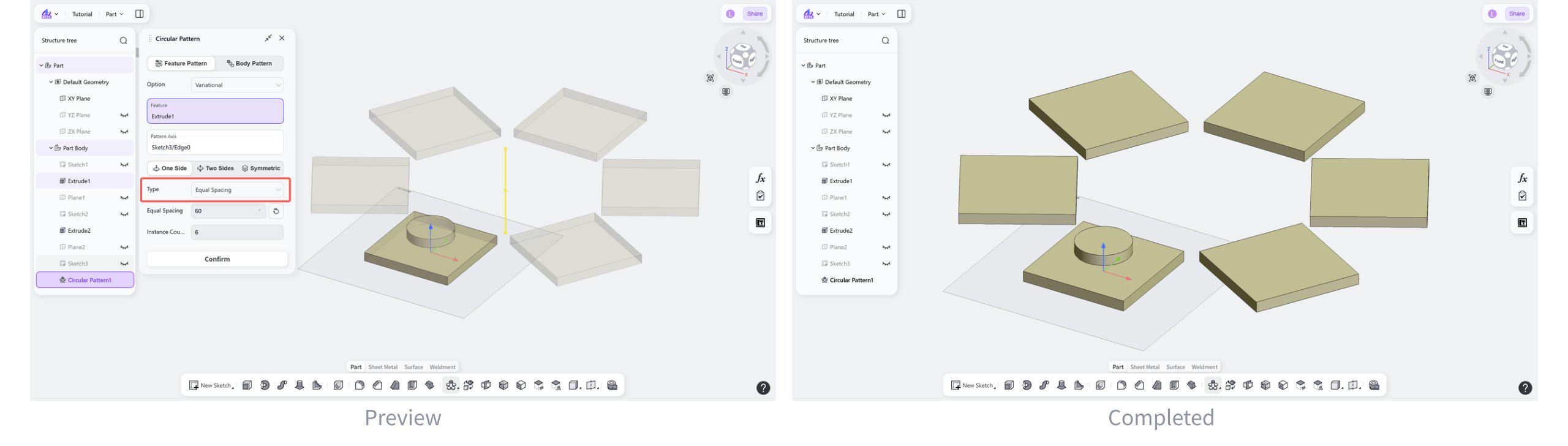

The Circular Pattern tool creates a circular pattern by copying existing features or bodies around a pattern axis in the Part module.
Steps:
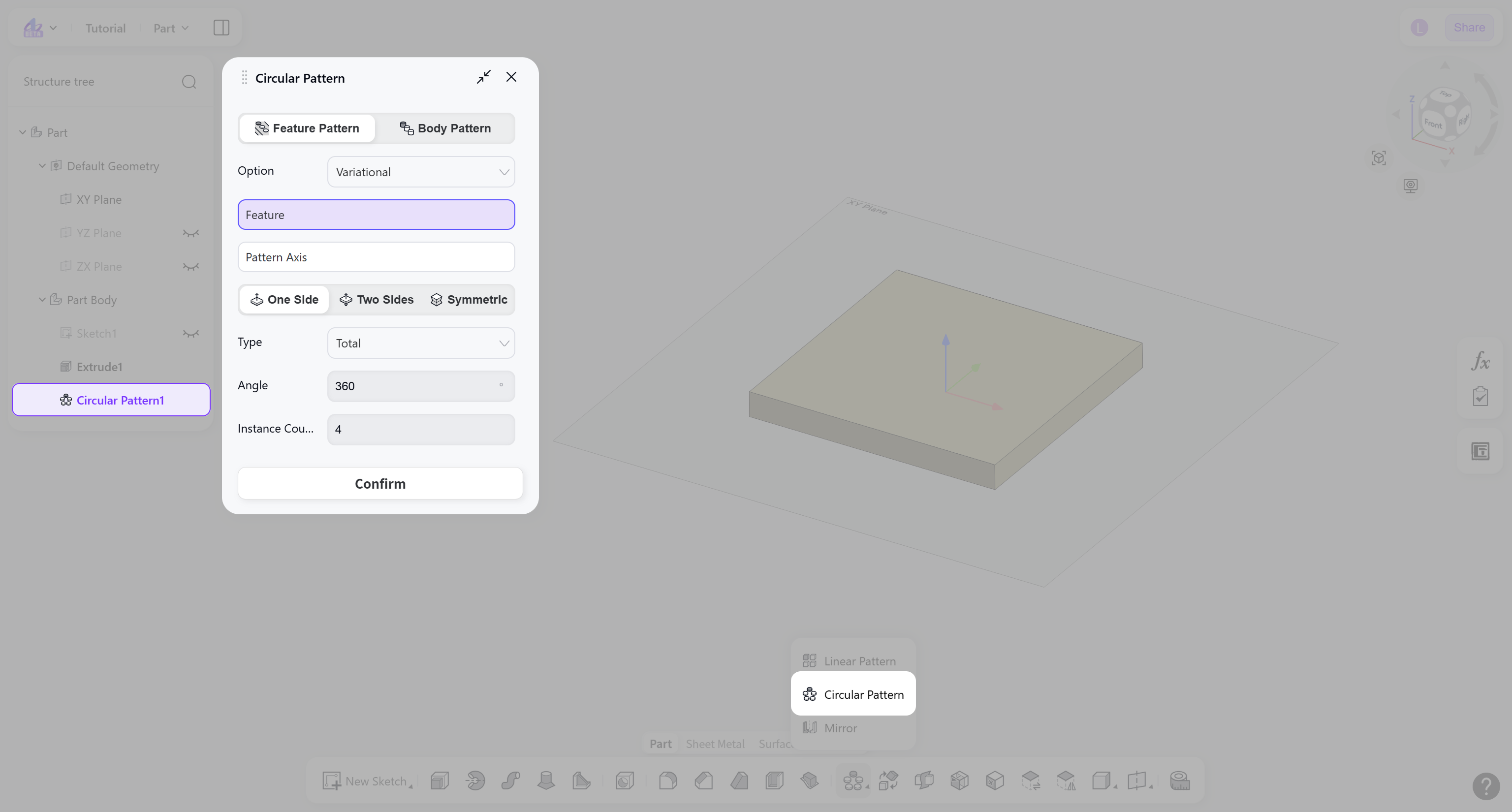
Select the pattern object: "Feature Pattern" or "Body Pattern".
Select the features/bodies to be patterned and the pattern axis.
Select the pattern direction: "One Side", "Two Sides", or "Symmetric".
Select the spacing type: "Total" or "Equal Spacing".
Set the angle value and the instance count.
Pattern Object
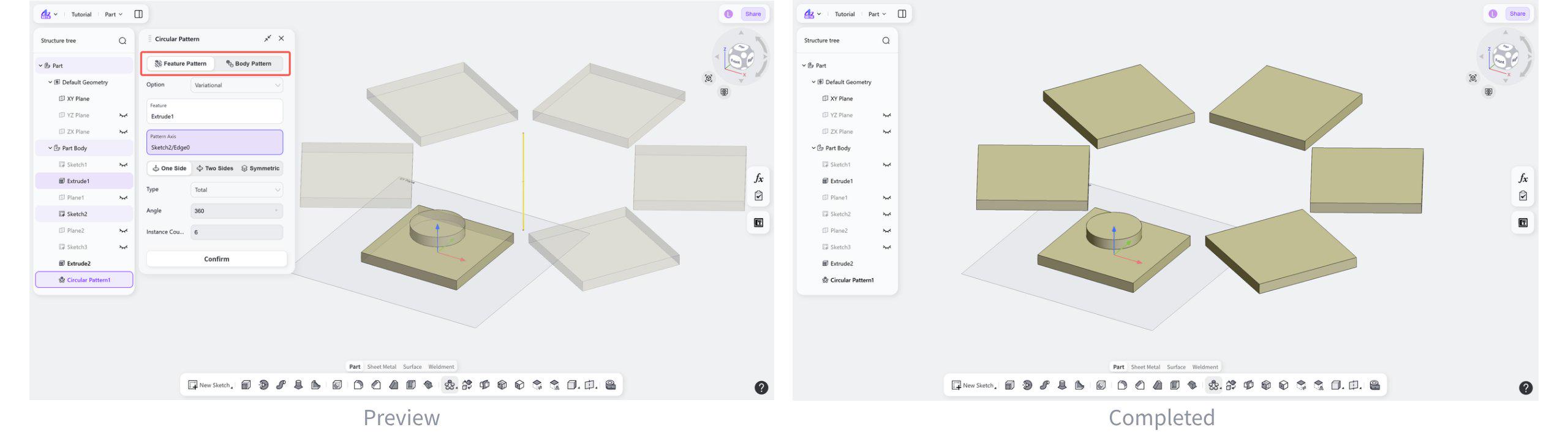
Pattern Object: Feature
Copies one or more features and distributes them regularly around the model.
Steps:
Select "Feature Pattern".
Set the pattern parameters.
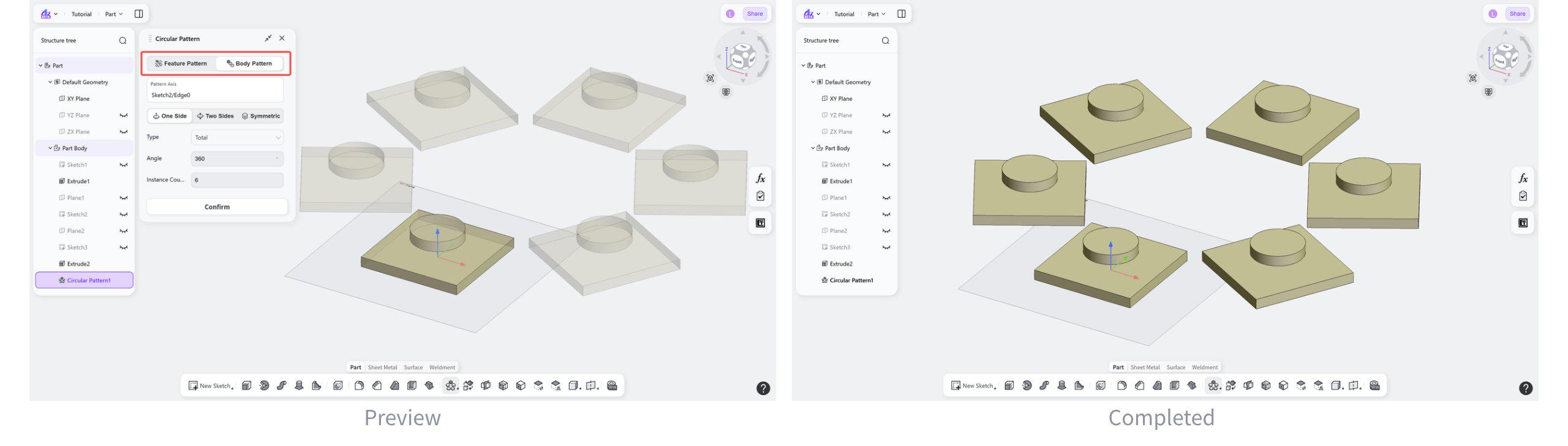
Pattern Object: Body
Copies one or more bodies and distributes them regularly around the pattern axis.
Steps:
Select "Body Pattern".
Set the pattern parameters.
Pattern Direction
Pattern Axis
Select a line or datum axis to use it as the pattern axis.
Select a cylindrical surface to use its central axis as the pattern axis.
Pattern Direction: One Side
Patterns the selected object in one direction only.
Steps:
Select "One Side".
Select the spacing type.
Set the angle value and the instance count.
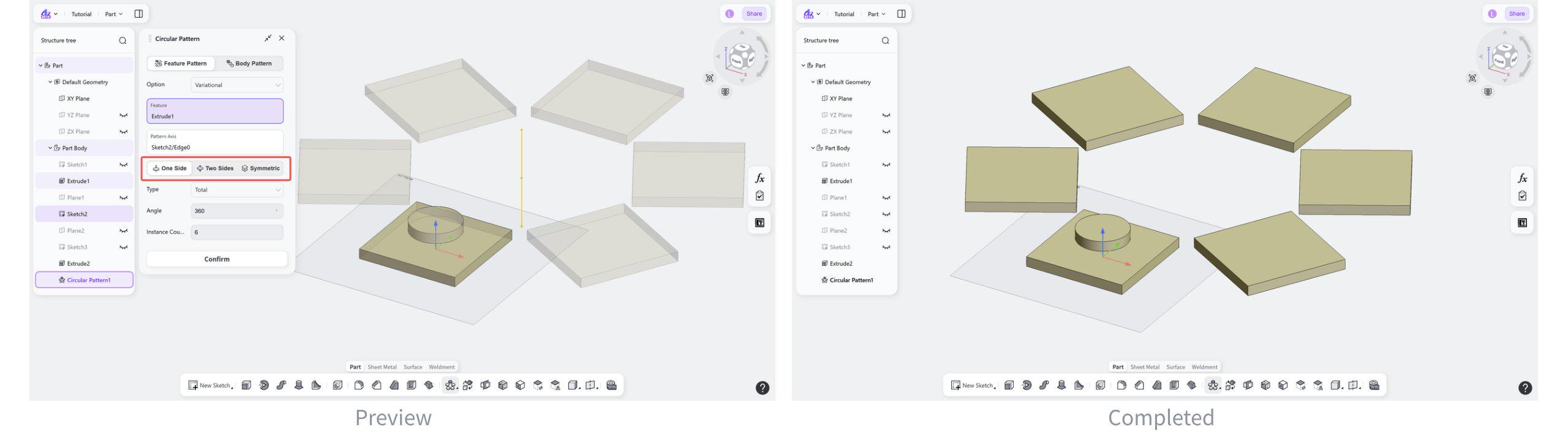
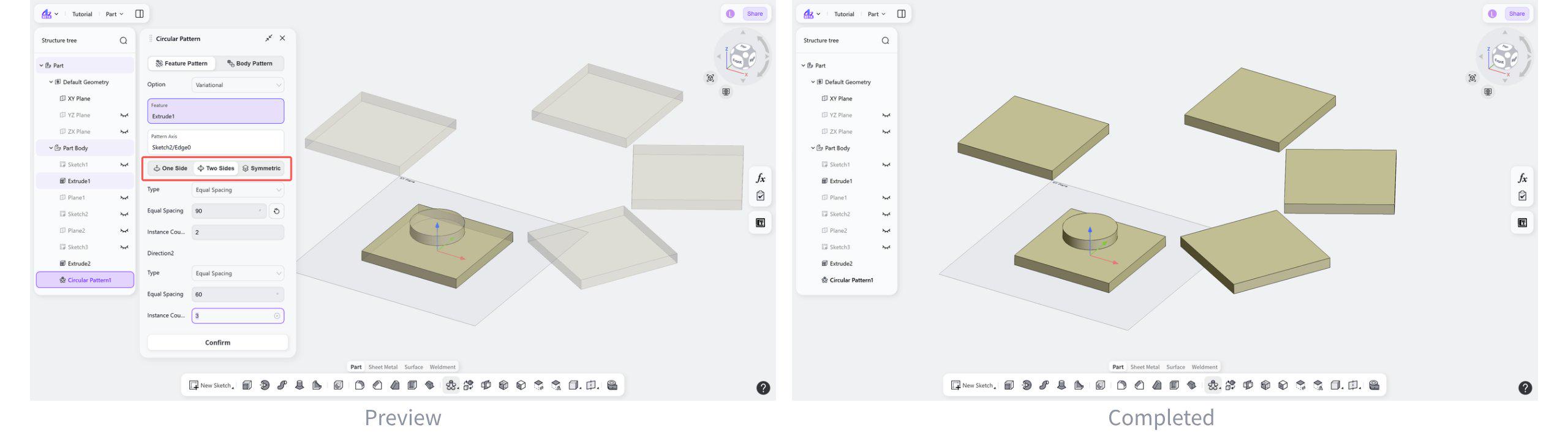
Pattern Direction: Two Sides
Patterns the selected object in two opposite directions around the axis.
Steps:
Select "Two Sides".
Select the spacing type.
Set the angle value and the instance count.
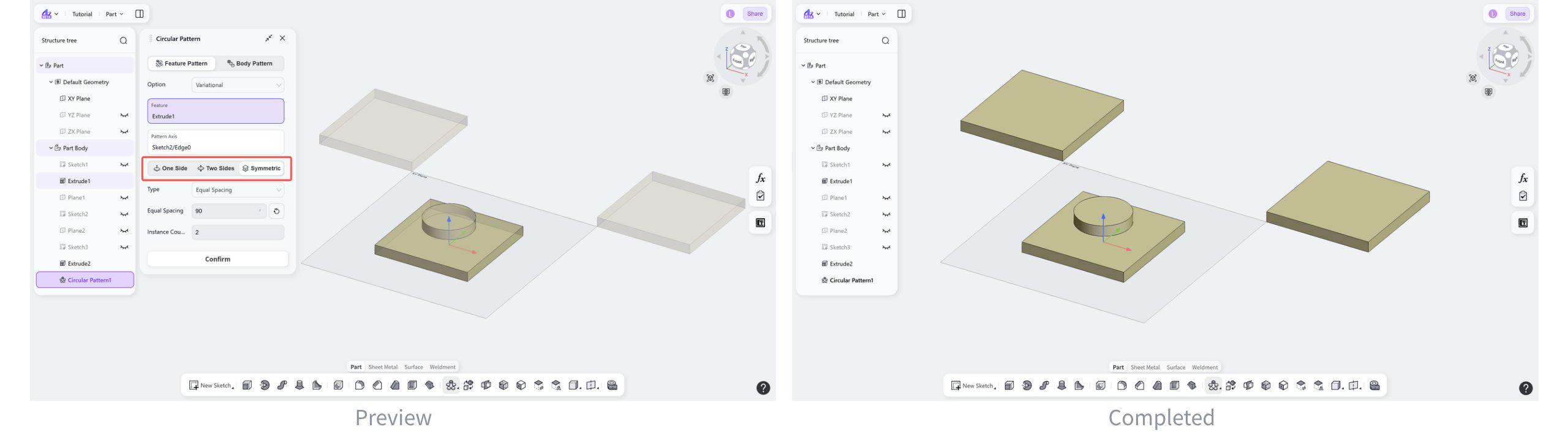
Pattern Direction: Symmetric
Creates a symmetric pattern centered on the selected reference axis. Pattern instances are distributed at equal intervals or angles on both sides of the reference.
Steps:
Select "Symmetric".
Select the spacing type.
Set the angle value and the instance count.
Spacing Type
Spacing Type: Total
Control the pattern distribution by setting the total angle covered by the entire pattern.
Steps:
Select "Total".
Set the angle value and the instance count.
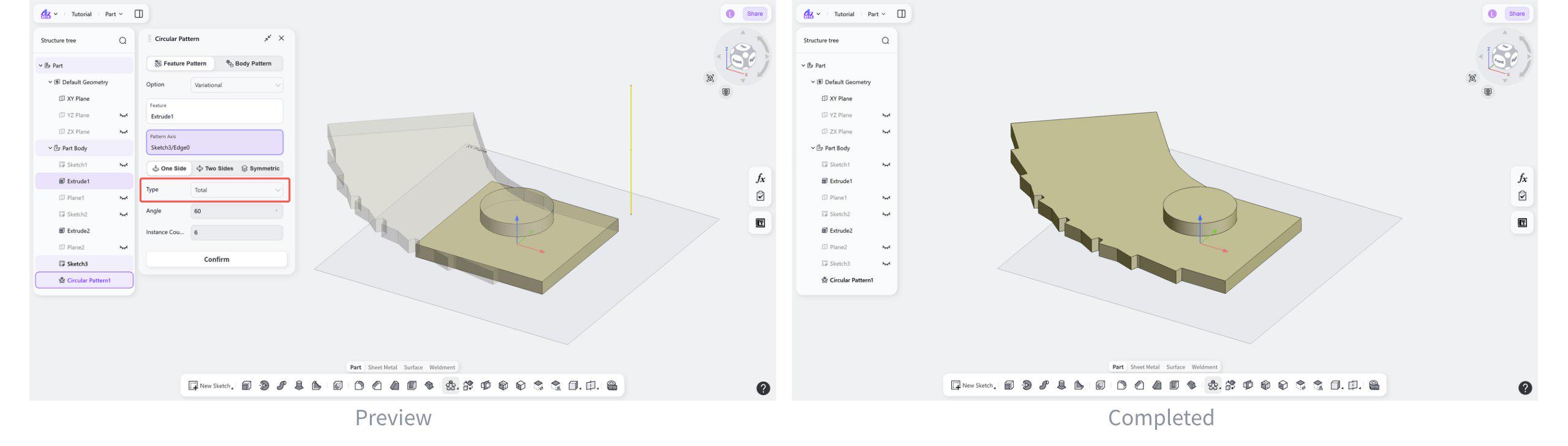
Spacing Type: Equal Spacing
Control the pattern distribution by setting the angular interval between adjacent pattern instances.
Steps:
Select "Equal Spacing".
Set the angle value and the instance count.