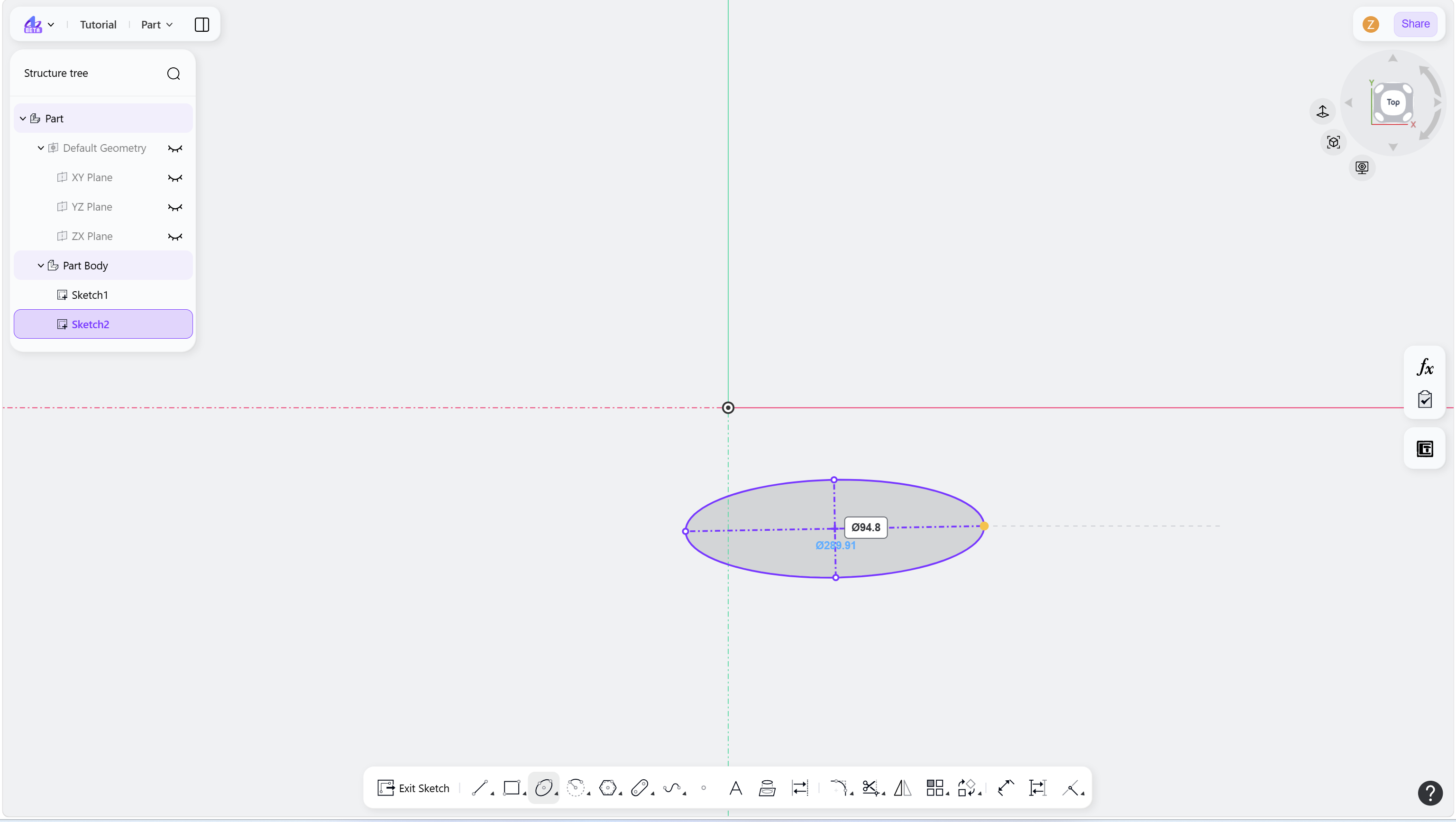

The Center Ellipse tool creates an ellipse by defining its center and two axis endpoints.
Steps
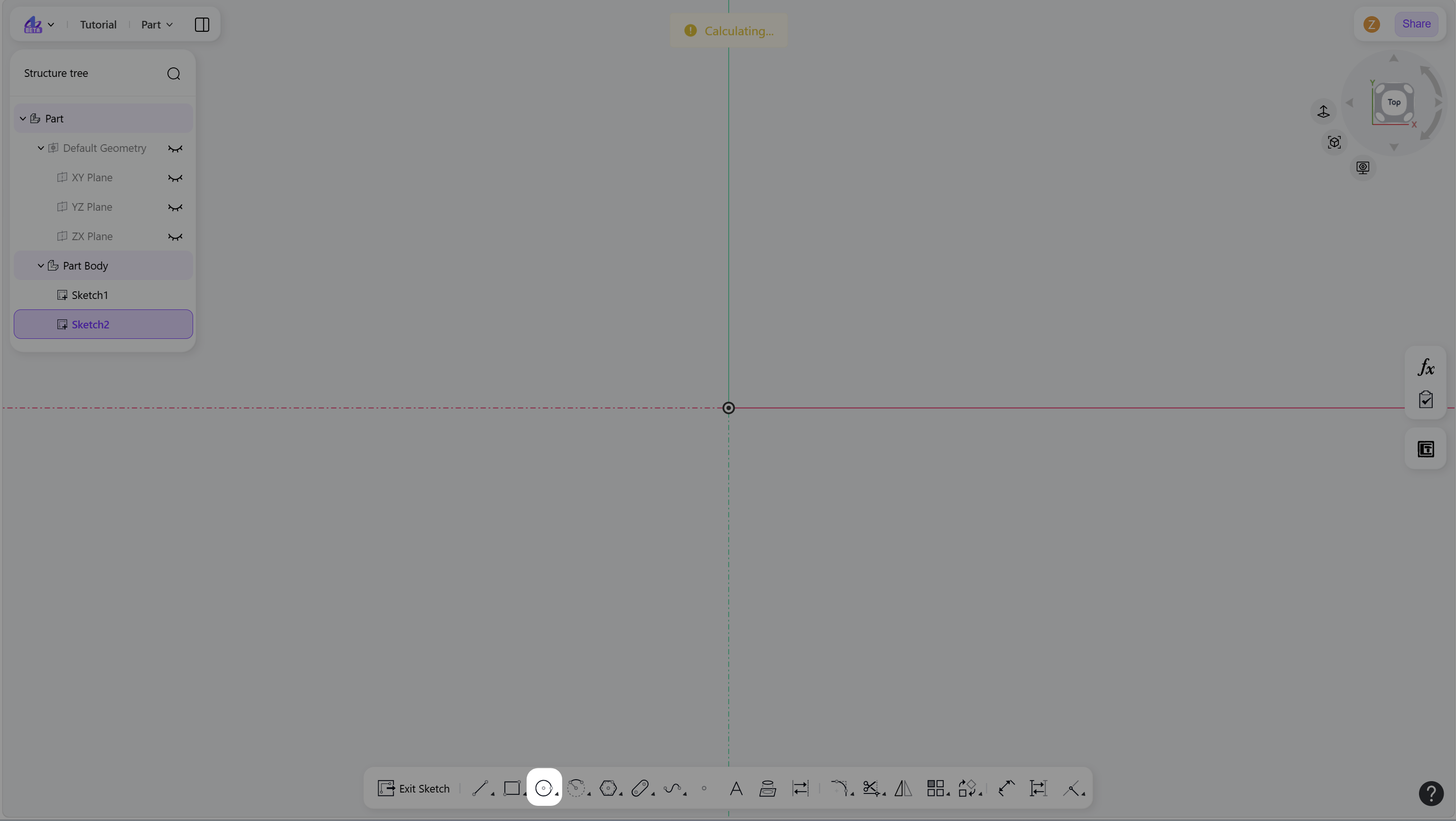
Hover over the "Circle" icon in the toolbar.
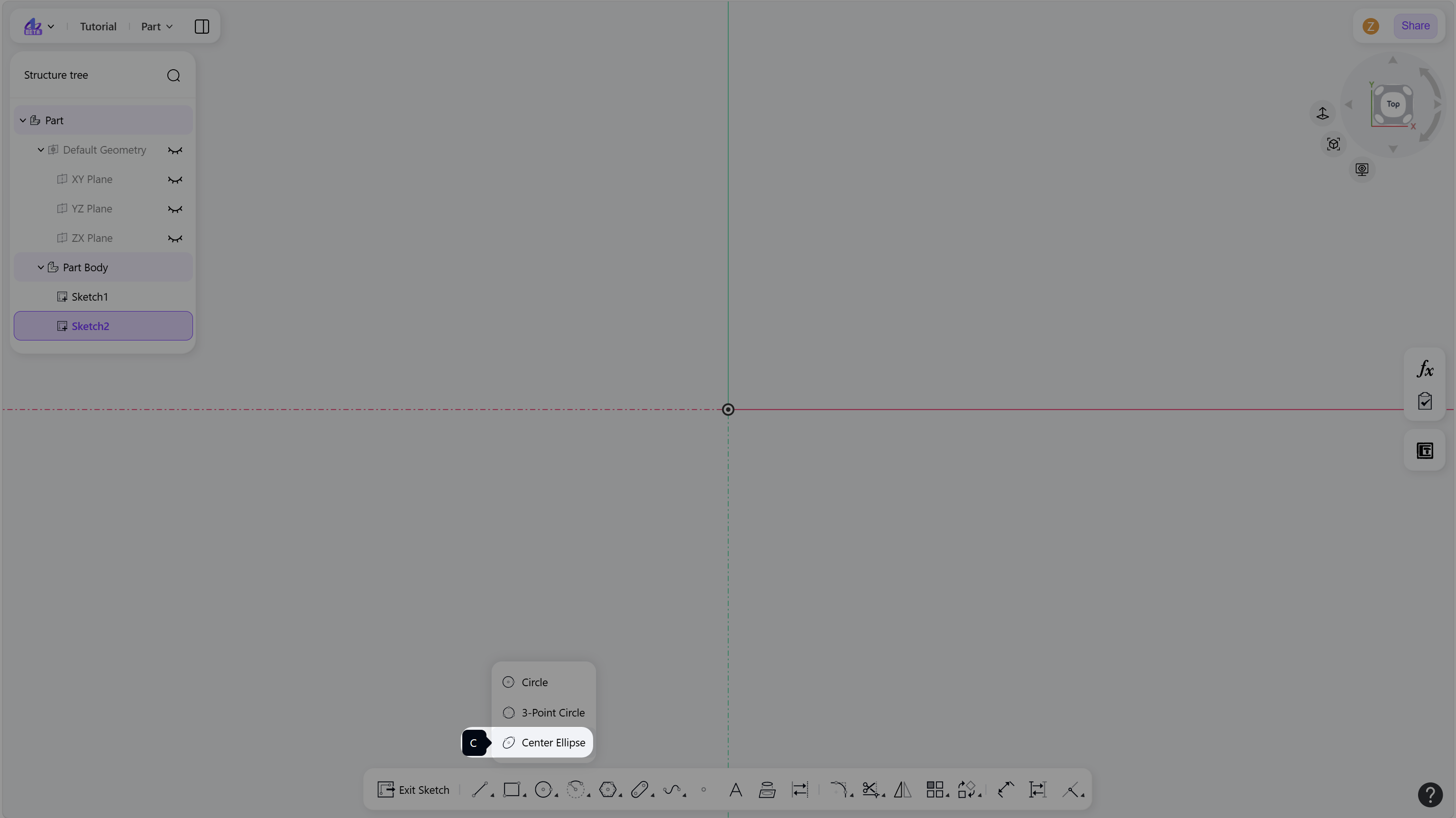
Click the "Center Ellipse" to enter Center Ellipse mode.
Create an ellipse:
Move the cursor and left-click to define the center point and the endpoints of the two axis.
(Optional) Enter values and press Enter to apply constraints.
Right-click or press Esc to exit.
Step 1 - Hover over the "Circle" icon in the toolbar:
Step 2 - Click the "Center Ellipse" to enter Center Ellipse mode:
Step 3 - Left-click to define the center of the ellipse:
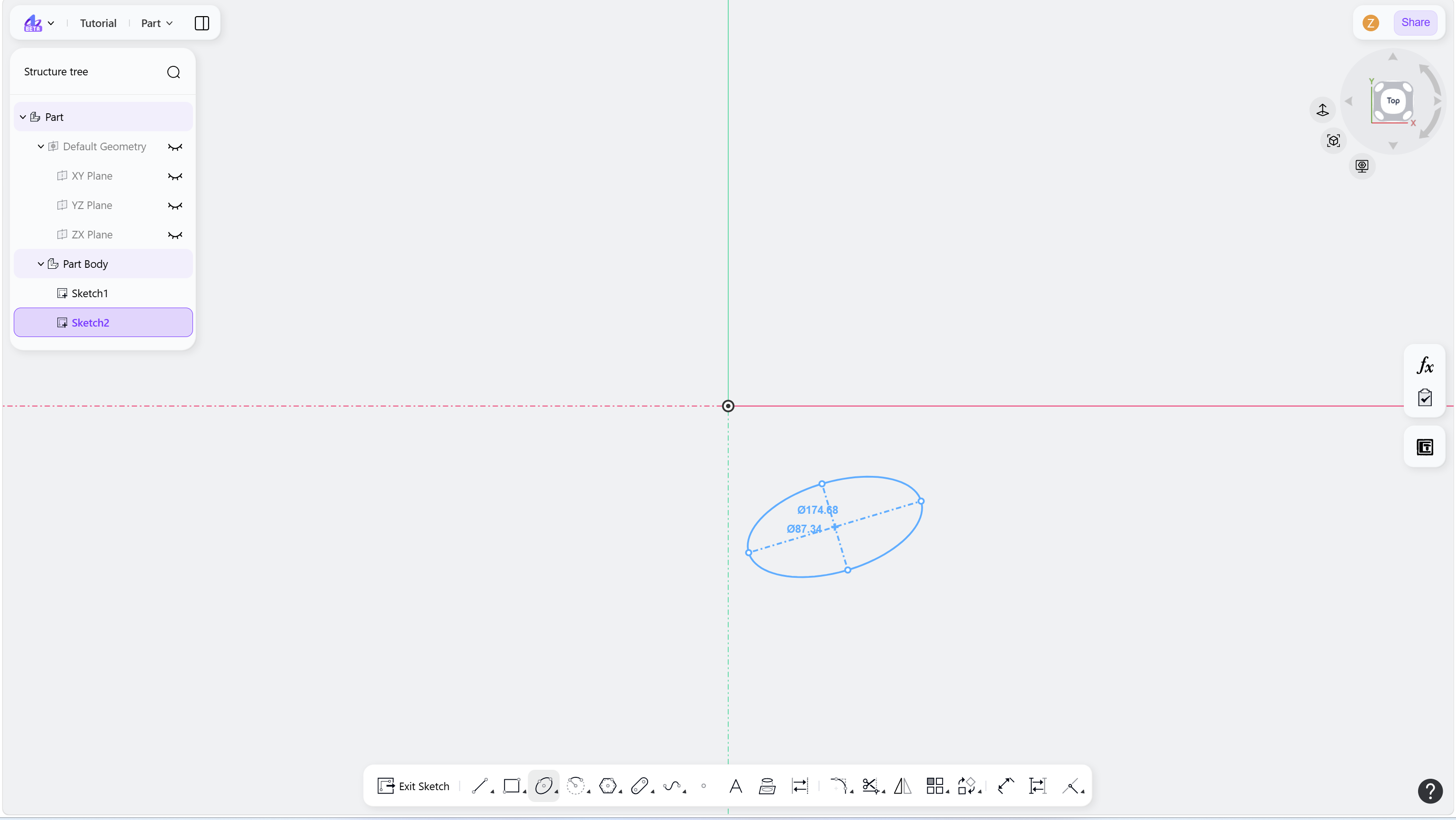
Step 4 - Left-click to define the endpoint of the first axis:
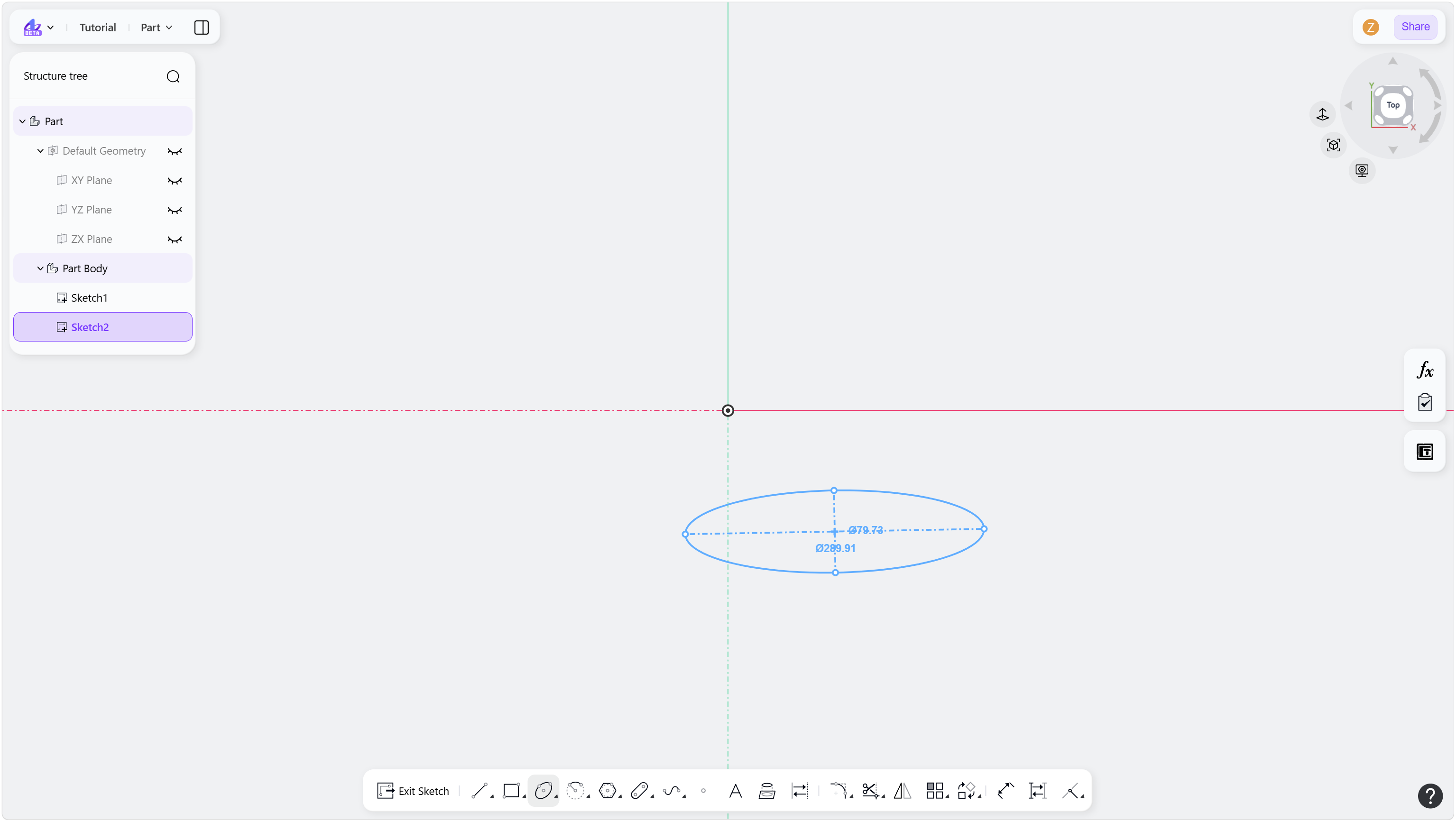
Step 5 - Left-click to define the endpoint of the second axis: