

The Divide Curve tool is used to divide an existing curve into multiple independent curve segments in surface modeling. By selecting a target curve and specifying a division method, the curve can be divided by length, ratio, a selected point, or equal divisions for further curve editing and model construction.
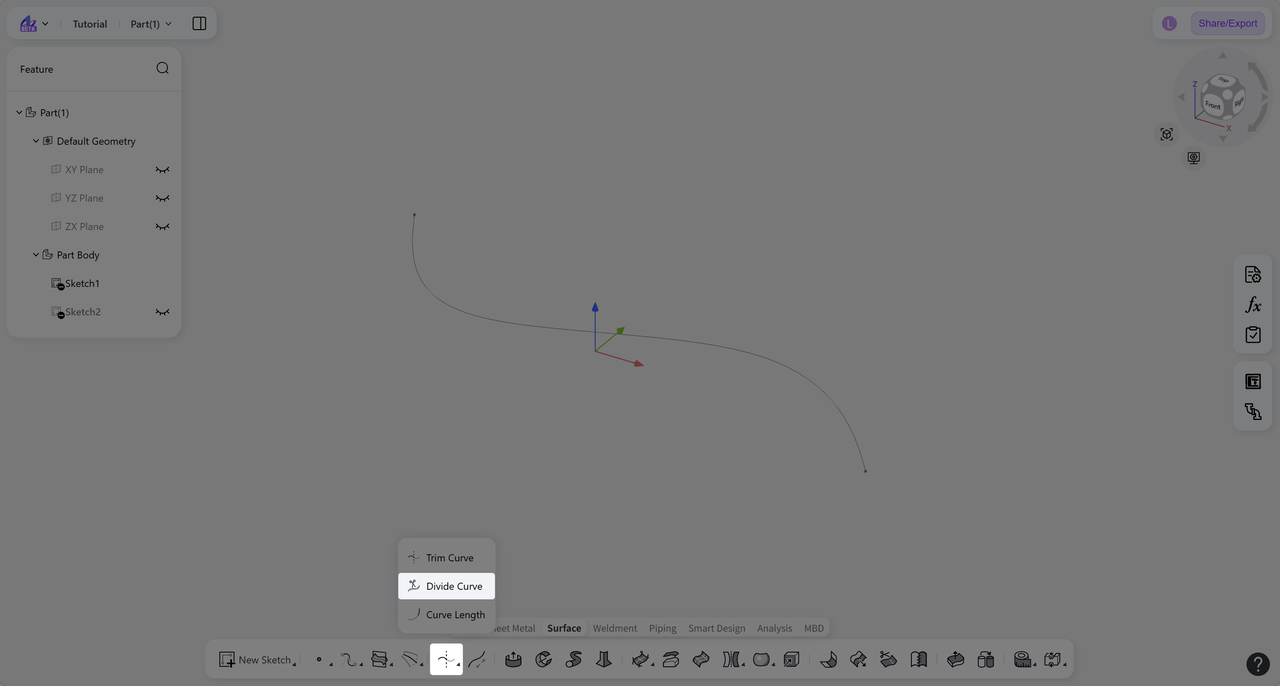
Steps:
Click the "Divide Curve" icon on the toolbar.
Under "Select Curve", select the curve to divide.
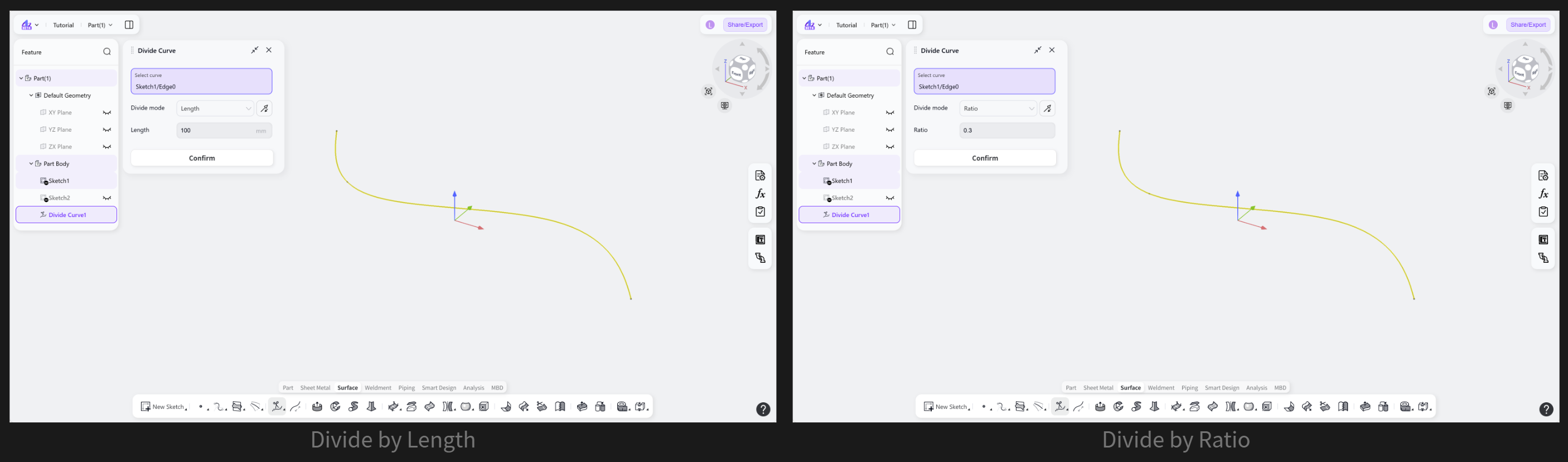
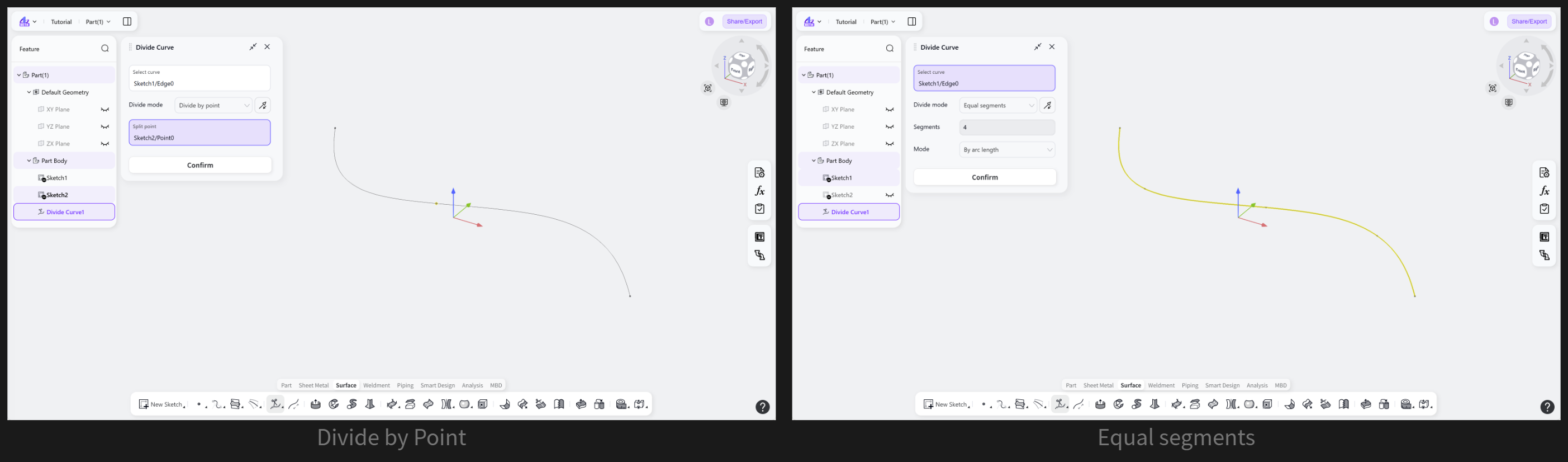
Select a "Divide Mode": "Length", "Ratio", "Divide by Point", or "Equal Segments".
(Optional) If "Length" or "Ratio" is selected, click the "Reverse" icon to switch the starting point used for division.
Click "Confirm" to create the divided curves.
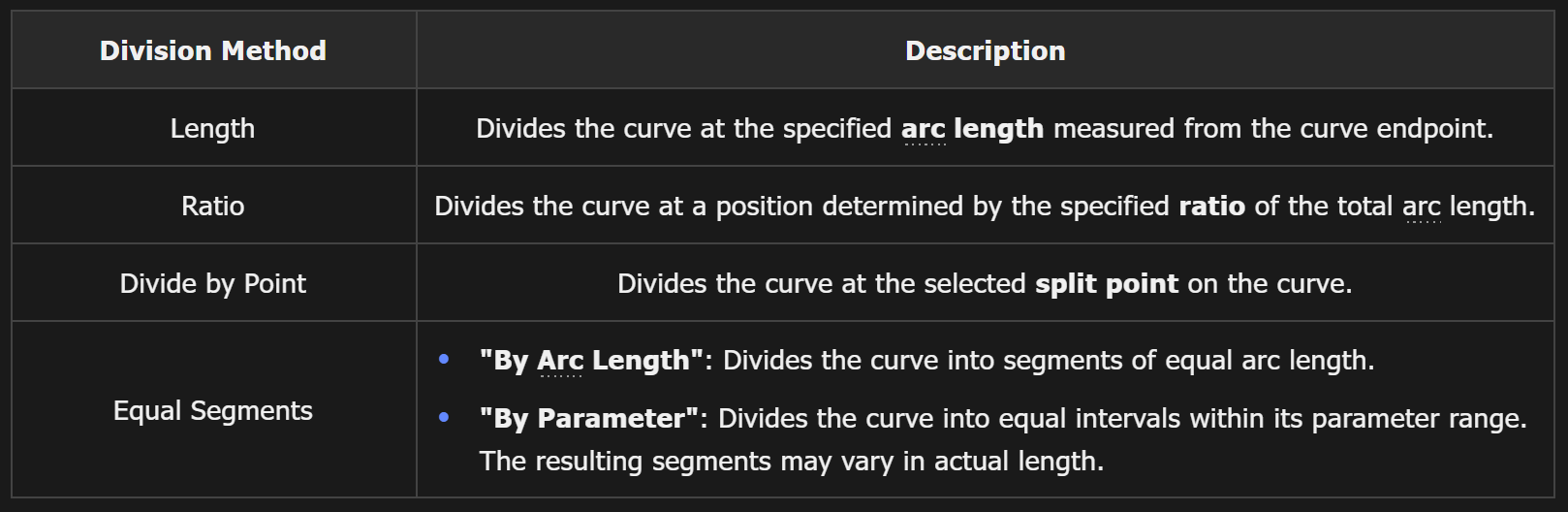
Division Method
Specifies the division method used to determine where the curve is split, based on a length, ratio, point, or equal division.
Notes:
Only one curve can be divided at a time.
For lines and arcs, "By Parameter" and "By Arc Length" produce identical results. For curves such as ellipses and splines, equal parameter intervals do not necessarily correspond to equal arc lengths. As a result, segments created with "By Parameter" may have different actual lengths.